
In search of the perfect $600 laptop PC

I could spend much more and get much less.

Apples to apples, Windows to Chromebook, there’s a cheap laptop in your future.

There’s an expression that describes my addiction to new computers: You need this like you need a hole in your head. But the only expression that counts for me is the smile that comes with unboxing and turning on the new machine. 

And so, with $600 burning a hole in my pocket, here are my must-haves for a Windows laptop: 

  • A 16-inch, high-resolution, non-glare, sensitive touch display and trackpad.
  • 16 GB of RAM.
  • 512 GB or 1 TB hard drive.
  • Multiple ports including USB-C, HDMI, USB 3.
  • An SD card port would be a bonus.
  • A backlit keyboard with a numeric keypad and a fingerprint reader.
  • A high-definition front camera for FaceTime and Zoom. (Look for a camera that is 1080p or full high definition.)
  • Windows 11 Home. Windows 11 Pro costs more, and I’m at a loss to understand how a non-business PC would need it.
  • Battery life has to be in the 10-hour range.
  • I’d consider models that are in the five-pound range. Anything more than that would have to be justified by markedly improved hardware and performance. 

Apples to apples

I already have a laptop, a 2022 model MacBook Pro with a hearty M2 chip. I use it for long flights because it’s light and will fit on the seatback tray. But with a 13.3-inch screen and Apple’s basic 8 gigabytes of RAM and 256 gigabyte solid-state hard drive, it’s not big enough or powerful enough for anything other than word processing, email, web browsing and basic photo editing.

The retina display is impressive but attaching the MacBook to an external monitor with an adapter reveals the integrated graphics shortcomings. The backlit keys are wide and somewhat tactile. The touchpad is large and responsive, with easy to memorize gestures for different tasks. Its wifi and Bluetooth connections are fast.

On the flip side, it has only two USB-C ports, one of which is used for battery power. You’ll need a hub for the other port to use ethernet, display port, backup drive and the like. But when you buy an adapter or hub on Amazon, make sure they’re compatible with the MacBook. (You’ll find that out by reading one-star reviews.) I bought an ethernet adapter online that didn’t work, forcing me to fork over $29 at the Apple Store for one that did work.

At a fighting weight of three pounds, it doesn’t burden me much as I run to make a 50-minute connecting flight between terminals at JFK. On a 20-hour trip abroad, in-flight and in airport lounges, it lasted for nearly 18 hours of word processing, browsing and email. Touch screens aren’t offered yet on MacBooks, but on my 2022 MacBook Pro there’s a touch bar that offers shortcuts for whatever you’re doing. The touch bar was dropped on the newer MacBook Pros. Best of all, it was on a Black Friday sale for $950, hundreds of dollars less than it cost at the Apple Store.

Apples to apples, the MacBook that is comparable to my laptop specs borders on $2,000.  But – and this is a big one – all Macs use a different operating system from Windows. All of my important software such as Quicken run on Windows, so I needed a laptop that runs that operating system. If you want to run Windows on a Mac, you’ll need Parallels Desktop ($100) and, of course, Windows11  ($139) . And, if you travel a lot or are clumsy, AppleCare+, which costs about $80 a year, covers 24/7 tech support, hardware issues and accidental damage. Don’t leave home without it.

I have no doubt that I’ll keep the MacBook Pro for years to come. Like all Apple products, it’s user-friendly, durable, dependable and wags its tail when I turn it on. If you want a laptop you can carry around the world, and you aren’t doing memory-intensive photo editing, for example, I suggest getting either a previous version of the MacBook Air with 8 gigabytes of memory with 512 gigabytes of storage. Apple tech support is very good, although it has been slipping for the last few years.

These days, I’m taking fewer flights and more road trips. Weight isn’t a major consideration. I’m willing to consider a laptop that weighs a few more pounds than a MacBook when I’m only toting it from car to motel. 

Here are some options for Windows and Chrome OS laptop shoppers:

Chromebook will do the job

If all you need a laptop for is writing, emailing and browsing, a Chromebook will do the job. A Chromebook is a very basic laptop with a display as small as 11 inches, a very small hard drive and minimal memory. An 11-inch model weighs about 2.5 pounds; you can lug as much as 3.5 pounds for larger displays. It uses the Chrome operating system, which is just as easy to navigate as Windows. The Chrome OS and programs such as Google are stored in the cloud. Students and others who need to take notes or fire off an email in airports or join a Zoom meeting will appreciate a Chromebook.  But don’t expect blazing speed or a decent front-facing camera.

Many Chromebooks use Celeron processors (which are the least robust ones) and 4 gigabytes of memory. At this writing, Dell offers an 11.6-inch Chromebook for $269. Lenovo has a basic model for $250, and HP has a 14-inch 2-in-1 Chromebook for an impressive $250. You can spend $1,000 for a Chromebook. But you also can spend that much on a lightweight and mid-range Dell or any number of other, more powerful, laptops. Since the hard drive is tiny, everything you do will be available on in the cloud.

something more robust

For more robust chores, such as freeze-free Zoom meetings and web research, a basic laptop with 4 gigabytes of memory and a 15-inch display can be had for as little as $300. Don’t expect speed or freeze-free streaming from a basic 4 gig RAM office-supply store laptop. Windows and your software will take their good old time loading. Lenovo, Dell and HP have decent ones for as little as $250 at this writing.

If you want something more robust, HP has an 8-gig RAM model for $320. These laptops usually have ports for attaching peripherals such as external hard drives. Basic laptops are great for folks whose chores center around emailing, basic word processing and browsing. If they have a front-facing camera, the resolution will be 720p, so don’t expect stunning video. They tend to be slightly heavier than Chromebooks. Watch for sales on computer websites, Costco and Best Buy.

Let’s take a break.

Intel processor or AMD processor?

The latter tends to be cheaper, but Intel has a reputation for being the gold standard. I’ve used both and unless you have a stopwatch that measures milliseconds, I’d go for the AMD processor. You’ll save enough money to buy a ticket to a Taylor Swift concert. Well, not quite. Not even close.

How much memory is enough?

You can’t have too much memory. 8 gigs of RAM and a 512 gig solid-state drive are a good starting point. Less than that, and you’re going to have some serious speed issues. Many PC companies are offering 16 gigs of RAM and a 1-terabyte solid-state drive. 1 terabyte is a thousand gigabytes. Go for it. Gaming laptops need as much RAM as possible. (I’ll deal with gaming PCs in another column.)

Glossy or non-glare display?

If you fancy looking at your reflection in your display, glossy screens tend to be sharper. I don’t mind looking at my face, but if I did, I’d go for non-glare.

Tech support

Dell wins hands-down. Premium support costs about $75 a year. Techs are off-shore, but their language skills typically aren’t an issue. They are tenacious, staying with you until the problem is solved, and calling back the next day to make sure you’re still up and running. Lenovo support, also offshore, is a couple notches below Dell support. Their language skills are not great, and often they will give up before a problem is solved. I don’t have an HP, but Laptop magazine gives their support limited praise.

warranties

Before I leave, let’s talk about warranties. I always get a warranty that includes accidental damage, 24-hour technical support and overnight parts and onsite service. Dell Premium Support can cost as much as $250 for a three-year warranty. Dell’s technicians pick up on the first ring, and they won’t abandon you until the issue is resolved. Most support technicians for Dell, HP and Lenovo are based outside the U.S. Dell has the best support, followed closely by Apple. Lenovo’s offshore is a distant third. Their language skills, unlike Dell technicians, are poor.

Now, back to our program.

Scratching the surface

If you don’t want to spend an incredulous $329 for a basic iPad but still want a tablet and don’t mind the extra weight, head for the 2-in-1 laptop aisle. A 2-in-1 laptop has a screen that swivels so you can use it for either a traditional laptop with a touch screen or as an iPad-like tablet. They come in several sizes, including a 14-inch and even a 16-inch display. Larger displays weigh four or more pounds. HP and Dell have nice ones for about $450. The 2-in-1s are handy for drawing. Two-in-ones start at about $400 for a 14-inch model and soar all the way to $2,000 and more. A 2-in-1 with my specs would cost about $800 from Dell, HP or Lenovo.

Microsoft makes its own Windows laptops that seem to be taken from the Apple playbook. The Surface, which looks like a high-end HP or Dell, is thin and light (2.8 pounds), but its entry-level 13-inch model, with 8 gigs or RAM, starts at $900; beefier models run up to $1,600. The Surface Pro, which is an overpriced tablet, starts at $850. The entry-level model, like the MacBook, is underpowered and has limited memory. If you want to use the Surface Pro as a laptop, you’ll need a  keyboard, mouse and stylus bundle that ups the price by $280.

When I tallied it up, I couldn’t see spending that much on something I could get elsewhere for one-third of the price. There was one more turn-off. The Surface Pro seemed cheaply made. Even the packaging was a poor imitation of MacBook packaging. A Surface Laptop with my specs would cost $1,400.

Decision time

Since I already have a lightweight MacBook Pro, weight is not a consideration. Laptops from Dell, HP and Lenovo start in the $600 range for my specs and rise to the stratosphere. As in $2,000 and more. I chose the Lenovo IdeaPad 5 Slim because it has a useful variety of ports and a numeric keypad on the right side. The touchpad is sensitive, and I use the touch screen more frequently than I had thought I would. Using the 50-minute sprint at JFK test, it’s too heavy to be portable. But it was on sale for a hard-to-pass-up $500, with free two-day shipping, reduced in a flash sale from $824. It checks all the boxes; no compromises here. 

There are other laptop brands, such as Asus, that are worth considering, too. But at the end of the day, I like the  Lenovo’s combination of speed, build and features. Do I need all these features? I could spend hundreds more for models that I need like another hole in my head.

Apple

Pros

  • Solidly built
  • Decent keyboard
  • Backlit keyboard
  • Air model is very light
  • Great deals on previous models
  • Good tech support
  • AppleCare + covers accidental damage
  • Battery charge lasts for up to 18 hours
  • Free express shipping

Cons

  • Expensive, even for entry-level models
  • Underpowered entry-level models
  • Essential upgrades expensive
  • AppleCare+ is expensive
  • Only two USB-C ports
  • No touch screens

dell

Pros

  • Competitive prices
  • Solid warranty
  • Premium tech support is very good
  • Durable
  • Upgrades won’t break the bank
  • Free 2-day shipping

Cons

  • 2-in-1s are heavy
  • Some laptops have annoying glossy displays that reflect user’s face
  • Lesser models don’t have touch screens or fingerprint readers
  • warranty can be expensive

Lenovo

Pros

  • Solid build
  • Offers less-expensive AMD processors
  • Almost-clicky backlit keyboard
  • Relatively inexpensive for upgrades
  • Touch screen and trackpad sensitivity can be adjusted
  • Inexpensive warranties with accidental damage
  • Free shipping
  • Lots of ports
  • Flash hundreds-off sales

Cons

  • Matte display is on the dim side
  • Relatively heavy for 16-inch model
  • Confusing lineup for models
  • Tech support ranges from mediocre to awful

Summary
Yes, Virginia, there is a $600 laptop… if you know what you need and when to jump on a sale.

Tech Specs
MacBook Pro M2 (2022) – 13.3-inch screen; 8 GB RAM; 256 GB solid-state hard drive

Lenovo IdeaPad 5 Slim

The Shark Rules a Sea of Vacuums

Cleverly designed, the Shark Apex is an upright vacuum — and a canister.

I was a fan of Dyson’s ball vacuum until I tried Shark’s fluid, movable base. It responds like a sports car when you touch the handle and can tackle any mess on every surface.

The Shark Apex is the best upright vacuum I’ve ever owned and used.

Its suction is reminiscent of the intake of an Airbus 380 engine, but its motor maintains a tolerable decibel thanks to Shark’s Noise Reduction Technology which has been scientifically tuned to reduce noise and soften what would otherwise be the annoyingly high pitch most vacuums are known for.

DuoClean® Technology

It works great on carpets, furniture, tile and hardwood floors. It will pick up everything from popcorn seeds to kitty litter. Its dual brush system includes one soft brush for polishing and another larger bristle brush for lifting embedded dirt from carpets, along with three settings tackle deep-pile carpets, where the dual brushes spin rapidly, to relatively flat rugs like those used in corporate offices. The hardwood and tile mode is designed so that it won’t scratch floors; the brush spins very slowly and the rubber roller acts as a buffer for a professionally polished shine.

I have owned multiple Hoovers and expensive over-hyped Dysons, and even a Roomba, but none worked as well as the Shark model AZ 1002 ($450 on Amazon).

The half-life of the Hoovers and Dysons I’ve owned is about 18 months. My last Dyson, the Dyson Ball Animal 2, lost its suction after two years – something the company says will never happen. At $500, it’s hardly a bargain, especially when its performance on both carpets and bare floors is mediocre.

The roller belts on my Hoover would last 45 days, if I was lucky. And the first-generation Roomba, which set me back $500, had a pathetically small dust bin that almost never was full. It was fun to watch as it bumped like a pinball around the room until its short battery life stranded it under the couch. Many times, I had to move the sofa to retrieve it and place it on its charging pod.

There are so many features to like about the Shark AZ 1002, it’s difficult to list them in order of its wow-factors, but here goes:

Self-cleaning brushroll technology

If you’ve ever cleaned a vacuum brush, you’ve probably been tempted to let it go until the brush stops rotating. The Shark brush cleans itself. It has two brush rolls and gets right down and dirty on hard floors. The vacuum comes with crevice and upholstery tools and a pet hair removal power brush. I don’t have a pet, but my adult children bring their cats and dogs around and it gets rid of pet hair efficiently.

Anti-Allergen Complete Seal Technology

The AZ 1002 has a HEPA filter for allergens inside the vacuum and two efficient filters that can be cleaned. I clean those filters when they get dark with crud.  Cleaning just involves removing the filters and washing them with soap. If you want to have even more assurances that the Shark cleans itself, try squeezing the wet filters – the water turns a nasty black. Replacement roller brushes and filters are sold on Amazon for under $30. The result is highly filtered exhaust air from the motor.

If emptying the bagless dust bin on other vacuums leaves you gasping for air because dirt flies up from the garbage bag, you’ll be delighted with the dust bin on the Shark. Lift it off the vacuum by pressing a button, taking the bin to the garbage can, pressing another button, and the dust drops in a straight line into the garbage.

Powered-Lift Away®

There are many canister vacuums – ones that have long hoses and heavy motor cases that drag behind. I’ve never been a fan of canisters, even if they’re handy for cleaning carpeted stairs and hard-to -get-at corners. Most will do their dirty work under sofas and chairs, but only if you’re patient enough to swipe the hose and handle in straight lines. The Shark looks like an upright vacuum – and it is – but thanks to Powered-Lift Away® technology it’s also a sort of canister vacuum. The motor snaps off the base of the Shark, a hose is attached, and the long handle gets into carpet corners, spider-webbed walls, popcorn that’s homesteaded in the corners of chairs, and of course, stairs. The canister part is rather heavy, and it has to be held while cleaning – a definite minus — since it includes the motor, but its suction around corners and stairs is as strong as the upright part.

It’s impressive and reassuring when you release the hose and wand – the “click” is audible and the connection is tight. Return them to the base, and they fit perfectly. But don’t run over the power cord — it’s not called a Shark for nothing.

You’d expect an upright vacuum cleaner to have lights on the base, but the LED lights are bright enough that your neighbors might complain. When you take the wand off the base, the lights switch to the wand, definitely a plus.

Active Glide Technology

I was a fan of Dyson’s ball vacuum until I tried Shark’s fluid, movable base. It responds like a sports car when you touch the handle.

Shark has other models, including a new class of vacuums on their website: www.sharkninja.com. They offer generous discounts on the website. Shark also offers a robot vacuum, cordless stick models and even cordless mops for hard floors and a cordless power hand-held vacuum for $149 that comes in handy for cleaning the car. They even offer a canister model. Except for the robot vacuum, most of the models cost less than $500.

Pros

  • Impressive suction
  • An upright doubles as a canister
  • Maneuvers easily
  • Everything fits with a click
  • Self-cleaning brush
  • Bright LCD lights
  • Easy to empty
  • HEPA filter

Cons

  • Lift-off canister is heavy
  • Pricey

Summary
The Shark Apex AZ 1002 does everything a vacuum should do, as an upright and a canister all in one.

Tech Specs
Shark Apex Upright AZ 1002

Logitech G613 Keyboard Is Ahead of the Game

One keyboard will work with both Windows and Macs

The Logitech G613 keyboard will connect to all your devices wirelessly and even has programmable keys. It has a nice, tactile feel, and its batteries will last for more than a year. It’s perfect for both gamers and non-gamers alike.

First off, I’m not a gamer. So why did I buy a gaming keyboard? Glad you asked.

I have both a Windows PC and a MacBook Air, and I wanted to share a keyboard between them. My options were limited to the Logitech line of keyboards. I like Logitech products. Their mouse models and keyboards are built well and are reasonably priced and there many of both to choose from, each offering tools for specific tasks. I also use a Logitech Harmony TV remote.

A tech support person picked up on the first ring, and when I told him what I needed, he gave me a choice of several keyboards, but recommended one that I ultimately bought. I’m using the keyboard as I write this review.  It’s called the G613, and it costs only $70 on Amazon.com. That’s a bargain for what you get.

The G613 has buttons for Bluetooth, wireless and gaming modes on the top of the keyboard. When I work on my Windows PC, I press the wireless button, and it connects immediately to the Dell. Press the Bluetooth button and I can use the same keyboard with my MacBook Air. I have another solution for dual use of the keyboard. If you don’t need to use two computers, the keyboard also comes with a device that plugs into a USB port. The keyboard isn’t tethered to the computer, unlike the dasKeyboards.

The G613 is full-size, which means it has numbers on the right side. The layout is the standard QWERTY, with an enter key on the far right of the keyboard.

There are six programmable keys on the left size of the keyboard. Gamers might appreciate them, and so might other users. Except I couldn’t make them work.

The app itself, called G Hub, doesn’t have a help function, and the online manual was so confusing, I gave up on the programmable keys altogether. The feature is supposed to do such tasks as record keystrokes, launch applications and more. It does have pre-programmed tasks such as launch Windows task bar, but who needs that, when all you have to do his type control-alt-delete to get there. But I didn’t buy the keyboard for programmable keys.

The keys have a solid tactile feel. You know you’re typing, but it’s not as loud as the keys on the dasKeyboard. The Logitech keyboard is heavy enough to keep it from bouncing on my computer desk. It uses two AA batteries which are still going strong after eight months of use. And the keyboard has a sloped wrist rest that makes typing easier.

I never thought I’d get a gaming keyboard, but technology is full of useful surprises.

Pros

  • Works with both Windows and Mac
  • Wireless and Bluetooth choices
  • Tactile keyboard
  • Just heavy enough to keep it from moving
  • Reasonably priced

Cons

  • Software is difficult to figure out
  • Wrist rest isn’t removable

Summary
A gaming keyboard that works on both Mac and Windows, and you don’t have to be a gamer to appreciate it.

Tech Specs
Logitech G613 keyboard
Dell XPS 8930 (32 Gigs RAM) running Windows 11
MacBook Air (2020) running Mac OS Monterey (12.0)


Universal Remotes: Get With the Program

Replacing A Half-Dozen TV Remotes With One That Will Do It All

Unless you like the clutter of remotes for your TV, sound bar, Apple TV, Roku and other devices on your coffee table, there are two inexpensive Logitech universal remote models that stand out.

If you’re looking for the perfect universal TV remote, keep looking. My search goes back at least 15 years, and I’m no closer to finding one remote that will control all the features of my LG TV, Apple TV, Roku, , Yamaha sound bar and AT&T cable box. The HDMI cables connected from my devices to the four HDMI ports on the side of my TV look like a bowl of prehistoric spaghetti.

Some remotes control on their own devices. These include the Roku, Apple TV, Yamaha sound bar and the LG TV’s own remote. They come free with the device they control. Some have backlit keys, which I find nearly useless because they’re so dim.

Universal remotes cost as little as $10 up to more than $400. And it’s not a matter of getting what you pay for. Some models in the $20 range can control several devices, but they’re tricky to set up.  Others, in the $50 to $75 range, can control many devices with some serious limitations, and others priced from $75 to $400 will control almost all TV devices.  If almost all isn’t good enough, you’re going to be disappointed at any price.

So here’s my roundup of remotes in all price ranges. In this review, I’ve concentrated only on devices connected to a TV set. More expensive remotes are able to control thermostat, lighting and other smart home tasks.

Original TV remote: The LG TV remote that I have comes programmed with Netflix and Amazon Prime channels. An input button lets you switch among all your devices. For example, if your Apple TV is controlled by HDMI 1, you simply press the input button and all the devices they control will flash on the screen. (HMDI is a term for unique ports on the back or sides of most TVs). Using the up-down arrows on the remote, devices can be selected. It also will control volume and channels on the cable box. But it has some limitations, such as its inability to fine-tune such features on the sound bar as surround sound and bass-boost. For a review of the LG OLED TV, click here.

Roku: The model I have, for its upscale 4K box, is designed specifically for Roku. It has pre-programmed buttons for Netflix, Sling, Hulu and HBO Max. It’s perfect for controlling all the features of the Roku box, but nothing else. A new model, which I haven’t tried, has voice control powered by Amazon’s Alexa. If all you want to control is your Roku box, this is your best bet. But keep in mind, you’ll need a bunch of other remotes for your other devices. And, of course, it’s free with the Roku device.

Apple TV: This sleek space-age remote controls only the Apple TV. It has Siri’s voice command, play and rewind and up and down sound buttons. When I travel, I take my Apple TV 4K box and the remote with me, hoping for wifi at my destination.

Note: All the devices need wifi to operate.

Yamaha Sound Bar: This smallish free remote controls the sound bar only, and it has buttons for such features as surround sound, clear voice and bass extension. If you want to fine-tune your sound bar, this one is essential. However, some universal remotes such as the Harmony 665 will let you program those features, but that process can be too  complicated for most home users.

Cable box: I have AT&T’s DirecTV Stream service, which requires only a wifi connection, rather than a direct cable. (In a future column, I’ll tell you about my findings on cable and streaming services.)  The free remote will change channels, but it does not control the sound bar, and switching among inputs failed miserably. If you have DirecTV Stream, this remote is a one-horse pony. The remote that comes with Spectrum cable service is leagues ahead of the DirecTV remote.

So much for the free remotes; now for some bargain universal remotes.

Both the One for All and the Inteset universals have been virtually unchanged in the last few years. They have, however, expanded their list of compatible devices. Both are hefty, are backlit and feature a full variety of keys. But each device has to be programmed from a list of tens of thousands of devices in their data base. For example, to use a button for a cable box, you have to determine if it’s supported. If it is, the listing will include a numeric code that is assigned to a key that will control a device. If it works, press the assigned button and your device could turn on. I had a hard time getting it right, and decided to get on with my life. These and dozens of other programmable remotes are available on Amazon for as little as $1 and up to $25 and more. There are dozens of this kind of universal remotes on Amazon. Trust the star ratings; some show that the device is useless. Many are.

If you’re willing to spend some serious money, I like the Logitech lineup of universal remotes.

I’ve been going back and forth between the $70 Harmony 665 and the $149 Harmony Companion for several years. I like them both, but for different reasons.

The Harmony 665 is a standalone remote with every function key imaginable. It resembles a cable remote, but with a big difference. Programming the remote is done on the Harmony website. Attach the cable that comes with the remote and plug the cable into a USB port on your Windows or Mac computer. (You’ll need a USB 3.0 to USB-C adaptor for the Mac. Adaptors cost about $5 on Amazon.)

The free Harmony program walks you through the programming process. You’ll need to know the make and model number of the device you want to control. Next, you’ll decide which HDMI port the device is on. For example, in the Add Device part, you enter Apple TV 4K. It’s connected to the HDMI 1 port on the TV. Next you’ll choose an activity for the Apple TV. You’ll choose turning on the TV, the sound bar and the Apple TV itself, and assign it to a key. Up to 10 devices can be controlled. The buttons are backlit, and if a problem arises, press Help, and the remote will try to fix it. Those problems could involve devices that don’t turn on or off the way they’re supposed to. It even lets you customize the sound bar (goodbye Yamaha remote). I haven’t found another remote that will do those functions such as bass boost and surround sound as well as the Harmony 665.

For what it does, the Model 665 is a bargain at $70. Logitech is out of the 665s, but you can find it on Amazon and eBay for huge markups. Best Buy sells it for $100. It’s still worth it, even at that price.

Most universal remotes look about the same as the Harmony 665: clunky but with easy-to-decipher buttons.

Then there is the Harmony Companion. It uses a hub that is the brains of the remote. The remote itself is small, easily customizable and can be programmed either on the Harmony program on a computer or with a smart phone or tablet. Like the 665, the setup is straightforward. I use the PC-connected setup Harmony program, because for some reason, the hub can’t find my wifi network when I try to set it up on my iPhone.

The Harmony Companion works with more than 270,000 devices and can be programmed to operate six devices, probably more than anyone will ever need. It will control infrared, wifi or Bluetooth devices, which covers any device I can think of. There are more expensive Logitech remotes that will control such tasks as adjusting the thermostat, and they can work with Amazon Alexa.

The Harmony Companion also comes in a model that doesn’t use a hub. Programming is done on the Harmony smart phone app (available on Apple’s app store and Google Play for Android devices).

If you’re remotely interested in a model that controls everything except for the steady drip of your kitchen sink, you can find dozens of models on Amazon. The cheap ones take more work to set up than the more expensive one, but even those models can do the job of the table-full of remotes I used to wade through.

Harmony Companion

Pros

  • Easy to set up, either on a computer or a smartphone.
  • Works with a smart phone without the remote.
  • Remote is small and controls most activities.

Cons

  • Fine-tuning for a sound bar is too difficult for most users.
  • Can have problems connecting the hub to a wifi network.
  • Can be programmed either on a smart phone or a computer, but if programmed on a computer, the hub has to be disconnected and plugged in to a computer.
  • Difficult to find, except for refurbs on Amazon.

Harmony 665

Pros

  • Offers fine tuning of sound bar.
  • Easy to program
  • Has the same kinds of keys as a cable remote
  • Has a Help button to correct connection problems

Cons

  • Needs PC or Mac connection to program
  • A little clunky to use, compared with Harmony Companion

Summary
The Harmony 665 or the Harmony Companion are smart choices for universal remotes. The Companion remote is sold out at the Logietceh website, but is available for outlandish prices on Amazon or eBay.

Tech Specs
Windows 11 or Mac running Monterey
Free Harmony app for both Windows and Mac

Today’s Lesson in Sharing

One Monitor, Keyboard and Mouse for Two PCs.

I have a MacBook Air and a Dell PC, along with a stunning 27-inch Dell monitor and an expensive Logitech gaming keyboard and a mouse that I want to share with both computers. Possible? Onward. And it will save you from squinting at a 13-inch MacBook Air display, not to mention having to buy another monitor, mouse and keyboard.

One Monitor, Keyboard and Mouse for Two PCs.

I have a MacBook Air and a Dell PC, along with a stunning 27-inch Dell monitor and an expensive Logitech gaming keyboard and a mouse that I want to share with both computers.

Sharing components will save you from squinting at a 13-inch MacBook Air display, not to mention having to buy another monitor, mouse and keyboard. It may sound intimidating, and you always could buy another monitor, keyboard and mouse. My monitor cost $600; the mouse costs $60 and the keyboard $130. You’d also need a stand that holds two monitors. Figure another $75 for that.

Here’s how it’s done:

Your monitor, PC and MacBook must have HDMI ports.

For the Mac you’ll need an HDMI to USB-C adaptor ($10 on Amazon).  This assumes that your MacBook only has USB-C ports. If you’re using a second Windows PC, you’ll need an HDMI port on that as well.

Then you’ll need a two-port HDMI splitter ($10). You’ll need three HDMI cables ($8 each). The main cable goes from the monitor to the splitter. Then install the other cables from the output ports on the splitter to the HDMI ports on both of the computers.

Most HDMI splitters have a button that switches between each computer. That’s crucial, too. Press one button and the display goes from the Mac to the monitor. Press again, and the monitor switches to the PC. If you want to work on both computers at the same time, you’re probably out of luck. (Readers, if you have a solution, please let me know.) One solution is to get Parallels Desktop for the Mac (reviewed here), which can run both Windows and Mac OS at the same time.

Next, you’ll set up mouse-sharing.

You’ll need a two or three-port USB 3.0 splitter (about $15 on Amazon. Many models come with two cables). I use a wireless mouse, but a wired mouse would work fine, too. Plug the wireless mouse dongle into an input port on the splitter. And then plug cables to both the PC and the Mac. USB ports.

You’ll save a lot of money sharing components. But you’ll also clutter up your desk with cables and switch boxes. But that’s what sharing is all about.

Pros

  • Easy to set up
  • Giant costs savings

Cons

  • Lots of cables clutter your desk.

Summary
With a small investment you can share your printer, monitor and more between your two PCs running either Mac or Windows OS.

Tech Specs
Dell or other PC running Windows 10 or 11
Monitor
Any kind of second computer — Mac or Windows PC
If Mac, OSX and up
3 HDMI cables
3 USB 3.0 cables
HDMI two-port splitter (at Amazon)
USB 4-port splitter (at Amazon)

Healthcare Must-Haves

Band-Aids are just the beginning.

Even in normal times, when the COVID pandemic isn’t surging through the world, your list of medicine cabinets must-haves remain pretty much the same. Bandages, gauze pads and hydrogen peroxide, which are available everywhere, are essentials for accidental cuts. But there are more must-haves you’ll need before you head for Urgent Care. I’ve skipped rapid COVID tests, as they may give false readings. The gold-standard is the uncomfortable nose swab test. Some clinics administer the saliva test, which these days takes about five days before you get a result.

Band-Aids are just the beginning

Even in normal times, when the COVID pandemic isn’t surging through the world, your list of medicine cabinets must-haves remains pretty much the same.

Bandages, gauze pads and hydrogen peroxide, which are available everywhere, are essentials for accidental cuts. But there are more must-haves you’ll need before you head for Urgent Care. I’ve skipped rapid COVID tests, as some may give false readings. The gold-standard is the uncomfortable nose swab test. Some clinics administer the saliva test, which these days takes about five days before you get a result.

A no-touch forehead thermometer is No. 1 for your entire family. There are dozens available on Amazon. After reading the reviews, I bought the $20 iHealth model. Like other no-touch thermometers, it will vary by about one-half degree on successive readings. I take three readings and average them. There are more expensive models, but the iHealth seems to work just fine.

An oximeter, which measures blood oxygen saturation, costs about $20 on Amazon. The device has a clothespin-like feature; slip it on a finger and it will give you an oxygen-saturated reading and your pulse rate. Your doctor can tell you what your readings should be. I bought the Santimedical model, which uses two AAA batteries (included) that seem to last forever.

Blood pressure monitors come with a caveat. No matter what model you choose, they need to be calibrated with a doctor’s office machine. Steer clear of wrist monitors. The best ones have a cuff that wraps around your bicep. I like the Omron models that range upwards of $50. Cheaper ones may not give an accurate reading, and even the Omron model I bought on Amazon was off by about 10 points when compared to a professional monitor. Still, if the home monitor seems high, it’s worth a visit to your doctor’s office.

Heart monitors can be helpful, too. The Kardia devices (which I review in full here) cost from $70 to $180 on Amazon or at www.kardia.com. The least-expensive models measure whether your have atrial fibrillation, a common but potentially serious heart condition, along with pulse rate. They’re easy to use, too. Rest your index fingers on two metal pads and get the reading on your smartphone.

Paying attention to temperature, heart function and blood pressure will ultimately help you decide whether to make that trip to Urgent Care or even the ER. The tools you use to make that decision are inexpensive and widely available, too.

Pros

  • Must-haves in your medicine cabinet should include a few high-tech devices.

Cons

  • You may need more space to store your essential health tools.

Summary
Low-cost medical gear can save you a trip to the doctor.

TV Alphabet Soup

OLED, QLED, UHD — Which is best?

I don’t watch much TV—a movie a week and perhaps a few series of what Netflix, Amazon Prime or PBS have to offer. I say that because as a casual viewer, a 55-inch $500 4K TV should be all that I need. Your neighborhood Costco warehouse has pallets of them under all brands. Try standing in line at checkout and you’ll see three products: toilet paper, paper towels and a $500 flat-screen TV.

OLED, QLED, UHD — Which is Best at Best Buy?

I don’t watch much TV—a movie a week and perhaps a few series of what Netflix, Amazon Prime or PBS have to offer. I say that because as a casual viewer, a 55-inch $500 4K TV should be all that I need. Your neighborhood Costco warehouse has pallets of them under all brands. Try standing in line at checkout and you’ll see three products: toilet paper, paper towels and a $500 flat-screen TV.

But I’ve never been one to buy a lesser TV, even though most of them are leagues above those in the same price range just five years ago. Through the years, I’ve had high-end Panasonics and Samsungs. The last Panasonic I bought lured me with its 3-D feature. Never mind that there wasn’t much 3-D content, and less content even now, five years later. While it had the 3-D gimmick, its blacks were pixilated. So, $1,500 out the window. I got $300 for it on Craigslist. Next I bought a high-end Samsung. The screen was wildly bright. Colors were saturated. But the blacks disappointed. How in the world could blacks be pixilated at that price point?

All brands have alphabet soups letters for their features. Is UHD better than 4K?  What about NANO and OLED? What’s NeoQLED 8K all about? And why wouldn’t you choose Crystal UHD over all the rest? Ah, but it was OLED that won me over. OLED stands for Organic Light Emitting Diode. Scholarly papers, such as the one that was published in the Scholars Journal of Engineering and Technology compared OLED with simple LED. So now you need an engineering degree to shop for a TV.

Even though I’m not ashamed to say that I showroom-shop TVs at Best Buy, I used to get them from an online store back east. Shipping is free, and even though they now have to charge sales tax, their prices used to be hundreds below Best Buy’s. That has changed.

The LG was the same price at Best Buy as it was at the web store on the East Coast. Delivery and installation are free at Best Buy while the web firms give free delivery only. Best Buy also offers free tech support and was offering a cash rebate.

These days, I can shop and buy a TV set at Best Buy or Costco.  But be warned, the picture you see at Best Buy has been fine-tuned to produce the absolute brightest, sharpest display. When you get the TV home, the settings are default, which do not produce the optimum picture. If you want Best Buy to come out and adjust your picture, you’ll have to pay the Geek Squad as much as $150. That includes not only adjusting the picture, but unpacking and installing the TV and your components. Not a bad deal for an un-geek.

If you want to save the fee for the Geek Squad, all you have to do is go online. In a Google search bar, type in the exact model of your TV and the word “settings.” What you will get is volunteer geeks’ instructions for optimal adjustments. On your TV remote, go to “settings,” which usually is represented by a gear. Go to picture, which will open up settings for color, saturation, brightness and sharpness. I’ve done it for every flat screen I’ve owned. The difference between the default setting and the adjusted settings is amazing. If you’re not happy with the new settings, you can always go back to default settings and use another geek’s suggestions..

So, which 55-inch flat screen did I wind up buying?

An LG OLED. Out of the box, the picture was stunning. With some tweaks I found online, the display was even better than the same LG model in the Best Buy showroom.

Yes, I spent $1,500 for the LG, but 18 months in, the picture is still breathtaking. Colors pop out, and in dark scenes, an errant pixel is nowhere to be found.

Am I watching more TV now? No, but when I do watch, I’m blown away by the picture.

Pros

  • Stunning display

Cons

  • Expensive

Summary
Cut to the chase, and get an LG OLED set.

CyberPower to the Rescue

An essential backup battery when lights go out

Short of buying my own generator, which would keep the refrigerator going but not much else, there is a solution that would at least keep my PC from turning off in mid-sentence and keep my cable modem going for a few hours. It’s called an uninteruptable power supply, or UPS. It’s a table-top battery and surge protector that the PC and cable modem are plugged into. It takes over when the lights go out.

A backup battery is essential when the lights go out

UPS delivers power

Living in a large city, I watch as the lights often flicker, a prelude to a full-blown power outage. In summer months, when electricity usage is high, as people run air-conditioners at full blast, it’s not unusual to have brownouts, when the grid is strained. Hospitals have backup generators; even the neighborhood market uses its generator when power is out. The city where I live isn’t in a Third World country, but when the lights go out, it sure seems like it is.

Short of buying my own generator, which would keep the refrigerator going but not much else, there is a solution that would at least keep my PC from turning off in mid-sentence and keep my cable modem going for a few hours. It’s called an uninteruptable power supply, or UPS. It’s a table-top battery and surge protector that the PC and cable modem are plugged into. It takes over when the lights go out.

There are several UPS devices on the market, including ones made by Tripp-Lite, APC and CyberPower, to name just a few. All do the same thing, but some have more bells and whistles than the others.

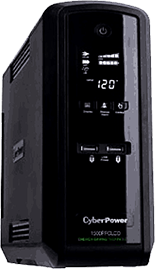
 I chose the $150 CyberPower because it has a high rating on Amazon, and for its capacity. There are consumer and office models that have capacities ranging from 30 minutes of backup reserve to nearly two hours. The battery itself keeps charging as long as it is plugged in to the wall outlet.  The unit has five outlets that connect to the battery and are surge protectors.

The CyberPower comes with monitoring software for both Windows and Macs that’s entertaining to look at, but doesn’t do much. The lights on the front panel of the UPS give a running prediction of how long the battery will last, and I especially like the CyberPower because the annoying beeps that otherwise would sound when the unit goes into full swing can be muted. The CyberPower comes with a three-year warranty, and there are replacement batteries available for as little as $30, depending on the UPS model you choose.

Most of the low- to mid-range UPS batteries are designed for one user. Bigger-capacity UPS batteries are available for larger offices.

Whether you live in a Third World city or one where power lines go down during a blizzard or ice storm, a UPS will keep you up and running just long enough to keep your wireless cable modem going and your smartphone charged. But be aware: UPS batteries are heavy and eventually their charge will wear down until the power comes back, and when they do run out of juice , you’ll  still be left in the dark.

Pros

  • Dependable backup power.
  • Quiet, with status lights that show your reserves.

Cons

  • Heavy
  • Replacement batteries are expensive.

Summary
A battery backup is essential to keep your electronics up and running when your grid shuts down.

Tech Specs
Cyberpower 1000va

There’s a Shark in My House

Sorry, Hoover, Roomba and Dyson

I’m old enough to remember Hoover and Kirby vacuum cleaners that were the essence of simplicity. Heavy metal frames, a long, high-capacity black dust bag, and a noise level as loud as a two-engine DC-3 airplane flying over the living room.When the Hoovers in a neighborhood were being used at the same time, it sounded like low-flying fighter jets in formation.

Sorry, Hoover, Roomba and Dyson

I’m old enough to remember Hoover and Kirby vacuum cleaners that were the essence of simplicity. Heavy metal frames, a long, high-capacity black dust bag, and a noise level as loud as a two-engine DC-3 airplane flying over the living room. When the Hoovers in a neighborhood were being used at the same time, it sounded like low-flying fighter jets in formation.

Everyone had carpets in those days, and a daily vacuum would clean those carpets until they screamed for mercy. Cannisters, an alternative to upright models, were designed by unemployed Ford Falcon engineers. They were difficult to use, even for their intended purpose – cleaning carpeted stairs.

When I bought my own home, the first thing I did, even before I bought a Maytag washing machine – the one with the huge agitator in the middle of the machine – I bought my own Hoover from, you guessed it, a traveling Hoover salesman.

For many years, in many homes, I continued to buy Hoovers. But as Hoover replaced their original basic metal models with ones that were primarily made of plastic, with questionable suction, I found myself sticking the new ones in the trash after a year or two of use. Belts would break regularly, and they were diffiicult to replace. One time I discarded a Hoover on the street, but no one picked it up.

Over the years, I’ve had:

Roombas and their knockoffs: Expensive and gimmicky, sometimes useless, a robot would bump into every obstacle in the house. The dust bin was tiny, and the amount of stuff it vacuumed was disappointing.

Dyson: This is a very expensive ($500 range) vacuum that promises it would never lose its suction. True enough, but on hard floors it’s virtually useless. Emptying the waste bin is messy. On several occasions I had to vacuum up the spilled dirt.

And then I bought (drum roll, please) a Shark and my life changed in ways I couldn’t imagine. I got the AZ1002 model Amazon for about $400. The motor lifts off the base so I can vacuum in tight places. The handles and other parts go together with a reassuring click.  The build quality is excellent.  It’s noisy, but tolerable. And get this: the brush cleans itself. The suction is good, and it does very well on hardwood floors.  Emptying the bagless dirt cup is simple, and since the suction is so good, it picks up enough dirt so that I have to empty it every week.

I had one problem with the Shark — I had vacuumed a pile of shredded paper, which caused a clog — and the friendly, competent phone support staff stayed with me until the problem was (easily) solved. The fact that the support phone rang only twice before someone picked up is a testament to the Shark’s reliability.

Sorry, Mr. Hoover, but there is a Shark in my tank now.

Pros

  • Heavy duty vacuum has amazing suction on all kinds of floors.
  • Beats competitors that cost more.
  • Stellar customer support.

Cons

  • None.

Summary
The Shark out-performs even more expensive vacuums.

Tech Specs
Shark Apex Upright

The Classy BlackBrook Phone Case

Leather and style, functionality and protection

My new $1,100 iPhone 13 Pro deserves more than the ubiquitous $15 cases on Amazon. It deserves a classy leather wallet and case from Blackbrook. For many years, I used the $55 Speck Presidio grip case. The latest version is compatible with MagSafe charging and other uses such as the feature that allows it to attach to a smartphone wallet without slipping out. The Speck grip case is sturdy, provides excellent drop protection (from my experience) and looks OK. It’s not a bargain, but it does protect your phone. But classy it’s not.

It Protects Your Smartphone and Shows You Have Good Taste

My new $1,100 iPhone 13 Pro deserves more than the ubiquitous $15 cases on Amazon. It deserves a classy leather wallet and case from Blackbrook.

The Blackbrook Wallet and snap-on case

For many years, I used the $55 Speck Presidio grip case. The latest version is compatible with MagSafe charging and other uses such as the feature that allows it to attach to a smartphone wallet without slipping out. The Speck grip case is sturdy, provides excellent drop protection (from my experience) and looks OK. It’s not a bargain, but it does protect your phone. But classy it’s not.

For those who prefer leather over plastic, my choice is the $59 BlackBrook wallet that features a detachable clear plastic case. If you don’t want the plastic case, a matching snap-on leather case costs an extra $29. For class-seekers and those who want the convenience of a wallet that holds a driver’s license and credit cards, you can’t do better than BlackBrook.

This image has an empty alt attribute; its file name is blackbrook_cas_the-classy-blackbrook-phone-case-1.jpg
Classy packaging

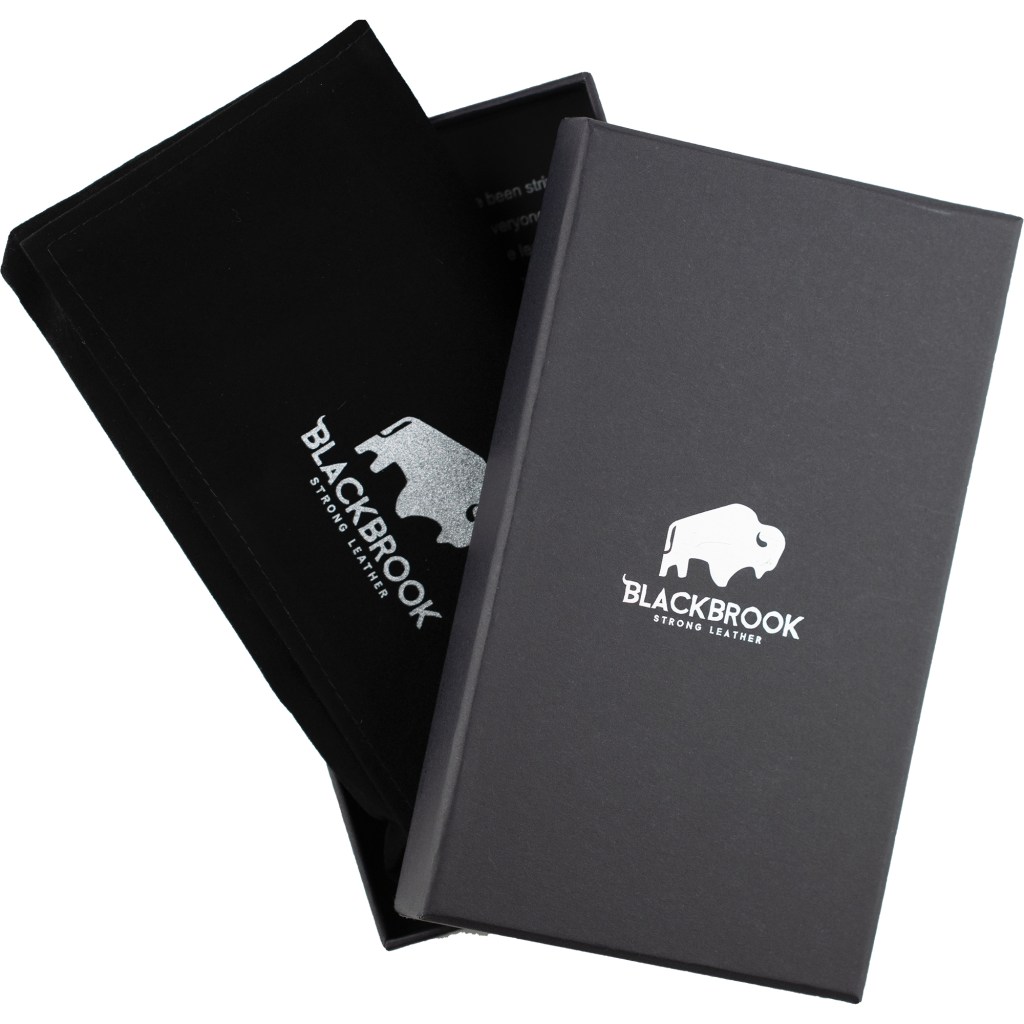
You know you’re dealing with a class act from the moment the package arrives (shipping is fast). The case itself comes in a black box, Inside, the case is wrapped in cloth. The possibility of damage en-route is unlikely.  The class act, though, is the wallet itself.

There are nine colors and several styles, including a bifold case that is a bit bulky for my taste, a single fold that will hold a few credit cards and an ID or driver’s license. I initially ordered the trifold case, but sent it back for a refund (postage was on my dime). The returned case has to be in pristine condition to get a refund, but customer support is exemplary, guiding me through the return process. Try that kind of support with a $15 case.

My iPhone is black, yet I couldn’t resist getting the burnished tan. It’s shiny and has that supple leather feel that whispers class. The case is durable, too. I’ve dropped my iPhone several times without damage to either the phone or the case. I’ve even dropped the whole detachable wallet. The BlackBrook case has cutouts for the iPhone or Samsung cameras and controls that line up perfectly. It fits like it should, and while the phone can drop out of the wallet, it’s still protected.

Yes, you can get less expensive smartphone cases, and maybe they’ll protect your $1,100 phone, but for $59, a few dollars more than the Speck case, you get a wallet and a case thrown in. The current crop of cases will fit the most iPhone models. A full range of cases for Samsung Galaxy and Note models also is offered.

If you only want functionality and think that class isn’t important, get the Speck grip or their clear case. But if you want functionality and leather, the BlackBrook case is a classy choice.

Pros

  • Real leather
  • Durable
  • Great fall protection
  • Includes a clear MagSafe charger case
  • Reasonably priced
  • Good choice of colors

Cons

  • Wallet cases can be bulky

Summary
If you’re looking for a protective case and wallet for your iPhone or Android device, BlackBrook is a classy solution.

Test Specs
BlackBrook Carson wallet case in burnished tan.

For more information: www.blackbrookcase.com or www.speckproducts.com. The cases also can be ordered at Amazon for the same prices.