
Put Your Kardia on the Table

Tiny device tells you if you have a heart ailment

Erratic or racing heartbeat can mean trouble. If they’re accompanied by chest pain, a trip to the ER is a wise decision. The first thing you’ll get at the ER is an electrocardiogram, which will give the ER doctor an idea of the seriousness of your visit. But what if you could get the electrocardiogram at home and send it to your doctor or another cardiologist.  And what if you could carry the device around in your pocket?

Erratic or racing heartbeat can mean trouble. If they’re accompanied by chest pain, a trip to the ER is a wise decision.

The first thing you’ll get at the ER is an electrocardiogram, which will give the ER doctor an idea of the seriousness of your visit. But what if you could get the electrocardiogram at home and send it to your doctor or another cardiologist.  And what if you could carry the device around in your pocket?

The Kardia Mobile will do just that, and more. While the basic $79 model will measure only possible atrial fibrillation (irregular heartbeat and pulse), more sophisticated (and expensive) ones will do far more. The $150 6L model emulates a six-lead EKG, similar to the one you’d have in a doctor’s office. It also measures whether your heart is beating too fast or too slowly. For $10 a month you can get reviews by a cardiologist, among other benefits. For $150 you can get a credit card model that has the same limits as the $79 model.

The heart likes a steady rhythm. When it’s out of whack, you feel it in the form of palpitations, rapid heartbeat and, oftentimes, exhaustion. If you have sleep apnea (loud snoring and gasping for air at night) or you’re obese, your chances of developing a-fib are pretty good.

The  Kardia Mobile is about the size of a Band-Aid. On the top are two pads that record the EKG. Fingers from both hands are placed on the pads, and like a real EKG, the peaks and valleys of your heartbeats flash by on the screen of your smartphone. In 30 seconds, there’s a diagnosis: “normal,” “possible atrial fibrillation,” “unclassified” or “unreadable.” Therein is the flaw in the KardiaMobile.

While the “normal” reading is reassuring and the “possible atrial fibrillation” is cause for concern, the device will not tell you whether you’re having a heart attack. Unless you know how to read an EKG, you would have to upload the EKG to your doctor or to an EKG technician that Kardia hires ($9) or to one of Kardia’s contract cardiologists ($19). In the latter, a doctor will respond within an hour;  the cheaper fee  gets you a technician’s diagnosis in 24 hours, which is way too long if your heart is in distress.

Other factors can be troublesome. The Kardia Mobile won’t deliver an EKG if there is any kind of electrical interference such as a nearby computer and monitor. Moving 20 feet away, solves the problem.

I found out about the Kardia Mobile when my cardiologist’s EKG machine was tied up. For good measure, though, he asked me to wait and get a proper EKG, which, as the Kardia device concluded, was normal.

The device does its work in 30 seconds and works on iPhones, Android phones and tablets. The company also offers a $10 monthly “premium” plan that allows users to store their EKGs, get monthly reports that can be e-mailed to yourself or to your doctor and provide reminders to take medications. In the basic plan, which is free, users can e-mail only one EKG at a time to their doctor or to themselves. If you do the latter, there’s nothing to stop you from printing out yourf EKG and hanging it on the refrigerator for all to admire. In the basic plan, prior tests can’t be saved for comparison. (For other medicine cabinet essentials, click here.)

If you have a history of a-fib, and you want the assurance that it’s being controlled by medication or other treatments, the Kardia Mobile will provide an inexpensive and convenient EKG. But it does not take the place of a proper EKG or other heart study. In fact, in the space of 30 minutes, under exactly the same conditions, I had two “unclassified” readings, two were “normal” and one showed “possible atrial fibrillation.” That’s not exactly reassuring.

Pros

  • 30-second EKG
  • $79 modell ismall enough to carry in a shirt pocket
  • Inexpensive

Cons

  • Won’t tell if you’re having a heart attack
  • Basic model is limited to normal heart rhythm or possible a-fib
  • Models that have more functions are pricey

Summary
If you need a quick and basic EKG, the $80 Kardia Mobile is limited reading normal heartbeats and afib. A more expensive model will diagnose more heart functions.

The devices are sold on Amazon and at www.kardiamobile.com.

Recommendation
The $150 Kardia 6L is worth the extra price, because it measures multiple heart fuctions.

How to Create Memorable Photo Albums

Sunrise, sunset, iBooks, Mixbook

Cleaning the garage has never been at the top of my list of fun things to do, which is why I haven’t done it in decades. The garage was dusty and crowded and the heaviest boxes tend to be on top of other boxes. Despite several moves, when I should have gone through the mess, boxes were stacked to the rafters without obvious labels or any sense of organization. But there is one reward: discovering hidden treasures.

Sunrise, sunset, iBooks, Mixbook

Cleaning the garage has never been at the top of my list of fun things to do, which is why I haven’t done it in decades. The garage was dusty and crowded and the heaviest boxes tend to be on top of other boxes. Despite several moves, when I should have gone through the mess, boxes were stacked to the rafters without obvious labels or any sense of organization. But there is one reward: discovering hidden treasures.

My 40-page book cost less than $100.

Nestled among the 10-foot-high mountain of junk that was ultimately hauled away in a truck were boxes full of my early writings. There were novels and short stories I’d long ago forgotten, along with letters from my father in which he wondered why it got so cold in Minnesota, where my parents lived. There were boxes full of my children’s drawings and other art projects. I let my kids choose what they wanted to store in their own homes, and packed the rest into plastic bins.

And then the fun began. 

When the dust settled, I found a box in a corner that probably hadn’t been opened in 70 years. After my wife’s father passed away, his wife gave us the box, unopened. We hadn’t been curious enough to open it ourselves. Until cleaning day. 

When I opened the box, there were a half-dozen photo albums of people my wife only vaguely could identify. Reels of home movies (that we’re going to digitize on DVDs) were stacked neatly, along with copies of Life and Look magazines from the 1950s and ’60s that are probably worth something now. But it was the bulky photo albums that most intrigued us. 

Instead of identifying the people in the pictures on the front of the photos, it was the custom decades ago to put notes on the reverse sides, and then gluing them onto the album pages. Since most of the photos were unidentified, they had to be gently pulled off each page in hopes that the people’s identifications and dates the photos were taken were on the flip side. In many photos, that information was missing. Some of the notes were illegible because the writing was destroyed when the photos were pulled off the pages. Some had no information at all. My wife’s grandparents, along with her siblings, were easily identified, but for some, she had to guess. There was no one living who could identify them. Fortunately, she did find a picture of her namesake and great-uncles and great-aunts. But the real bonanza was a whole area of the box that had loose photos of relatives that hadn’t made it into the albums. Amazingly, they were in good shape, and many  were identified. 

And then I realized the folly of what we had been doing with our family’s photos all these years. Most of our album photos of kids and relatives have no identification, which would cause our descendents great confusion. We know who they are, of course, but would a great-great-great grandchild be able to figure out the priceless photos of my Polish and Russian grandfathers, especially the one that was taken at a sibling’s bar mitzvah in 1953?

The solution to this dilemma, of course, is technology. And even though what comes next is time-consuming and requires some new hardware and software, it’s not expensive and can result in attractive and functional photo albums. Newbies shouldn’t be discouraged – it’s not as difficult as it might seem.

Here’s how it’s done. 

First, your photos need to be scanned. I use an Epson wireless scanner (model ES-500W, which costs about $350 on Amazon). The scanner also can be used for documents, such as financial or real estate documents. Other, less-expensive models also are available. Just be sure that the one you choose has an automatic document feeder and can scan “gray-scale” in the “jpg” format at 600 dpi. Sounds complicated, but the free software that comes with the Epson scanner makes those choices simple, even for newbies. I like wireless scanners, since they can be placed away from the computer.  Scanners using the familiar USB cable can be used, too. I’ve had other scanners, but I’m a fan of Epson products. They’re reliable and of good quality. I’ve used my scanner for six years and thousands of scans without a problem.

Each photo is placed face-down in the scanner’s document feeder and once it’s scanned, the file must be saved and named. Naming them is crucial, as I’ll explain later. It’s best to save the photo files to a folder you create on your desktop. With the Epson software, once you choose that folder, subsequent scans will be saved into it automatically. Each scan takes about 20 seconds, depending on the size of the photo.

Once you’ve scanned your photos, you’ll need to choose software that will help you create albums. There are several good choices. Up until a few years ago, I used an Apple program called iBooks Author, which was very easy to use. Alas, it’s no longer available. It wasn’t available for Windows PCs.

Now, if you use only a Mac, albums can be created within the iPhoto app. There are three to choose from, and I didn’t like any of them. Working with them is confusing. After crossing them off my list, I looked for album tools that would run on both Windows and Mac computers. There is no shortage of them. Many, such as Snapfish, offer deep discounts, are easy to use and produce great-looking albums. I settled on Mixbook, since its interface is intuitive and its tech support is outstanding. 

The Mixbook album tool is located at www.mixbook.com . The day I started making my album, they were offering a 35 percent discount. 

First off, I had to pick a theme, such as birthday and just about any other occasion. I chose a blank one, since I didn’t want to be tied down to one theme. Choosing the size of the album is next. I chose an 8×11 inch landscape (11 inches wide) format, with lay-flat pages and semi-gloss paper. Bigger and smaller formats are available, too. I like the lay-flat format because the album’s binding doesn’t get in the way of flipping pages. One photo can span two pages in the flat format, making for stunning whole-family portraits. Book lengths from 20 to 99 pages are offered. Each page over 20 costs $1.50.

After making your choices, photos are dragged and dropped into a window, and after that, they’re placed on pages. Thumbnail photos are shown in the left pane of the album creator. You can choose how many photos will be on each page. You also can put a caption on each photo, which is why the photo scans must be given a description, such as “Two Zaidies 1953.”

Pages can be added and moved around at any point. It’s that easy. If you need help, Mixbook has an excellent online chat function.

My 40-page book cost less than $100 – hundreds less than if I had gone with a professional album-producer. Besides my old photos album, I’m working on our current family albums. It’s more fun than it seems because of the memories the photos evoke. I hummed “Sunrise, sunset” while creating albums until my family members urged me to stop.

Again, don’t be intimidated by this. I’m fairly new at creating albums. My 40-page album took a few Sundays to scan dozens of photos and create the album. You might want to start scanning photos a few at a time when you have a few minutes, rather than scanning them all at once. As far as the scanner goes, the investment may seem high, but I use it to scan all my financial records, too.

The finished album arrived in less than a week, and it’s beautiful. My grandchildren are mesmerized by photos of their forebears. Imagine how appreciative your great-great-great -grand children will be when they find the hidden treasures of your family albums. And they’ll know who everyone was. The albums are great gifts, and they’re small enough – unlike bulky albums of yore – to be stored inside the house, instead of in a dusty garage.

The Gadget Man Abroad

Must-have gadgets for a trip abroad

I write about computer gadgets and software, so talking about seats that recline into beds might seem incongruous. But hear me out. On the two airplanes I took – the  double-deck Airbus A380-800 and the Boeing Dreamliner – the gadgets amazed me. There were 15-inch touch-screen TV monitors and Bose  sound-canceling headphones on the Lufthansa segment of my trip. A diagram on an arm rest guides you through positioning the seat just right. A removable remote allows you to operate the monitor, find soundtracks for all genres of music, and even play video games. Leg room is endless and the airlines even include slippers, a blackout mask and toiletries in a designer travel case. But it’s the seat-beds that sold me. With a touch on a screen, the seat converts into a bed, a comfortable one at that.

Must-have gadgets for trips of a lifetime

It’s been my dream after eight trips to Europe, Asia and the Middle East to fly first class or business class instead of suffering through 10 to 16 hours banging my knees against the seat in front of me in economy. During my latest trip abroad, I finally got to see what was behind the curtain in front of economy on a Boeing Dreamliner.

Packing wisely

It was everything I dreamed of.

Cabin service is impeccable. Food is plentiful and quite good and it’s served in china on starched linen.  The comfort level is without compromise.

I write about computer gadgets and software, so talking about seats that recline into beds might seem incongruous. But hear me out.

On the two airplanes I took – the  double-deck Airbus A380-800 and the Boeing Dreamliner – the gadgets amazed me. There were 15-inch touch-screen TV monitors and Bose  sound-canceling headphones on the Lufthansa segment of my trip. A diagram on an arm rest guides you through positioning the seat just right. A removable remote allows you to operate the monitor, find soundtracks for all genres of music, and even play video games. Leg room is endless and the airlines even include slippers, a blackout mask and toiletries in a designer travel case. But it’s the seat-beds that sold me. With a touch on a screen, the seat converts into a bed, a comfortable one at that.

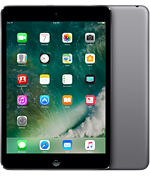
Somewhat puzzling, missing were electrical outlets, wi-fi and USB ports.  But I hardly missed them, focusing instead on a book stored on my iPad Mini. Purists might choose one of Amazon’s Kindles, such as the Paperwhite ($129) for reading books, but I brought along a  refurbished iPad Mini 2 ($209 at Apple.com), since it would allow me to use wi-fi for email and the Internet at the apartment I rented.

I also brought along a Lumsing battery bank ($25 on Amazon) that has the capacity to charge an iPhone 6 up to six times and an iPad Air 2 up to two times, according to its product description.  Be sure to get one rated at 15000 mAh (milliampere hours) or higher to get the maximum number of charges. The model I bought has five USB ports that charge both phones and tablets; the ports are labeled for the voltage requirements of  each device. Sounds confusing, but think of a portable battery bank as the battery in your car, except this one weighs less than a pound.

If lugging around another pound in your carry-on is a deal-breaker, I  recommend getting an outlet adapter with USB ports that will charge at least two devices directly from a power outlet. And don’t forget: foreign countries have different electrical outlets from U.S. outlets. They can be bought inexpensively on Amazon  just by searching for the countries you’ll be visiting. Apple makes a collection of seven adapters that work in Europe, Australia, Korea, Hong Kong and Brazil for about $40, less at http://www.bestbuy.com.

If you’re bringing multiple devices that require different charging cables, go for a charging station.  It plugs into an electrical outlet and some feature charging cables for lightning, Android and older Apple devices. Amazon sells dozens of different models starting at $15. Again, you’ll need a country-specific electrical adapter in order to use the charging stations.

If you just want a USB charging bank, there are dozens that feature six or more USB outlets. I like the ones that have multiple connector cables (described above), since they negate the need to bring individual charging cables. The downside is charging stations tend to be heavy and bulky.

If you need to make phone calls home, I like the MagicJack Go device that works on wi-fi. You get a U.S. number, which the folks at home can call at no charge. And you can make calls to U.S. numbers at no charge. The device fits in a shirt pocket and costs $35, which includes a year of service and is available from www.magicjack.com.

Another, more practical way is T-Mobile’s international plan. For $15 a month you get unlimited data and messaging. Both incoming and outgoing calls cost 20 cents a minute. Calls are free if they’re made on a wi-fi network. When you return home, the service can be canceled. If you don’t buy the international plan, calls cost $2 a minute. (www.t-mobile.com) . Or you can rent a phone that gives you unlimited calling within the country you’re visiting. SIM cards for international use can be purchased, too.  I like the information in this article: http://www.nytimes.com/2015/06/21/travel/how-to-pick-a-cellphone-plan-for-traveling-abroad.html?_r=0.

Guide books, such as the ones Fodor publishes, tend to be heavy and have small print. If you’re lugging suitcases on trains, buses and airplanes, you might want to download Kindle versions of guidebooks. They’re cheaper and the type size can be customized. Search for the books at http://www.amazon.com. They’ll work just fine on tablets as well as Kindle devices.

My kids occasionally visit my home when I’m gone to check things out, but there is a 24/7 ways to secure our house when they can’t stop by. Ring, which is a doorbell with a built-in fish-eye camera, notifies you whenever someone is at the door, whether or not they ring the bell. Half-way across the world, I was able to see, on my phone and tablet , who approached the door, and I could even hold a two-way conversation with them. In case you’re not near your phone, a paid service will keep video footage in the cloud of people who approach the door.  I used it several times a day. While there were no scofflaws attempting to break in, I was able to greet my sons when they came to wash clothes and raid the refrigerator. The doorbell, available at http://www.ring.com, costs $200. Ring makes other security devices, such as the Stick Up Cam ($199), which provides surveillance from other areas around the house.

Another security service, alarm.com, lets you turn your home security system on and off remotely. It’s a handy feature for times when a maid, for example, needs access, and you’d rather not give the maid the key. When the work is completed, the maid calls you, and you can arm your security system again. I pay $10 a month, on top of the $50 a month for security monitoring. Alarm also makes more sophisticated devices, such as ones that do video monitoring.

My trip abroad was full of pleasant surprises and random acts of kindness from the natives. The flight was great, the people I met were amazing and by doing some research and planning, I was able to keep tabs on my home, use my electronic devices and communicate with people at home and abroad. Then there were those seats that turned into beds. A gadget lover’s Dreamliner.

Firing the Fire TV

Never get streaming mad again

The first corollary of Murphy’s Law is that gadgets fail when you need them most. The second corollary is that their manufacturers release their gadgets before the bugs are worked out. And the third corollary is that they don’t  let their offshore techis in on the secrets of dealing with the bugs. So it is with Amazon’s Fire TV Second Generation and Logitech’s otherwise smart Smart Hub universal remote.

Never Get Streaming Mad Again

The first corollary of Murphy’s Law is that gadgets fail when you need them most. The second corollary is that their manufacturers release their gadgets before the bugs are worked out. And the third corollary is that they don’t  let their offshore techis in on the secrets of dealing with the bugs. So it is with Amazon’s Fire TV Second Generation and Logitech’s otherwise smart Smart Hub universal remote.

If it ain’t broke, don’t fix it.

Logitech says the Amazon Fire TV is compatible with its hub remote, but after a long and exasperating call to Logitech tech support, they conceded that the $100 second generation  Fire TV wasn’t, at the time,  compatible with its hub remotes. So why did their  website list the Fire TV as compatible? (A pause while I wait on hold.) That’s all I can tell you, the tech says. “But sometimes if you add and delete the device on your remote several times, it starts working. We will be having an update soon.” And sure enough, the update arrived.

And then, in the middle of this periodic screed, the Amazon apps on my Roku and the TV itself stopped playing audio. No matter how hard I tried to get audio through my surround-sound system, the only way I could get sound was through the TV’s speakers. So, a call to Amazon.

Amazon Tech No. 1 tells me to change the audio settings on my Fire TV. That worked for about a minute, then the speakers went silent.

Tech No. 2 tells me that the Fire TV senses that there is a recordable DVD (which I don’t have) or sound system and, to prevent piracy, shuts them down. There is no fix for that, he claims.

Tech No. 3 scratches his head at that, but can only offer what Tech No. 1 suggested. Same results: sound for a minute, then silence. I felt like a dog chasing its tail.

And now for the fourth corollary of Murphy’s Law: Just because a gadget worked before doesn’t mean it’s going to work later.

I had a perfectly good first generation Amazon Fire TV, but when I upgraded to a Super Ultra High Definition 4K TV, I wanted to take advantage of 4K streaming that Amazon offers. Since I couldn’t get sound out of the new device, I decided to reinstall the old one. And then I discovered Corollary No. 5: If it ain’t broke, don’t fix it. Not only couldn’t I get sound from the old Fire TV, the universal remote no longer worked with it.

 Amazon’s tech support may not be up to snuff, but their free return policy steps in where gadget freaks dare to tread.

I returned the Fire TV device and ordered an Amazon Fire TV Stick. If nothing else, I have retained an ounce of optimism where gadgets are concerned. The sound through my speakers works fine, my universal remote controls it perfectly and other than the fact that it doesn’t offer 4K resolution, it’s good enough. At $40, direct from Amazon, it’s a great deal. Endings can be happy, too.

The Latest VideoStudio is a Scene-Stealer

Corel VideoStudioX10 Ultimate vs. Adobe Premiere Elements

In my Super 8 days, editing home movies was done either as I shot, which almost never worked well, or with an editing machine. I’d cut snippets of film with a scissors and paste them to footage of the next scene. When my older son was born, I went all-out and filled a bushel basket with  three-minutes films, which I later transferred to VHS, then to DVDs. I never mastered camcorder editing of my home movies until I came across simple devices that converted VHS analog movies to digital files. Pinnacle Dazzle is my tool of choice. It’s a small, $70 device that hooks up to a VHS player on one end and a PC on the other; content is  digitized as it streams to the PC. For software, I used several programs, including Adobe Premiere Elements. Despite the software, my movies looked amateurish. Fellini and Cassavetes would have been uncomfortable associating with an amateur like me.

Corel VideoStudioX10 Ultimate vs. Adobe Premiere Elements

My film career is set mostly in movie theaters or my private screening room, but I’ve been making movies for more than 50 years. An early adapter, I bought my first Super 8 movie camera while I was still in college. Those hand-held-camera movies, influenced by auteurs like Fellini and Cassavetes, were unscripted and shaky.

My films didn’t become interesting until my kids came along.  I transitioned to a heavy camcorder. Limited in what they could do and reliant on VHS tapes that sometimes broke in the middle of filming, camcorders got smaller and lighter over time. Fast-forward to my 6.63-ounce iPhone 7 Plus, which takes great videos.

Corel makes movie-editing easy

In my Super 8 days, editing home movies was done either as I shot, which almost never worked well, or with an editing machine. I’d cut snippets of film with a scissors and paste them to footage of the next scene. When my older son was born, I went all-out and filled a bushel basket with  three-minutes films, which I later transferred to VHS, then to DVDs. I never mastered camcorder editing of my home movies until I came across simple devices that converted VHS analog movies to digital files. Pinnacle Dazzle is my tool of choice. It’s a small, $70 device that hooks up to a VHS player on one end and a PC on the other; content is  digitized as it streams to the PC. For software, I used several programs, including Adobe Premiere Elements. Despite the software, my movies looked amateurish. Fellini and Cassavetes would have been uncomfortable associating with an amateur like me.

There’s no shortage of movie-editing software vying for attention. I’ve been testing the new Corel VideoStudioX10 Ultimate, and compared to the software I usually use, Adobe Premiere Elements, the latest VideoStudio is a scene-stealer.

Here are some of the high points.

Like most video-editing software, VideoStudio displays a home screen with a library where footage and transitions are grouped. A timeline is below the library, where film is actually edited. The virtual snipping of my Super 8 days is clean and easy, using digital tools. In VideoStudio, footage from multiple cameras adds a professional touch. Depending on the version you choose and if you recruit multiple cinematographers, you can edit footage of the same scene from up to six cameras. This means you can shoot conversations from both subjects’ point of view, while shooting background shots from different angles. Shooting sports footage really comes alive with different camera angles.

A text tool is used to superimpose words, titles or phrases over footage. The music-track tool rounds out the tool section. All the tools are logically placed, and the icons for tools are user-friendly.

VideoStudio has screen capture, which allowed me to mix scenes from another video with the movie I was editing. Screen capture is essential if you’re editing analog footage from a VCR. As the analog footage is transferred, the footage is displayed in the preview box on the screen.

Time-remapping allows you to freeze-frame, go backward and forward until you’ve achieved the timeline effect you want. A fade tool lets you superimpose multiple scenes, with fade-in and fade-out, just like the pros.

There are thousands of effects, transitions and animated titles that are easily integrated into movies. The Ultimate version, which I reviewed, includes enhancements for when you go from amateur auteur to professional. That  transition is made possible with Corel’s excellent online Discovery Center tutorials.

Once you master the video components of VideoStudio, it’s fairly easy to add music tracks to each scene. This feature is especially useful when you want to change the tempo of a movie. Like other video-editing programs, it gives you the flexibility of fading one track into another as the movie is edited. Since there’s a double-track voice feature, it’s possible to lower the volume of music, for example, while making voice-over the dominant sound source.

There’s stop-motion editing, along with slow-motion and fast-motion. Motion tracking lets you add a blur to a scene of a runner coming closer and closer to the front of the screen. Part of the footage can be selected so that certain effects can be added to that part of the image and subsequent footage. The effect, which is fairly simple to use, blurs the difference between what you produce as an amateur and what a professional editor can produce. It’s worth saying that VideoStudio’s bag of tricks is full of surprising effects, tools and creative editing effects. I took an  amateurish scene and, with the help of one of the tutorials,  made it interesting and eye-catching. It’s tempting to use special effects on every scene, but too many special effects can make the movie look amateurish. Some scenes should be played out as they are.

When you finish your movie, a utility that’s included, MyDVD, helps transfer the movie to a DVD or a PC, and prepares it for uploading to Facebook, YouTube and other social media. I also can distribute the movie to friends and relatives, who diplomatically tell me that perhaps  I should have taken up model railroading as a hobby.

So, how does VideoStudio Ultimate stack up to Premiere Elements? The neatest feature of Elements is the ability to make collages of stills and videos. I could see putting a still of a person in one frame and movies featuring the person in the other frames. Like Photoshop Elements, Premiere has three levels of expertise to choose from: quick, guided and expert. VideoStudio’s home screen has a “welcome” tab, along with tabs for capture, edit and share. It doesn’t get much simpler than that.

What really seems hard to believe is how inexpensive both programs are. VideoStudio X10 Pro retails for $80; Premiere Elements costs $100.  The Ultimate  version of VideoStudio, which I tested, has many more editing features, templates and effects. It retails for $100 – well worth the extra $20. Both the Pro and Ultimate versions are sometimes discounted, either by Corel or on Amazon.

Tough choice? Focusing on all the features of each, I’d give my “action!” to VideoStudio X10 Ultimate over Premiere Elements. VideoStudio is slick, moderately easy to learn and has excellent editing tools.

I’m no Fellini, but I have a vision of what I want my movies to look like. It seems as if VideoStudio’s producers have anticipated the tools I need to make that vision a reality.

More information: http://www.corel.com

Acronis Makes Backups Easy — And Saves the Day!

Cloning a hard drive beats backing it up

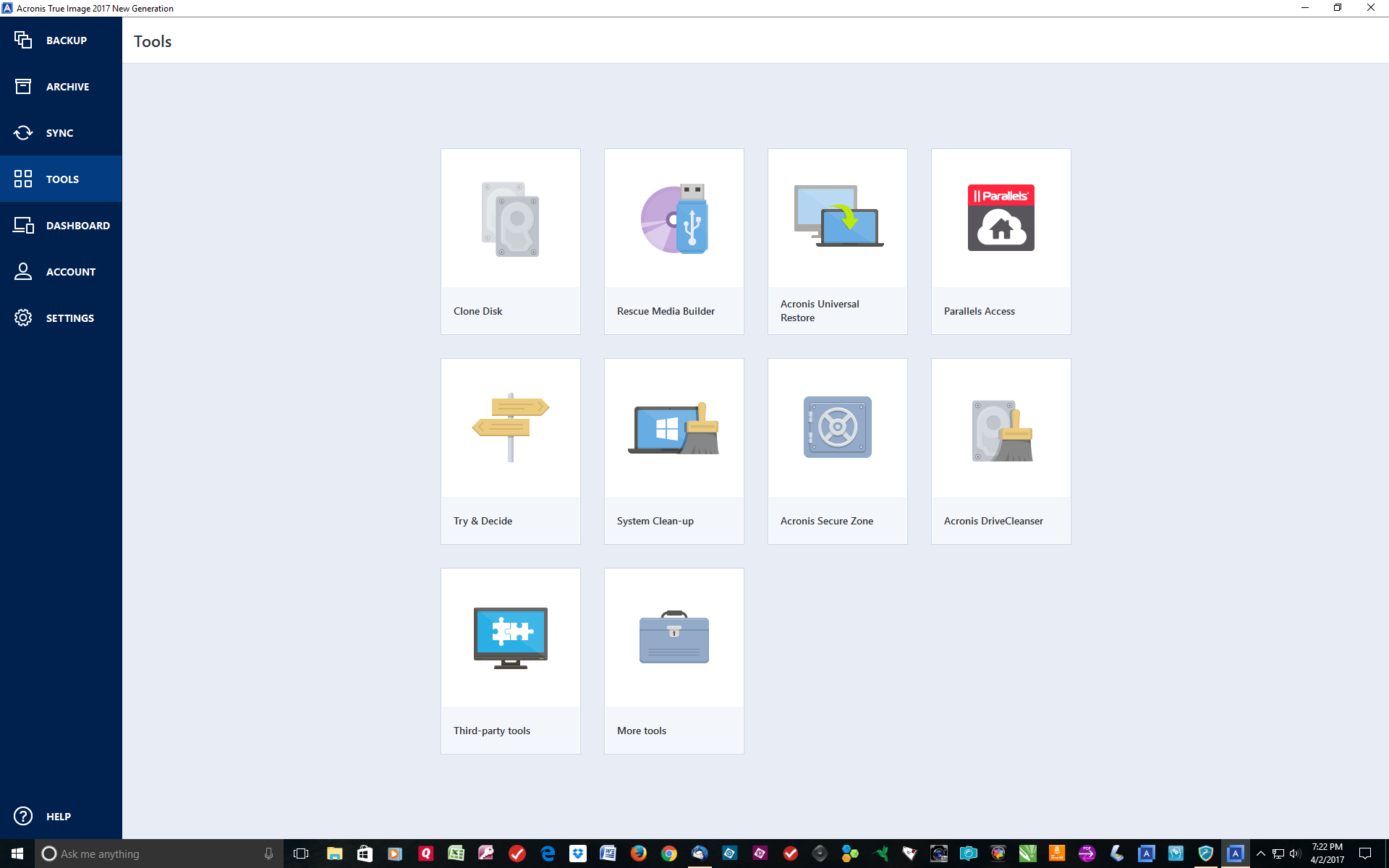
The project did not sound simple. I wanted to replace my legacy hard drive with a solid state drive, and I wanted to transfer all my applications, data and other files intact to the new drive. The traditional way would involve reinstalling all my applications to the new drive, copy all my data files to a USB drive and transfer them to the new drive – and hope it would work. It almost never does, since drivers – software that makes printers work, for example – don’t transfer without a lot of fuss. There’s a much better way; it’s called cloning, and Acronis True Image 2017 does its work without much fuss.

Just when I thought my files were lost, Acronis brought them back

The motherboard on my Dell XPS 8930 desktop had gone south. Since I have Dell Premium Support, a technician arrived with a new motherboard and power supply. He did a great job, except …

… the PC simply would not boot up into Windows the email I used to sign up for my Microsoft account was no longer valid. The Dell tech spent an hour trying to work around it, but it appeared all was lost.

Acronis Cyber Protect Home Office (Formerly Acronis True Image) and my diligence saved the day.

Since I use Acronis to back up my files, including the operating system, to an external 5 TB hard drive, and I do that backup every night, all my data was there for recovery.

The program helps create a startup disk, which you can only do when the PC is up and running. Next I chose a full backup to the external Western Digital hard drive. I set backups for 2 a.m. each night, and that’s it.

When I thought all was lost, I used the Acronis rescue disk to boot up. A menu appears. RECOVERY was the operation I wanted. It took more than three hours to recover the C drive and external D, E and F USB drives. And then I booted up. Everything was there, just as it was at 2 a.m. that day.

Acronis does more than back up. Its utilities are user-friendly and useful.

Another option is cloning a hard drive. It works best when you’re replacing a hard drive. Since I had multiple hard drives, I used the simple back up program.

The Acronis software, is menu-driven and intuitive. If you get lost, its knowledge base at http://www.acronis.com.

An interesting utility, Try and Decide, lets you open potentially risky email or visit potentially unsafe websites without worrying that hackers will take control of your computer. You open the risky email, then decide if you want to delete it without further harm to your computer.

Another utility, System Clean-up, removes all traces of your web surfing and program-launches. If you ask it to, the utility will wipe the free space on your PC’s hard drive. Yet another utility will wipe an entire hard disk clean.

Acronis promises protection of backups from ransomware. That ugly scam involves someone sending a message to an unsuspecting PC user that that unless he pays up, his computer will remain unusable. I’ve been there. It happened when I misdialed Dell’s support number and was routed to someone who held my laptop ransom – for $300 he would allow me to start computing again. When I refused, he threatened to release all sorts of bad things on my computer. I hung up and called Dell Premium Support. Fortunately, a Dell tech was able to delete any traces of the ransomware. Just to make sure the hard drive was clean, I reformatted the it, then used the original cloned hard drive to restore Windows and all my applications.

Acronis’s ransomware protector would be worth the price of the program if that were all that was offered. If I had it when pirates hijacked my PC, I could have saved many hours of tech support and reformatting. As added security, Acronis “notarizes” backups to ensure that they are not infected with viruses and other threats when the files are restored.

Backups of either the whole hard drive or certain files can be scheduled. Running those backups at night means a day’s work will be saved. Or backups can be run as you work. Some versions of Acronis come with cloud backup; those files can be shared with others, as long as they have your password.

Acronis, which works both with Windows and Macs, can back up the contents of a smartphone. If you have iCloud or a similar backup service, the Acronis backup would provide an extra layer of assurance. I

Prices range from $50 to $100, depending on the number of Windows or Mac computers you want to cover and whether you want cloud backup. http://www.acronis.com

Nuance Dragon Pro Knows What You’re Talking About

Dictate instead of typing

broken too many times. It ain’t pretty. I mention this not to elicit sympathy, but to show how Dragon Professional, the dictation-to-text software, adapted to my voice. I’m using Dragon to write this column.

Dictate instead of typing

I have a cold; I sound like a punch-drunk boxer from the Bronx whose nose has been broken too many times. It ain’t pretty. I mention this not to elicit sympathy, but to show how Dragon Professional, the dictation-to-text software, adapted to my voice. I’m using Dragon to write this column.

Dragon has heard it all

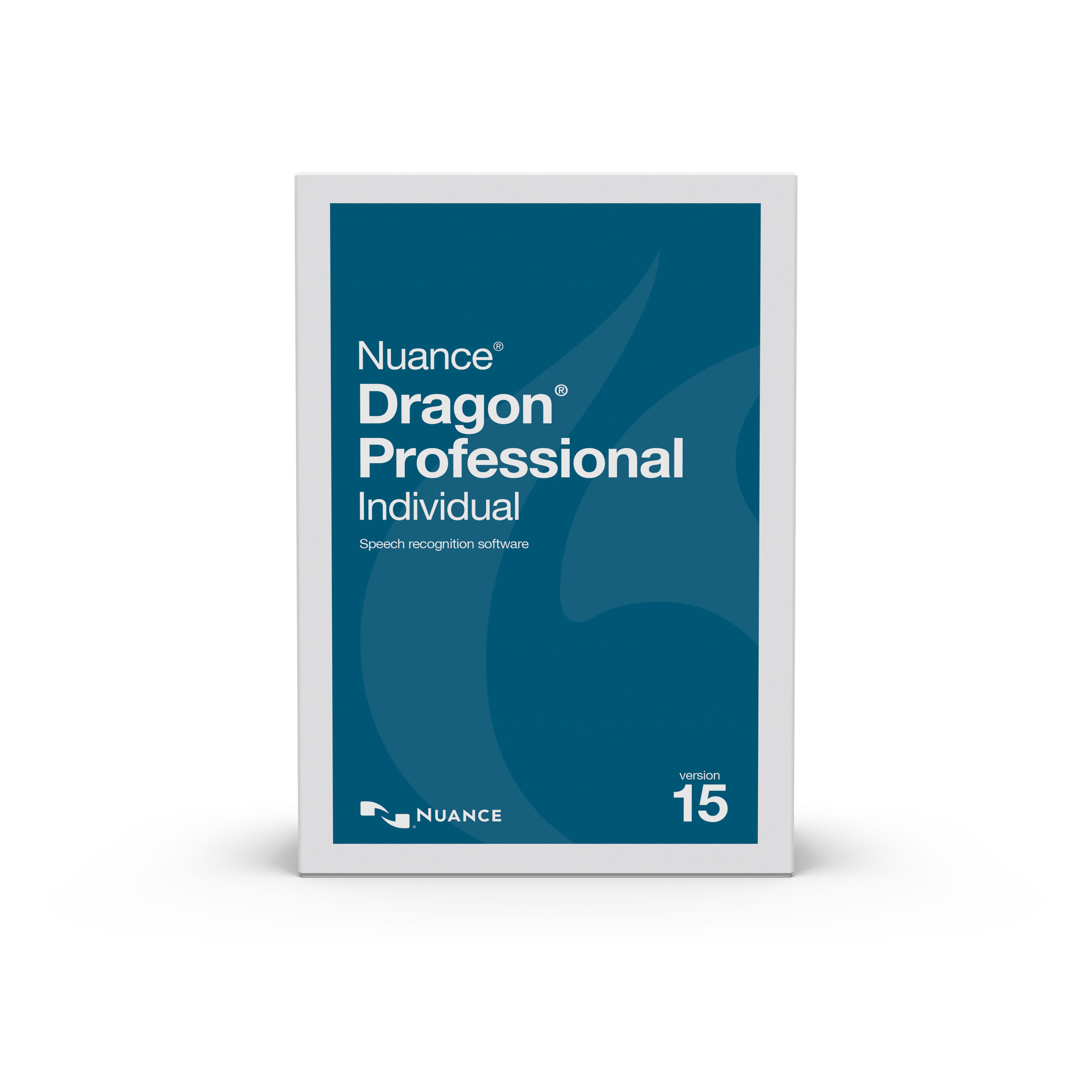
It’s been a few years since I wrote about Dragon Naturally Speaking. Its accuracy has improved in Version 15, noticeably, even with my stuffed nose and scratchy-throat voice commands.

Here’s how it works.

You choose a dialect, such as British English, in which “color” becomes “colour” when it appears in a Microsoft Word or other Windows document.  I chose the standard U.S. dialect, which in previous versions adapted quite nicely to my normal Minnesota-Scandinavian lilt. A very brief voice-training exercise follows. In earlier versions, voice training could take an hour or more; in the latest version it takes a few minutes. If a voice profile was set up in a previous version of Dragon, it can be imported. I created a new profile so I could measure Dragon’s accuracy with my stuffed sinuses in mind.

A short interactive tutorial hits the high points of the software. Help is contextual, focusing on how-to’s to supplement the initial tutorials.  For example, I learned the hard way that the microphone, in this case a Nuance-approved Plantronics ($25 on Amazon), captures “uh” and “er” and inserts the sounds perfectly into my word-processing software. To avoid those pauses, it’s best to think about what you want to say before you search for the right words. If the right word has to do with quantum physics, Dragon can be taught technical terms by the user inserting them in its dictionary. The technical word can either be spelled out verbally or by typing it directly into Dragon.

A good typist can produce perhaps 50 words a minute – probably with typos. With Dragon, you can dictate 150 words a minute, and it will keep up with you. Typos will be few. As long as you keep talking, Dragon hears your conversation and transcribes it.

Editing commands are easily learned; going back to correct grammatical errors, for example, doesn’t require moving the cursor. Formatting [“bold ‘require’ ”] is straightforward.

Commands are easy to learn. To get to a new paragraph [comma], you need only tell Dragon to insert a paragraph or a new line or end a sentence with a period. It automatically starts the new sentence or paragraph with a capital letter. If you want to change a phrase, just say “scratch that,” which I’m doing very frequently as I write this column [exclamation point]! If Dragon doesn’t understand a word or term and you correct it, the program will learn from its mistake and type it accurately the next time you use the word or term.

Dragon also has a transcription feature that takes material you’ve dictated into a smartphone or voice recorder and types it in a document. A smartphone app, Dragon Anywhere ($15 a month), lets you dictate material as if you were in front of a computer. It then exports the audio into a document.

Other audio – a president’s farewell speech or a podcast, as examples – can be transcribed easily by exporting them into Dragon. A police officer in the field can create custom forms that can be transcribed later, along with a narrative of the case. For example, a man is stopped on suspicion of drunken driving. The officer dictates his name, address, etc., into a form he’s created, along with a description of the event. It saves time back at the precinct.

When I want to launch Word, Dragon does it for me. Composing email is a challenge at first, but soon enough it becomes indispensable. Just by saying “tab,” it will jump from field to field. Boilerplate signatures containing contact information such as email address and phone number can be inserted once Dragon is taught to do so. Calling up a browser is a simple as saying, Launch Chrome.” Directing it to a website involves only dictating where you want to browse. It learned quickly that I spend a lot of time and money on Amazon.

A word of caution: A red virtual microphone icon sits atop the desktop. Click on it, and the mic turns on. But don’t forget to tell it to turn off when you’re not dictating. I received a phone call in the middle of writing this column, and Dragon figured my end of the conversation was something to transcribe, so there was a whole section of the conversation in the middle of the column.

How accurately has it handled dictation for this column? Dragon can only transcribe what it hears. Even with my stuffy nose, it was impressively accurate. The Dragon folks at Nuance, which makes the program, say under normal conditions, it’s almost 99 percent accurate. Except for a few cold-related exceptions, words in my column are spelled correctly. Paragraphs are in the right places. When I recover from my cold, I’ll create a new voice profile, for comparison. About the only thing Dragon can’t do is improve on content. It’s not a miracle-worker.

Dragon Professional costs $300 for either the Mac or Windows version.  Versions for medical settings, lawyers and law-enforcement personnel also are available. A basic edition for home and student use costs $100. More information: http://www.nuance.com.

MacBook Air vs. Dell XPS: Battle of the Lightweight Laptop Heavyweights

If you want an innovative laptop-tablet, Dell has it

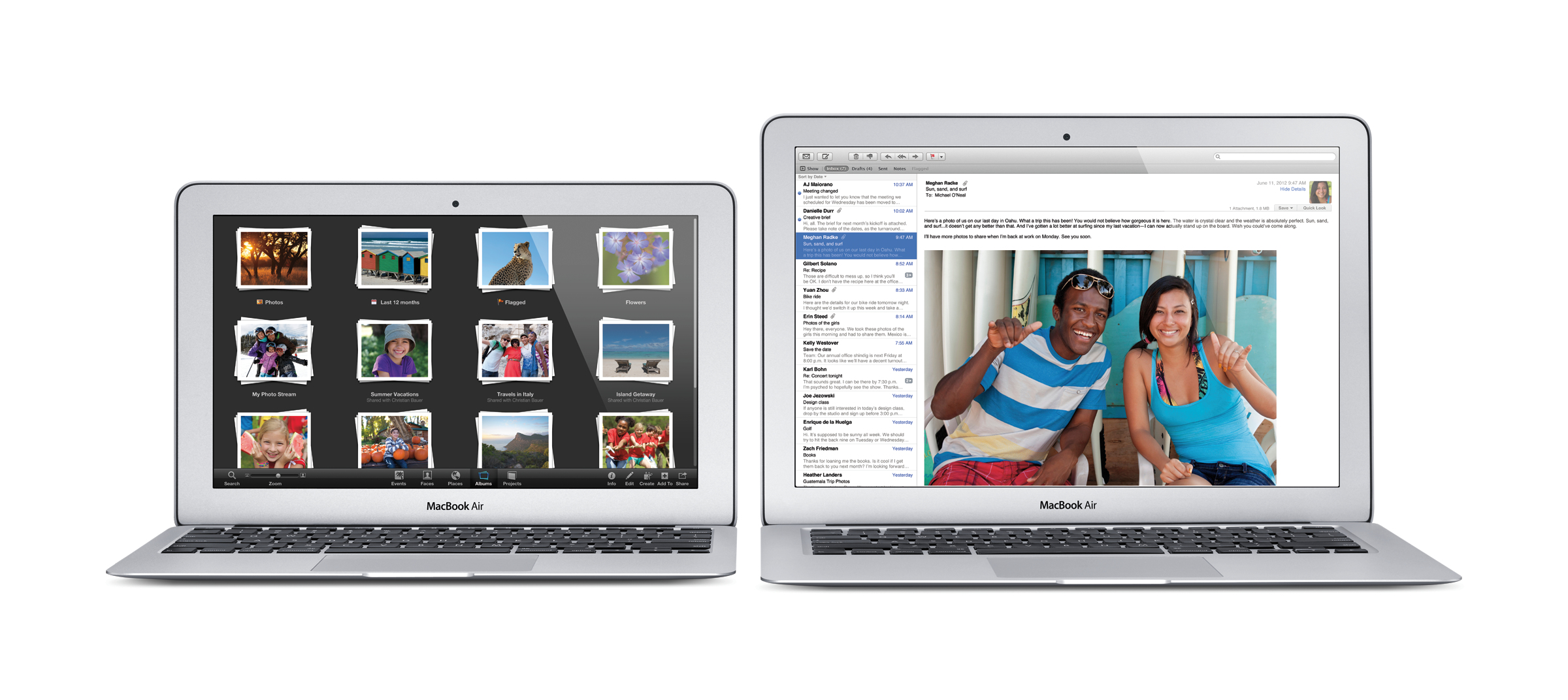
For several years I’ve gushed to friends over my MacBook Air. Light, stylish and fast, the Air satisfied  most of my mobile needs. But like other Apple products, it’s not cheap. The 13-inch model I have costs $1,200, with a 256-gigabyte solid state hard drive and 8 gigs of RAM. Its display is nothing short of breathtaking. The keyboard is backlit and the touch pad is sensitive.

All roads still lead to Apple; Dell is very close behind

After all the back and forths, the MacBook Air with the M1 chip is my favorite laptop, although the Dell XPS comes very, very close. Both weigh in at less than 3 pounds.

For several years I’ve gushed to friends over my MacBook Air. Light, stylish and fast, the Air satisfied  most of my mobile needs. But like other Apple products, it’s not cheap. The 13-inch model I have costs $1,000, with a 256-gigabyte solid state hard drive and 8 gigs of RAM. Its display is nothing short of breathtaking. The keyboard is backlit and the touch pad is sensitive.

the Apple Air ran for nearly 10 hours on a charge.

But it doesn’t have a touch screen. Apple has introduced a sorta, kinda touch screen in its high-end MacBook Pros, but it’s not your teen-age son’s touch screen.

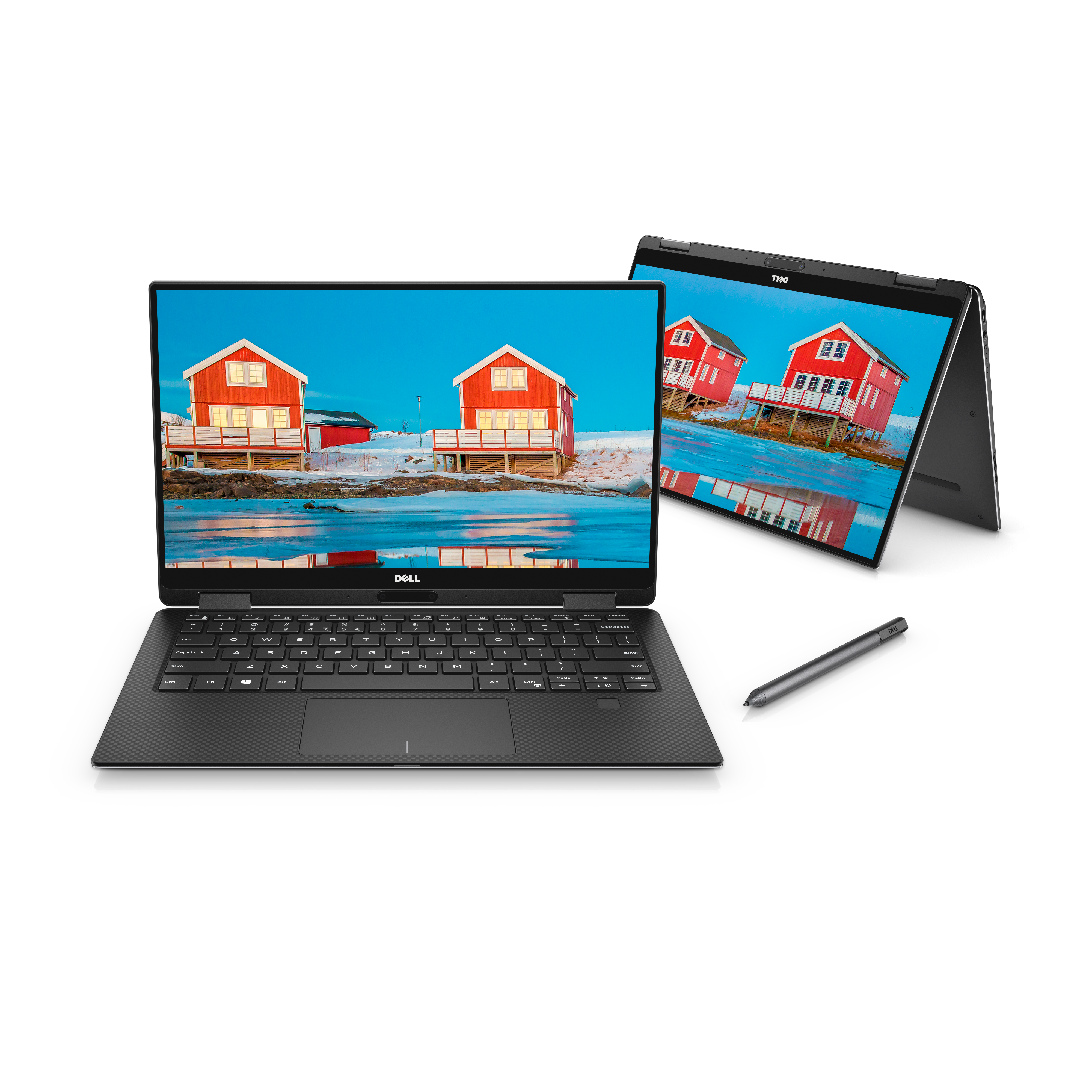
I like touch screens, but my budget is limited. On a visit to Dell.com I found the laptop of my dreams. A 2-in-1 tablet and PC, the Dell XPS has a 13-inch touchscreen, a decent keyboard and the best touch pad on par with the iPad Pro. But it costs $1,800 with the 11th generation i7 chip, 16 gigs of RAM and an amazing 1 terabyte solid state drive. A comparable MacBook Air, which doesn’t have a touch screen, costs about $1,650.

The neat part about the Dell 2-in-1 is that it’s 1. a typical laptop, and a nice one at that, and 2. it folds over to reveal a beautiful tablet that can be positioned at any angle.  Working on a Microsoft Word document was surprisingly fast.

Aside from the touchscreen, the XPS boot-up takes seconds. It handles running multiple applications or having multiple web pages open without slowing down. My desktop, which has 32 gigs of RAM and a solid-state drive should be that fast. The MacBook Air, which weighs barely three pounds, has an lesser i5 processor; still, it’s almost as fast as the XPS. And, with the new M1 chip it’s refreshingly quiet.

The Dell comes with Windows 10; you’re on your own for word processing and other office tasks

The Dell offers a three-year warranty, for hardware, software and damage coverage costs. $299 Premium support is a must, since basic hardware warranty is terrible. A comparable three-year AppleCare warranty for the Air costs $199 and also covers damage.

Both laptops have passable speakers, webcams and sturdy cases. The Dell has a USB-C port the MacBook has two USB-C ports. If you want to connect USB 3 components, you need an adaptor. If you need an external DVD drive, you’ll need to spend about $50 on Amazon. Oddly, the Apple DVD drive only connects with a USB3 port. Again you’ll need an adaptor. Both the Dell and the Apple have high speed wifi built-in. In my tests, working with Word and Pages. surfing and playing part of a movie on Netflix, the Air ran for nearly 10 hours on a charge; the Dell lasted for about three hours.

The Air comes with the excellent Monterey operating system and apps for writing, preparing spreadsheets and presentations, along with software for photo and video editing and music composition. The Dell comes with Windows 11; you’re on your own for word processing and other software.

Here’s something that will tilt the decision even more. If you absolutely need to run Windows, a program called Parallels (reviewed here) will let you run both Monterey and Windows 11 right on your Mac.

For more information, visit: www.Dell.com and www.Apple.com and http://www.parallels.com

Amazon Echo Dot 2 is Listening

Meet the Echo Dot, Alexa’s little sister

The hockey-puck-size Echo Dot 2 does everything the bigger, heavier  Echo will do, and its microphone is more sensitive. It also costs $40 less than the old Dot. Alexa works flawlessly on the Dot, independently from the bigger Echo. Its sound isn’t great, but it will connect either through bluetooth or a cable to external speakers.  Since space is tight in my home office, I bought the $100 UE Boom, version 1,  to stream my music. Folks with a more powerful sound system will be able to get even better sound from the Dot.

Meet the Echo Dot, Alexa’s little sister

If you subscribe to Amazon Prime, you already know that for $99 a year, you get free two-day shipping on orders from their massive catalogue of products that range from lawn mowers (bought one today) to their wide range of electronic devices, such as the new $50 Echo Dot 2 (ditto). If Amazon had a paper catalogue, you’d need a forklift to bring it in from the mailbox.

Meet the Echo Dot

You also know that you get free movies and TV shows on Amazon Prime. (Newer movies and shows still cost from $2 to $5 or more.) If you don’t already have Prime, you’re missing out on one of the greatest bargains of the century.

But it’s the 2nd generation Echo Dot that I’m gushing over today. Its big sister, the $180 Amazon Echo, features a humble expert called Alexa. Ask her for the forecast for L.A. for next Tuesday, and in an instant, she tells you that it will be a balmy 76 degrees and sunny.

The Echo hooks up to a wireless network and will find music for your taste, and turn on the dining room light, if, as I do, you have smart-home hardware such as the ones Insteon makes.

With its new music streaming service, for $8 a month for Prime members, Alexa will find millions of songs for you, even if you know only some lyrics and not the title of the selection.

The hockey-puck-size Echo Dot 2 does everything the bigger, heavier  Echo will do, and its microphone is more sensitive. It also costs $40 less than the old Dot. Alexa works flawlessly on the Dot, independently from the bigger Echo. Its sound isn’t great, but it will connect either through bluetooth or a cable to external speakers.  Since space is tight in my home office, I bought the $100 UE Boom, version 1,  to stream my music. Folks with a more powerful sound system will be able to get even better sound from the Dot.

The Echo Dot works independently from the bigger Echo, so different music can be played in different rooms around the house. For folks with different musical tastes and different alarm wakeup times, it’s not too far-fetched to make use of a bunch of Dots.

Like the bigger Echo, Uber rides can be arranged, pizza can be ordered and, of course, Prime members can order  products from Amazon (“Alexa, order an Echo Dot,” for example).  Echo has amazing hearing. Summon Alexa from across the room, and she’s at your service. Unlike the portable Amazon Tap, which  requires a tap on the microphone button, the Dot isn’t portable; it’s tethered to a power outlet.

I still have some reservations about privacy. In a troubleshooting call to Amazon about lights that wouldn’t come on when I asked Alexa to turn them on, I discovered that Amazon knows which home-control devices I have, and when they’re programmed to work. They also know my musical tastes and can tell me the last commands I used. But that hasn’t stopped me from ordering both the big and small Echos.

Like all Amazon-branded gadgets, the Dot is packaged beautifully and efficiently. Setup, via a smartphone app, couldn’t be simpler, and, unlike some gadgets from other manufacturers, the quality control is excellent; the Dot worked right out of the box.

Is Quicken 2022 Worth the Upgrade?

A friend at tax time

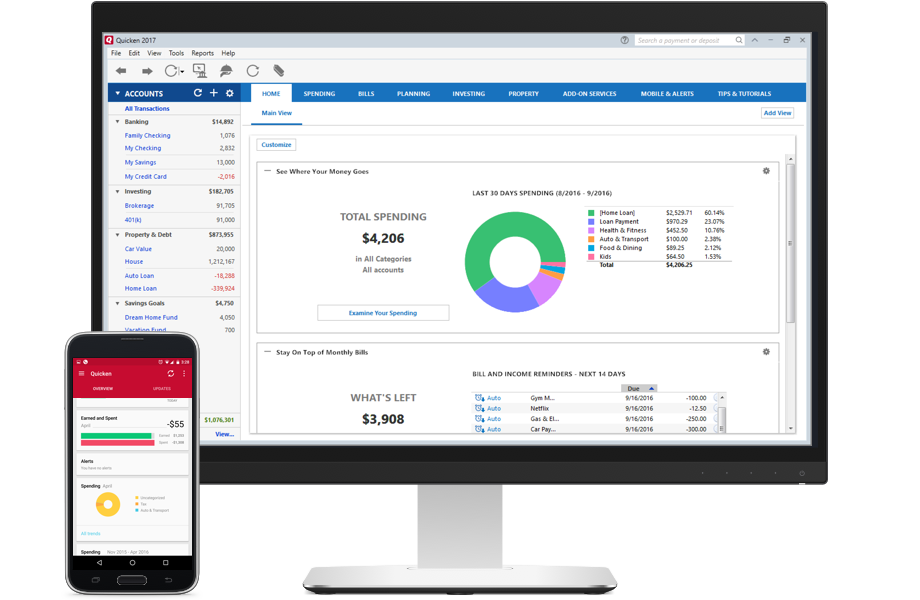
If  you’ve conscientiously entered and downloaded your financial transactions during the year, the accounting software for non-accountants will neatly categorize them into the taxable and non-taxable categories you’ve set up. It will allow you to print charts and graphs of how much money you earned and how much you spent in the budget categories you’ve created.

Always a friend at tax time

At tax time there’s nothing as helpful Quicken.

If  you’ve conscientiously entered and downloaded your financial transactions during the year, the accounting software for non-accountants will neatly categorize them into the taxable and non-taxable categories you’ve set up. It will allow you to print charts and graphs of how much money you earned and how much you spent in the budget categories you’ve created.

If you use TurboTax, taxable categories can be imported from Quicken.

Quicken will help you prepare a budget and scold you when you don’t stick to it. The software is slick and user-friendly and mostly logical.

Don’t rush to upgrade to Quicken 2017.

I’ve used Quicken to manage my finances, both business and personal, since its pre-Windows days. Each year I upgrade to the newest version, and each year I I wish I didn’t have to upgrade. (More about that later.) Each new version will do such things as change the home-screen colors and menu font, but you still have to hunt deep into the Tools menu to find the Reconcile function. Reconciling is one of the most important functions of financial software, since it compares your bank and credit card statements with the balance and transactions in Quicken.

I reconcile my accounts every business day. That way, there are no surprises. I

‘ download all transactions directly from bank and credit card accounts. I spend  about an hour a week keeping my finances in order. It’s time well-spent, especially when the tax man cometh.

The 2022 version has a more robust mobile synchronization, yet I couldn’t get the app to import transactions from my checking account without tweaking. Tech support for the Premier version is free and competent.

A call to Quicken’s free and competent tech support resolved the problem (30-minutes on hold, with obnoxious music). How syncing works is data is sent from your PC to the Quicken servers, then to your phone or tablet. Transactions that are entered in the phone app show up in the PC version, and vice-versa. When an error, such as a wrong password, occurs, the syncing can’t continue, which is what happened to me.

Do I worry about privacy when my most personal financial data is sent to the cloud? Yes, but that’s the way it works.

Quicken excels (pardon the reference to the Microsoft Office spreadsheet program) in tracking investments, planning for college tuition and figuring out how much money you’ll need for retirement. It will remind you of the due dates for bills and you can even pay bills directly through the software for $10 a month. I bypass that fee by paying my bills through my checking account, which is free. Payments show up in my Quicken ledger when I download my other bank transactions.

You can use your phone or tablet camera to snap photos of receipts, but you’ll still have to enter the transactions into the virtual ledger for the appropriate account. The mobile app will display recent transactions and break them down by the days they are made. I’ve come to rely on the app to keep me up to date on my finances.

But the real strength of  Quicken is the accounts page on your Windows PC or Mac. There you’ll set up all your accounts, download transactions for those accounts and you’ll be able to see in living color whether you’re going to make it through the month without breaking the bank. Quicken will alert you that you’re spending more on entertainment, for example, than you did the previous month. You then can set up a more realistic budget, based on spending in prior years and adjusted for changes in income and priorities.

For all that Quicken does, it’s reasonably priced. The Deluxe version, which I bought, costs $75 — a year. The Premier version, for folks who have extensive investment portfolios, costs $110. A Starter version, which can’t import data from the previous year, costs $40. There also are versions for businesses and people who have rental income. Quite often Quicken is on sale. When I upgraded by yearly subscription plans were available at up to a 40 percent discount. The Mac version costs $75.

That said, I could have kept using the 2019 version and not missed much in terms of features.

I guess there are many kinds of people who compute; among them are those who are just fine with Windows XP and Microsoft Office 2007, and those who can’t wait to install the next update to Windows 11. Just because I fall into the latter category doesn’t mean I’ve taken the right path.

Some upgrades such as those that don’t work with newer operating systems make sense. That’s not the case here, since Quicken works with versions of Windows all the way back to Vista. If you’re running Quicken 2022 and you don’t need the features in the Premier or Home and Business versions, I can’t think of a compelling reason to buy the latest upgrade. Well, yes I can think of one compelling reason: Quicken is on a subscription model. Each year you have to pay for a new subscription. For example, for the Premiere Edition, the price is $79, although it’s often heavily discounted.

If it weren’t for the subscription model, I’d still have the 2019 version and be perfectly happy.

For more information: www.Quicken.com.