
Mac on USB: A Step-By-Step Guide

Booting a Mac from a thumb drive

I had a goal in mind: Install Sierra, the latest Macintosh  operating system , along with essential email and other apps, on a USB drive, so that I could leave my MacBook at home, and just bring the USB drive with me when I go abroad. Once I had done that, I could connect the USB drive into any Mac with a USB 3.0 port and boot from the portable drive. I wanted to be able to use the host Mac without leaving any traces of my computing. A portable external USB drive or thumb drive weigh ounces; my MacBook Air, with a case, charger and other accessories, weighs more than six pounds. I try to pack light.

Booting a Mac from a thumb drive

“To my knowledge,” the senior support tech at Apple said, in answer to my question, “you can’t boot into an Apple computer from a USB drive.”

“Whoa. The Internet is full of ways of doing just that,” I responded.

“Good luck, then.”

A two-ounce Mac

I had a goal in mind: Install Sierra, the latest Macintosh  operating system , along with essential email and other apps, on a USB drive, so that I could leave my MacBook at home, and just bring the USB drive with me when I go abroad. Once I had done that, I could connect the USB drive into any Mac with a USB 3.0 port and boot from the portable drive. I wanted to be able to use the host Mac without leaving any traces of my computing. A portable external USB drive or thumb drive weigh ounces; my MacBook Air, with a case, charger and other accessories, weighs more than six pounds. I try to pack light.

It goes without saying, but I’ll say it anyway: Make a backup of your important files on a separate disk before you install any upgrade or downgrade.

One of the best tutorials for making a USB drive bootable is for Yosemite users only.  I followed a 14-minute YouTube narration for doing some of the most arcane moves I’ve ever done on a PC. The moves in disco dancing pale in comparison.

There are no guarantees in computing. The following, gleaned from http://www.macworld.com and several other sources, worked for me; I hope it works for you as well:

  1. Format a minimum 32-gig external hard drive or thumb drive. Memory is cheap; buy as much as you can afford. Make sure you format the drive Mac Journaled and the GUID partition part is checked. Change the name of the drive to Untitled.
  2. Check your Mac’s Applications folder to see if you have the Sierra installer. If not, go to the app store and download Sierra — but don’t install it. Put the installer in your Applications folder.
  3. Bring up Terminal (go to the search bar and type terminal to bring it up).

The following instructions are directly from MacWorld:

At the Terminal prompt, type:

sudo /Applications/Install\ macOS\ Sierra.app/Contents/Resources/createinstallmedia –volume /Volumes/Untitled –applicationpath /Applications/Install\ macOS\ Sierra.app

Terminal will ask for a password. This is your user password. Terminal doesn’t display characters when you type it in. Hit Return.

  1. Terminal will tell you that it will erase your drive. To confirm that you want to continue, type Y and hit Return.  
  2. You’ll see that Terminal erases your drive. When that part is done, your Mac may ask you if you want to use the drive for Time Machine. Click Don’t Use.  
  3. Terminal will copy the installer file to your drive. This will take a few minutes.  
  4. After copying, Terminal is done. You should see Terminal display a “Copy complete” and Done notice. You can quit Terminal and your drive is ready for use.
    Plug your external drive into your Mac
  5. Power up (or restart) your Mac. Press down on the Option key while the Mac boots.
  6. After a few moments, your Mac should display the Startup Manager, which will show you the available boot drives. Click on the external drive and hit Return. (You don’t need to select a network to proceed.)
  7. Your Mac will display an OS X Utilities window. To install Sierra and leave the data intact, select Install OS X.

By following MacWorld’s instructions to the T, I am now running Sierra from a thumb drive.
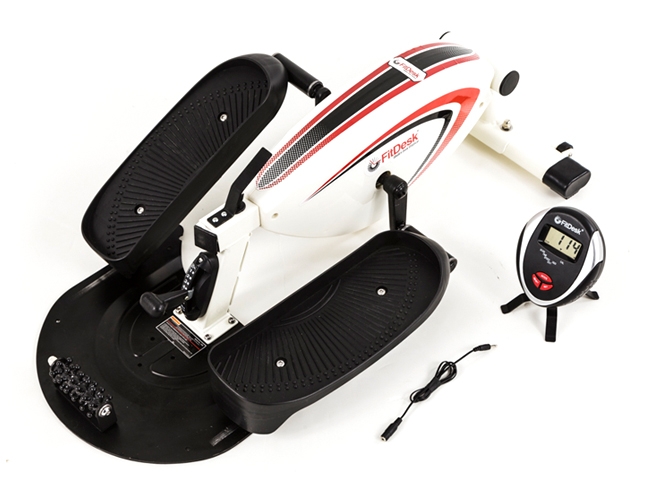
FitDesk Under Desk Elliptical

Getting a workout while working

As I type this on my desktop computer, I’m getting an aerobic workout. My legs have been pumping away for half an hour. Calories are being burned. Instead of the leg cramps I so often get when I spend hours glued to my desk chair, I feel exhilarated. I am working out while I work.

Getting a workout while working

As I type this on my desktop computer, I’m getting an aerobic workout. My legs have been pumping away for half an hour. Calories are being burned. Instead of the leg cramps I so often get when I spend hours glued to my desk chair, I feel exhilarated. I am working out while I work.

A sit-down workout

No, I haven’t mounted my heavy desktop and equally heavy monitor on a treadmill or stationary bike. I’m using the FitDesk Under Desk Elliptical, a sort of stationary bike that fits under my desk. Physical tension ebbs as I increase the tension on the elliptical itself, a feat accomplished with a tap of my left foot. How crazy is this?

Well, for one thing, I am banging my knees on the bottom of the desk. No matter. Life is all about tradeoffs. The possibility that I will be a candidate for knee surgery soon is outweighed by the fact that I spent $100 on this device, and I very well plan to use it.

The folks at FitDesk claim that a desk as low as 24 inches will accommodate the elliptical. My desk is 26 inches high, but I’m 6-2, and my legs are long. So  I go bump in the night.

That said, how am I using the device? I lower my chair and bring the elliptical toward me so that my knees don’t bump the desk. I put my dasKeyboard on my lap; the keyboard is tethered with the extra-long USB cable I mocked in an earlier column. For mouse work, I simply lean forward.

It works, but not as intended. I should be able to sit at my desk normally while my legs get a workout; instead I have to use a workaround.

Assembling the elliptical is fairly straightforward. The instructions are clear, and all the nuts and bolts, and even the tools I needed, were present and accounted for. A small fitness meter helps figure out how fast the calories are being burned  and how long I’ve been pumping away. The fact that the meter’s cable is a bit short didn’t much bother me, since I know, by wristwatch, how much time I’ve been pumping away and banging my knees.

So, here’s what I suggest: Don’t buy it unless your desk is at least 30 inches high. If you have long legs, go higher. And don’t try to lift it yourself. The FedEx  guy wasn’t happy about delivering it. If you have any issues with your knees, the elliptical may not be your best choice for exercise equipment.

Still, I’m using it as I write this column. Knee bumps aside, it’s the best way to exercise while using a desktop PC that I’ve found.  If you  have a laptop, there are mini-desks you can mount on a full-size elliptical. But those ellipticals take up a lot of space. This one fits under a desk, which makes it unique. Not entirely practical for me, but not impractical, either. Besides, there’s no way I could repack it and take it to the FedEx store to return to Amazon without injuring my back. Sore knees are bad enough.

Light Up Your Life On Wi-Fi

Never be in the dark again

In the developing world of smart home devices, there are several that will light up your life. One of them, the Insteon package of electrical plugs and switches, can be used to set up lighting zones in your house.

Never be in the dark again

In the developing world of smart home devices, there are several that will light up your life.

One of them, the Insteon package of electrical plugs and switches, can be used to set up lighting zones in your house.

The Insteon works on wi-fi networks, wherever you are.

Most smart home products turn lights and other devices on and off at different times in different rooms, based on whether a person needs to be in the room. There’s no forgetting to turn off the lights, either: they’re programmed to turn off after I go to bed, except for one inside light and the outside light.

So far, the system has worked reliably.

The Insteon device uses a hub that is programmed to talk to the various plugs and wall switches. Setup is initially complicated, and it took awhile to figure out how to program the hub in the iPhone app, which communicates with the hub on a wi-fi network.  It can also be programmed on an Android phone.

Like similar devices, the Insteon uses small attachments for electrical outlets. A lamp plugs into the attachment, which is plugged into the wall. Two or more lights can be controlled with one adapter using a standard extension cord. Wall  switches require an extra wire that may be missing in older homes.

I hired an electrician to do the job. Switches and plugs in two rooms, for seven outlets and wall switches, set me back $400, including labor. Simple timers, the kind you might find at Home Depot , that are easy to self-install and use, would have set me back about $75, but what fun is that for a gadget freak?

The Insteon hub is compatible with the Amazon Echo. I ask Alexa, Echo’s helpful assistant, to turn off the dining room light, and she complies without complaint.

In my aversion to leaving well enough alone, on Cyber Monday I asked Alexa to tell me about some deals that were available on Amazon. She came up with the TP-Link Smart Wi-Fi Plug for $13 (normally $30 to $50 on Amazon), which, like the Insteon setup, works with Alexa. The Smart Plug works on wi-fi networks, wherever you are. Like the Insteon devices, it plugs into the wall, and a lamp plugs into the device. I tested only one, with a desk lamp. It worked as advertised.

The Smart Plug can only be controlled fully from an iPhone or Android phone; trying to use it on an iPad allows for turning the switch on and off only.

There are icons for programming the switch. Icons can be named; I assigned an icon showing a person coming home to turn on the Smart Plug. Another icon was programmed to turn the TV on. Each device has its own icon. The icon has to be tapped to turn on a light, for example, which, I suppose is handy when you have to enter a dark room. But for my money, that’s what light switches are for. Gadget freaks will prefer the coming-home icon. I count myself among them.

But, like the Insteon devices,  the Smart Plug has its limitations. It can’t turn some appliances on, because they need to be manually activated.

It’s much easier to program the Smart Plug compared with the nerdy Insteon. Both are programmed with a phone, but the Smart Plug uses iPhone-type clocks; setting on and off times in the Insteon app requires more steps.

The Smart Plug has a random on-off program that’s handy for when you’re away from home. There’s also a countdown features that turns lights and other devices on and off. I suppose you could use the feature when you leave your home and need a few extra minutes of light.

The Smart Plug is slicker and the software is more polished, but when darkness descends, the Insteon works as advertised, too. If you went with Insteon, I’d recommend staying with it. Both devices cost about the same; if you’re not handy, you may need to hire an electrician to set up Smart Plug wall switches. If you want devices that are easier to program, I’d recommend the Smart Plug to light up your life.

For more information, visit: http://www.insteon.com and http://www.tp-link.com.

Endless Printing For Thrifty Souls

Epson’s new Eco Tank printer offers freedom from ink cartridges

A funny thing happened on my way to the local office-supply store the other day. I sat in my car in the store’s parking lot and wondered why I was making yet another weekly trip to buy ink.

Epson’s new Eco Tank printer offers freedom from ink cartridges

( I wrote this review nearly a year ago, and everything I wrote then applies today, too.)

A funny thing happened on my way to the local office-supply store the other day. I sat in my car in the store’s parking lot and wondered why I was making yet another weekly trip to buy ink.

An economical printer that pays for itself many times over.

The five cartridges in my HP inkjet printer gobble up ink so fast that I can get barely 40 glossy color prints out of them, and as few as 150 black/white pages. Yes, in this age of digital camera files that are put up on Facebook for free, I’m still printing glossies on my inkjet printer. The price is not right; the five cartridges total out to about $80 for a printer that cost less than $200. What a sap.

HP, Canon and the other printer manufacturers price their inkjet  printers low; they make their money on ink cartridges. Nothing new there. Thrifty souls buy remanufactured ink cartridges, which the printer companies say will void the warranty if the cartridges leak. I’ve had terrible luck with remanufactured cartridges. While none leaked, the ones I bought on the Internet ran out twice as fast as the real thing. Their colors weren’t true either. Some people swear by them. Others swear at them, me included.

What if someone manufactured an inkjet printer that had larger cartridges, I wondered in the parking lot. Something big, as in ink tanker hoses running directly into the printer. So, I did some research.

What I found was the answer to my inkjet nightmare: the Epson Workforce ET-4550, which comes equipped with enough ink to last for up to two years. That would be enough to print 11,000 black pages and 8,500 color pages. That’s equivalent to 50 sets of the ink cartridges my HP inkjet would use. I did the math in my head: 50 times $80 is $4,000. The printer costs $500. Net savings? Do the math.

Epson’s new Eco Tank line of printers also copy, scan and fax. Glossy color prints are at least as good or better than my HP inkjet. The quality is very good, but not in the league of the best inkjet printers. Black printing is laser-quality. It’s wireless (one of the easiest to set up wireless printers I’ve ever had), it also can work on its own network, it prints on both sides, works with both Windows PCs and Macs, has a generous two-year warranty,  its (flimsy) paper tray can handle 150 pages and it prints out to the strains of Brahms Violin Concerto No. 5. Well, I’m exaggerating a bit.

Here’s how it works:

The printer comes with black, magenta, cyan and yellow ink bottles. You’ve never seen ink cartridges like these. You snip off the pouring sides of the ink bottles and empty them into the color-coded reservoirs on the side of the printer. Word of caution: wear gloves — printer ink won’t wash out of clothes and it hangs around on hands like original sin. Fill all the reservoir tanks, a process that takes maybe 10 minutes, and you’re ready to print.

And print. And print.

I printed 50 8-by-10 glossy color photos and barely made a dent in the ink supply. Then I printed out the 100-page black-and-white manual for my Apple Watch (guess what I got for my birthday). And then I printed a bunch of color classroom material for my teacher daughter. When my grandson came over, we printed every possible Cat in the Hat game, puzzle, song sheet, cutout and coloring sheet. Still the ink levels in the tanks were high.

I probably would have gone through two sets of regular ink cartridges for my HP.

You might think that replacement cartridges for the Epson Eco Tank would cost hundreds of dollars. In fact, they costs $52 for all four cartridges.

Are there downsides? Printing at the highest quality black and white or color is definitely slower than my mid-range HP. It took up to three-minutes to print a high-resolution glossy color print. The paper tray should hold more sheets. The printer could be quieter. My first demo printer had a few hiccups, which Epson tech support promptly helped me fix. I was on hold for less than two minutes, the call is free, as is the support.

Other Eco Tank printers start at $379. If I were buying one today, I’d go for the 4550 – it seems to be the sweet spot between price and economy.

If you’re on a budget, if you like to print and print and print, this printer cries out for attention – yours.

More information: http://www.epson.com.

Talk Is Cheap With magicJackGo

Talk is cheap with magicJackGo

Let’s pretend you’re visiting England and you want to call home and relate to your mate every boring detail of your trip. Likely she’ll lay the phone gently on the table, let you babble on and go about her business. No matter. Why, the British Museum alone is worth three hours of chatting into the ozone. Even at a few pence a minute, you’re likely to rack up pounds of talk time, especially from a hotel room. But there is a better way, and it’s not to skip calling.

The better way to chat

London calling

Let’s pretend you’re visiting England and you want to call home and relate to your mate every boring detail of your trip. Likely she’ll lay the phone gently on the table, let you babble on and go about her business. No matter. Why, the British Museum alone is worth three hours of chatting into the ozone. Even at a few pence a minute, you’re likely to rack up pounds of talk time, especially from a hotel room. But there is a better way, and it’s not to skip calling.

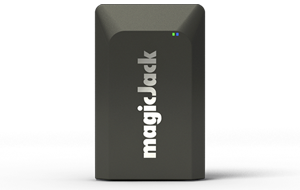
The better way is magicJackGo, a device you can slip into a shirt pocket and take with you to the four corners of the globe.

When you get the device, you register to get a local phone number. I chose the 424 area code, since it encompasses Beverly Hills, which is sort of (in my dreams) near the area where I live.

You plug the magicJackGo into a USB port on your laptop computer, call up a virtual keypad and dial home. If your PC doesn’t have a mic, you need to supply your own.

Your long-suffering mate sees the 424 number and reluctantly picks up.

What’s going on here? Even though you’re thousands of miles away, magicJack thinks you’re still in the 424 area code, because that’s the phone number assigned to it. No toll charges for these calls, thank you very much. And, should your wife want to call you, she dials the 424 number, and the call is free for her, too. Who said talk isn’t cheap?

How cheap? The device and one year of service costs $60. That compares with the $40 a month I pay for my Time Warner phone service, and $120 a month I pay for my cell phone service, which, by the way, AT&T would charge outrageous amounts for international calls. That $60 includes unlimited calls to the U.S. and Canada. But it gets even better.      

If you take your U.S.-based cell phone with you, you can download the magicJack app and make free calls to just about any number on the globe if both your call recipient and you have the magicJackGo. 

Now then, suppose you’re not a world traveler, and you just want phone service at your home or business. MagicJack has you covered there, too. Just plug it into a phone and a cable router with the included Ethernet cable, and you have phone service. For as little as $20 on a five-year plan, you get 911, conferencing, voice mail that includes an email with an audio file you can play, directory assistance, call forwarding and a seat on the next space shuttle.

It also works fine with fax machines. I have two magicJacks, one for my fax machine and one for my work number. If I wanted to cut the cord for my cable phone service, I could get my current number ported over for $10. Vanity numbers, such as “424-IBoring” cost another $10.

There are some minor downsides to the magicJackGo. While call quality is good if you have high-speed Internet service, if you’re on a cheapie plan with your cable provider, your calls can sound as if you’re in a barrel, in order for the app to work on the road, it has to be open at all times. Otherwise, incoming calls go directly into voice mail. And if your PC doesn’t have a built-in microphone, you have to buy one. If you’re making international calls, and your recipient doesn’t have a magicJackGo, expect to pay anywhere from 2 cents a minute to Mexico to $2.51 a minute to Antarctica.

McMurdo, here I come.

Computing in a Parallels Universe

Computing in a Parallels Universe

There are several ways to run additional operating systems on a Mac. Using Boot Camp, Apple’s free software, a Mac’s hard drive can be partitioned for Windows, then further partitioned for Linux, Google Chrome, and other operating systems, depending on the size of the  hard drive. 

Windows on a Mac (and a grab bag of techie goodies)

There are several ways to run additional operating systems on a Mac. Using Boot Camp, Apple’s free software, a Mac’s hard drive can be partitioned for Windows, then further partitioned for Linux, Google Chrome, and other operating systems, depending on the size of the  hard drive. 

As the Mac boots up, an operating system – Mac OS, Windows, Chrome or Linux – can be chosen from a list and loaded, but only one at a time.

Mac, meet Windows.

There’s a better way if you need to switch quickly among operating systems:

Parallels Desktop for Mac, an off-the-shelf software program that runs Windows and other operating systems alongside Apple’s operating system.

This year brings the 12th version – the 8th version I’ve used. If you’re unsure about updating to version 12, you might be interested in knowing that the newest version runs much faster than version 11. Windows boots up quickly, as do Linux and Chrome.

If you have enough RAM, you can run several operating systems at once in separate windows on the Mac desktop, without partitioning the hard drive.

Parallels runs Windows and other operating systems as virtual machines, calling on a Mac’s RAM to do its work. You’ll need about eight gigabytes of memory to run Windows on a Mac, although I was able to run Parallels on a MacBook Air that had only four gigs of memory. Parallels doesn’t recommend the lesser memory.

The new version works with Windows 10 and is compatible with Mac OSX Sierra.

It also has a grab bag of tools that makes running Macs more interesting. The most useful tool converts video from a smart phone to video that can be played back on a Mac. Another tool records screen shots and snapshots of the desktop. There also are an alarm tool, a clock and a stop watch . Version 12 comes with 500 gigs of free online storage (for a year).

Even though I’ve been using Parallels on my Mac for the past eight years, I’m still impressed with how easy it is to move files both ways, from Windows to Mac to Chromium, and back again.

Each operating system can be run as a window on the Mac desktop or it can fill the entire screen for a total operating system experience. For the adventurous, Parallels has download links for the free Google and Linux Ubuntu operating systems. I had four operating systems running at once on a Mac that has 16 gigabytes of RAM. The additional operating systems ran flawlessly – if a bit slowly – with Parallels. 

I’m downsizing my collection of computers and someday will be left with an iMac and maybe a MacBook Air, but I have software, such as Quicken, that I use only with Windows, and for that I need a Windows PC. Parallels lets me run Quicken on my Mac in a Windows environment. If I had older programs that needed earlier versions of Windows, I could install them as virtual machines, too.

It’s possible to run Windows 7, 8.1 and 10 alongside the Mac OS, Chrome and Ubuntu. It’s like having a row of PCs, with a Mac in the middle, each running its own operating system and software. Computing on multiple platforms doesn’t get much better than with Parallels.

An upgrade to earlier versions of Parallels costs $50. A first-time user of Parallels pays a reasonable $80 for the experience. Tech support and the online knowledge base are  excellent.

For more information, visit: http://www.parallels.com.

A Window into Parallels Toolbox for Mac

Parallels Just Got Better

If you’re using Parallels Desktop for Mac, which runs Windows concurrently with the Mac operating system, you may not realize that you also have a powerful set of tools to make computing a bit easier.

Parallels Just Got Better

If you’re using Parallels Desktop for Mac, which runs Windows concurrently with the Mac operating system, you may not realize that you also have a powerful set of tools to make computing a bit easier.

Utilities galore for Mac users who love Windows software

I have a high opinion of Parallels, including their tech support. In last year’s review of version 12, which is compatible with OSX Sierra, the latest Mac operating system, I described how I was able to run Windows 10, Linux and Chrome in separate windows on my Mac. Those operating systems are run as virtual machines. They consume memory, so the more RAM you have, the better. I have 16 gigabytes of RAM on my iMac, so I also could run Windows 7 and Windows 8.1 along with Windows 10, if I had software that was compatible only with those versions.

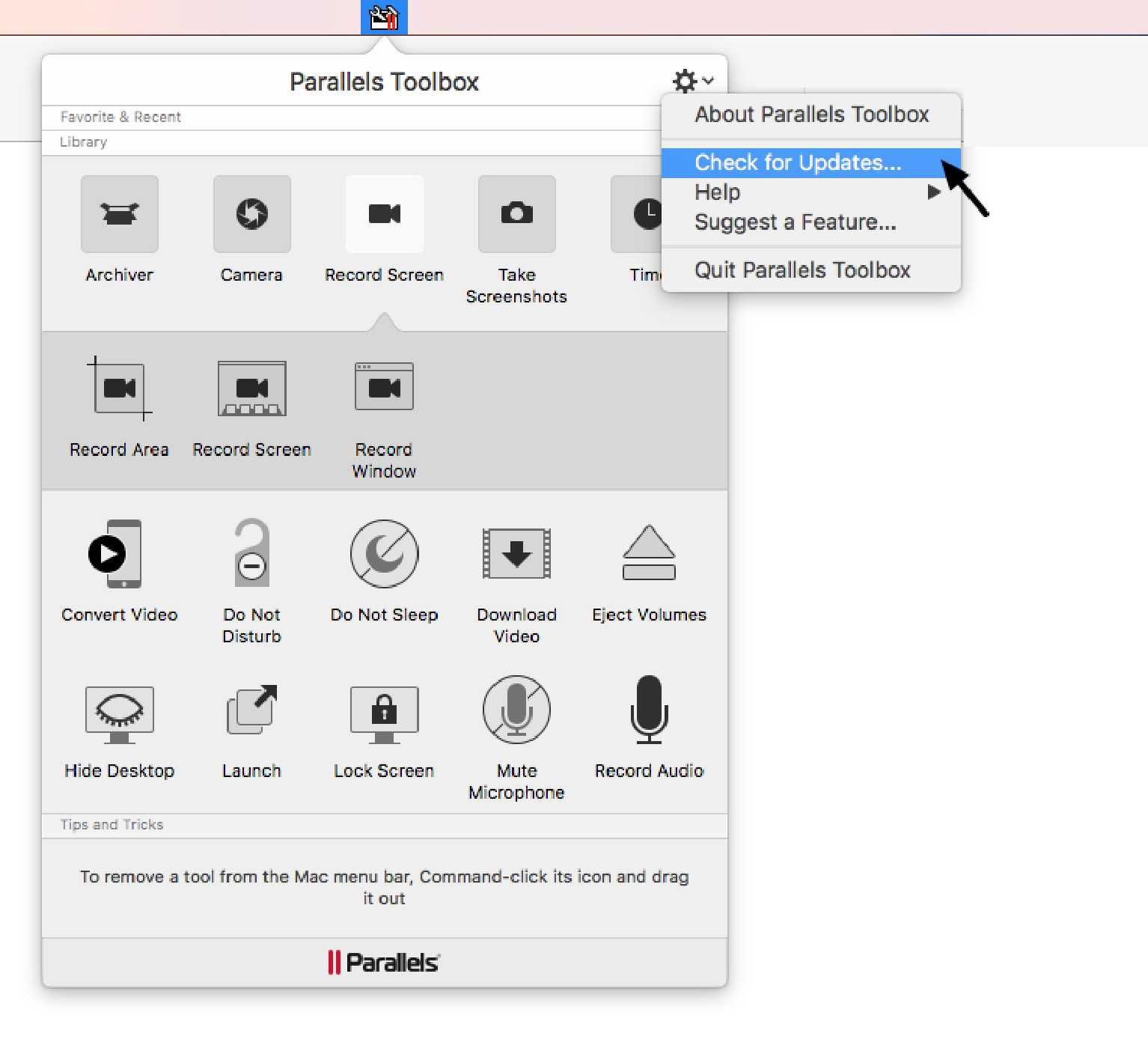
Just like you might organize your home or business equipment in a toolbox, Parallels Toolbox, which resides on the Mac’s menu bar, has more than a dozen utilities that I found useful. Here’s a rundown of those utilities:

Convert Video will take videos such as home movies or TV shows that are already on your Mac and make them compatible with an iPhone and iPad.

Download Video allows you to capture streaming video from the Internet and save the clips to your Mac.

Launch apps lets you drag and drop apps or files onto a window. Folders also can be opened by dragging them into the window. (Individual Toolbox utilities can be installed on the menu bar or dock for quicker access.)

Do Not Sleep is a simplified way to keep a Mac running all the time, without the screen dimming or having to type password to wake it up.

Screen Shots and Screen Capture: One click displays what’s on your Mac’s screen. Capture shows what’s running. Both are useful for helping tech support solve your problems.

Parallels includes top-notch tech support

Archive: Files that you want to keep, but don’t need at the moment can be dragged onto a window. Files can be compressed, decompressed and password-protected.

Time features an alarm clock, stopwatch, countdown and timer.

Do Not Disturb stops notifications and the bouncing icons in the dock when you don’t want to be distracted. Especially handy if you’re making presentations on your Mac.

Lock Screen is handy when you’re away from your desk or you want to stop someone standing over your shoulder from snooping.

Camera: The Mac’s built-in camera can be blocked, or it can be enabled to take photos and videos.

Hide Desktop will hide your folders and icons. Useful when you’re making a presentation.

There also are utilities for muting the microphone and recording audio.

Parallels Toolbox is bundled with Parallels Desktop version 12, so there is no extra charge for those users. For folks who don’t have Parallels, the app costs $10 a year. More information: http://www.parallels.com/toolbox. A free seven-day trial can be downloaded, too.

Photo Book Showdown: Apple vs. Shutterfly

Making Photo Book Memories

Among  the priceless heirlooms that my parents passed on to me were albums overflowing with baby photos, and pictures of school plays, graduations and other milestones in our lives. But photos tend to fade, they stick to album pages and won’t detach without tearing them, and it can be difficult to determine when the photos were taken.

Making Photo Book Memories

Among the priceless heirlooms that my parents passed on to me were albums overflowing with baby photos, and pictures of school plays, graduations and other milestones in our lives. But photos tend to fade, they stick to album pages and won’t detach without tearing them, and it can be difficult to determine when the photos were taken.

These memories won’t fade.

To help preserve important photos, I’ve been carefully detaching them from albums and scanning select photos with my workhorse Epson GT-S50. Many of the photos are in black and white, some of the color shots are faded, and all of them are priceless, which is why I’m digitizing them and copying them onto DVDs. Of course, photos taken in the last dozen years are digital already. The chore there is to hunt through each session for keepers. I save them by date, and give them descriptive names, such as “Max’s 3rd birthday party.”

But I’m of an age that I still like dusting off the albums on a rainy Sunday afternoon. I have a lot of company, it seems, as at least two photo-album services demonstrate. Shutterfly and Apple have services in which photos are uploaded, then placed, with captions, on virtual pages on a Mac or PC. Depending on your creativity and the quality of your digital photos, the printed results can surpass anything in a traditional photo album. You can even have the services design books for you.

I’ve used both services. Apple’s hardcover book costs about $30 for 20 pages – 99 cents for each additional page. Shutterfly charges $39 for a 20-page standard-size book — $1.49 for extra pages —  but often that’s discounted. On the day that I wrote this column Shutterfly was discounting everything on its website (www.shutterfly.com) by 50 percent, including books, greeting cards, mugs, stationary and even throw pillows with photos on them.

Following are each book’s pluses and minuses:

Shutterfly’s interface is friendly and intuitive. Photos are uploaded to their server, and then placed on pages. There are dozens of templates, page layouts and text styles. Once photos are added , they can be dragged and dropped on a page. Several layouts had a yearbook look, with space for up to 25 photos and text blocks on a page.  Templates range from family themes – vacation, reunion, baby No. 1 and many more. It was dismaying to note that instead of paying $6,000 for the photo shoot and an album of my kid’s wedding, I could have hired a photographer by the hour and composed a stunning book from his images at a fraction of the price.

With Shutterfly, one template and theme would have made a perfect menu, another a recipe book. Others include templates for travel, sports and one I decided to get for my granddaughter – learning the ABCs, complete with photos of her pre-school parties, along with her parents and siblings. There are so many themes, templates and page layouts the choices can be overwhelming. But if you know what you want, you’ll be able to compose a stunning book with Shutterfly. I composed a Daddy and Me 20-page book about my son and grandson in about two hours, and spent another hour writing captions. The resulting hardcover book, which I received in less than a week, looked good enough, but could have looked better if I hadn’t relied on cell phone photos. The quality of the book is very much dependent on the quality of the photos.

The Apple book (www.apple.com) starts with a different approach. Photos and other graphics have to be imported into the Mac’s “Photos” program before they can be placed on a page. That done, there are choices of soft cover, hardcover, square, classic and oversize coffee table books. There are only a few dozen themes, and each photo has a choice of 12 effects, including one that changes color photos to monochrome. As I progressed through dragging and dropping photos on the template I chose, I realized that I didn’t much like that template theme. Changing it was easy enough, and I experimented until I liked what I saw. Each page has choices of how many photos I wanted to place on them, and I could crop photos and nudge them in different direction in the frames.

While I could change fonts for headlines and captions in the Apple program, the boxes for them are inflexible. If I got wordy, I’d have to downsize the type size, which made the text block look out of place. I finally decided to use shorter captions and headlines so that they looked consistent, font-wise, from page to page.

Both the Apple and Shutterfly books looked nice. I did like the dramatic double-page spreads both books have, but somehow the Apple book, with its classy dust covers, seemed more elegant than the Shutterfly book.

Which service should you use for your coffee table album? Both will do the job. Shutterfly has more templates, but the Apple book’s templates do a good job of covering most occasions, too. On those rainy Sunday afternoons, either book will bring back memories, and the photos that aren’t pasted onto the pages won’t fall out. Unlike memories, they won’t fade, either.

Deviceware iPad Case is a Tablet Reader’s Dream

An A-Plus for Devicewear and Amazon

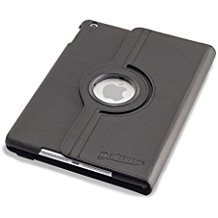
The hunt for a case for my new iPad 2017 wasn’t difficult. I had a Devicewear Ridge model for my older iPad and was happy with it. But since I do a lot of reading on my iPad, I wanted the model that rotates into a vertical position.

An A-Plus for Devicewear and Amazon

The hunt for a case for my new iPad 2017 wasn’t difficult. I had a Devicewear Ridge model for my older iPad and was happy with it. But since I do a lot of reading on my iPad, I wanted the model that rotates into a vertical position.

Devicewear’s rotating case is a bit bulky, but it’s handy if you do a lot of reading on your iPad.

Devicewear makes such a case, and when I saw it on Amazon for $30, with free shipping, I clicked on the “place your order” button, without realizing that the case was sold and shipped directly by Devicewear.

Amazon has several ways of buying: “ships and sold by Amazon,” “fulfilled by Amazon” and “ships and sold by (the merchant, but not by Amazon).”

“Ships and sold by Amazon” is the best way to buy, since it includes Amazon’s easy return policy. If the item is defective, Amazon will replace it or offer a refund. In most cases – except when a buyer simply changes his mind – Amazon will send a return shipping label, and in some cases, it will dispatch a UPS driver to pick up the item.

“Sold by (merchant), Fulfilled by Amazon” is a bit trickier. In some instances you’ll have to deal with the seller directly, but for the most part, Amazon will authorize a free return if the item “isn’t as advertised” or defective. I’ve never had a problem returning an item to Amazon, even though it’s only fulfilled by them.

The last method, “ships and sold (by the seller),” is much trickier. If an item is defective or not as advertised, the buyer has to deal directly with the seller. Amazon comes into the picture only if a buyer isn’t satisfied with the seller’s response.

Enter my new Devicewear rotating iPad 2017 case. The cover didn’t close all the way, which meant that the sleep function didn’t work. Closing the cover should do the same thing as manually putting the iPad into sleep mode by pressing the power button. But it didn’t.

So, I went to Devicewear’s website, stated my case in a “contact us” form and within 24 hours I got a response by email. They wanted a picture of the case that didn’t close and my Amazon order number. Within another 24 hours Devicewear offered to replace the case (after testing it to make certain it closed all the way). Wary of the rotating case, because of its bulk, I asked for another model. Which arrived a few days later.

Now it’s true that buying directly from Amazon would have been less of a hassle, but solving my predicament directly with the seller was a relatively positive experience.

The new case works as advertised. It closes all the way and puts my iPad into sleep mode when I close the cover and wakes it up when I reopen the cover. Unlike the rotating case, it’s slim and sleek. It gets 4.5 stars from more than 5,300 buyers on Amazon.

I’ve praised and savaged companies’ support in past columns and meted out grades. Devicewear, which makes all kinds of cases for different devices, gets a solid A-plus for handling my problem quickly and efficiency. Amazon, by the way, also gets an A-plus for its return policy and free two-day shipping for Prime members.

epic-ID is the Only Medical Wristband You’ll Ever Need

This ID could save your life

If I took a nasty spill on my morning walk, and suffered broken bones or head injuries, what would first responders need to know right away?

This ID could save your life

If I took a nasty spill on my morning walk, and suffered broken bones or head injuries, what would first responders need to know right away?

Don’t leave home without it.

For starters, they’d need to know my name, blood type, whether I have any major medical conditions.  They’d want to have several emergency contacts, if there were no answer for the first contact. Then there are issues that they’d need to know after I was stabilized: medical plan, primary physician and preferred hospital.

I never much thought about taking that serious spill until a few weeks ago. When it happened, I was more confused and embarrassed than injured. A passerby offered to call for help, but I got up, dusted myself off and went on my way.

Awhile before my spill, I noticed that a friend was wearing a black wrist band called on epic-ID. She explained that the band had all her pertinent medical information stored on a USB flash drive that connects to a Windows PC or Mac. The friend , a doctor, urged me to get one.

Two weeks after my fall, I finally stopped being in denial and ordered one, which I now wear on my right wrist when I go out walking or driving.

Here’s how it works.

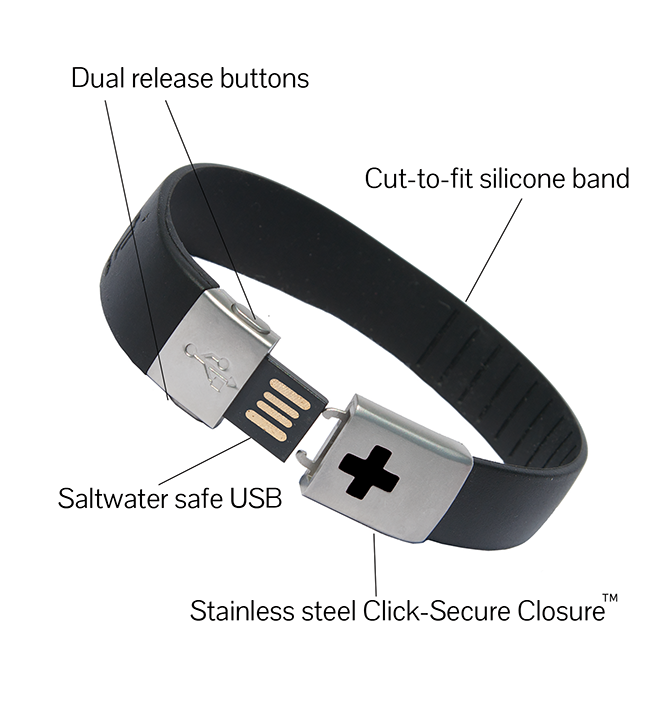
The epic-ID has an adjustable, hypoallergenic silicone wrist band that has a USB connection that can be read by any computer – Mac or Windows. (First responders are trained to look for medical wrist bands.) The USB end of the band connects to computers that first-responders carry on their vehicles. The other end of the waterproof wrist band can by trimmed down to fit your wrist.

Your personal Information is stored on a tiny flash drive on the wrist band itself. It has no battery. There are no monthly fees. It doesn’t  connect to the Internet, so your information is safe from identity theft. The only thing you have to worry about is losing the band, and you can guard against that by wearing it all the time – it’s waterproof, too. 

Once the USB end of the wrist band is connected to a Windows or Mac computer, there are three sections that pop up immediately.

Personal Information prompts you to type in your name, date of birth, address, blood type and emergency contacts. There’s also a place to import your photo.

From there, you go to the Medical Information tab, where you describe  your allergies and whether you’re up-to-date on your flu shot and other immunizations.

Current prescriptions are next, followed by information on prior surgeries and hospitalizations. A family medical history is next.

The third and last form deals with information about your doctor(s), medical group, membership number and extent of your medical coverage. Information can be updated at any time just by plugging the USB end of the wrist band into a PC.

The wrist band also comes with a metal tag that has room for five lines of information (name, emergency contact, medical problems, for example). The plate fits right on the wrist band. opposite the USB connection, which is securely made. The wrist band itself comes in three colors – black, white and red. epic-ID sells a package of 18 wrist bands for $300. A single one costs $50, with the metal plate.

For more information: visit http://www.epic-id.com or call (844-437-4243).