
In search of the perfect $600 laptop PC

I could spend much more and get much less.

Apples to apples, Windows to Chromebook, there’s a cheap laptop in your future.

There’s an expression that describes my addiction to new computers: You need this like you need a hole in your head. But the only expression that counts for me is the smile that comes with unboxing and turning on the new machine. 

And so, with $600 burning a hole in my pocket, here are my must-haves for a Windows laptop: 

  • A 16-inch, high-resolution, non-glare, sensitive touch display and trackpad.
  • 16 GB of RAM.
  • 512 GB or 1 TB hard drive.
  • Multiple ports including USB-C, HDMI, USB 3.
  • An SD card port would be a bonus.
  • A backlit keyboard with a numeric keypad and a fingerprint reader.
  • A high-definition front camera for FaceTime and Zoom. (Look for a camera that is 1080p or full high definition.)
  • Windows 11 Home. Windows 11 Pro costs more, and I’m at a loss to understand how a non-business PC would need it.
  • Battery life has to be in the 10-hour range.
  • I’d consider models that are in the five-pound range. Anything more than that would have to be justified by markedly improved hardware and performance. 

Apples to apples

I already have a laptop, a 2022 model MacBook Pro with a hearty M2 chip. I use it for long flights because it’s light and will fit on the seatback tray. But with a 13.3-inch screen and Apple’s basic 8 gigabytes of RAM and 256 gigabyte solid-state hard drive, it’s not big enough or powerful enough for anything other than word processing, email, web browsing and basic photo editing.

The retina display is impressive but attaching the MacBook to an external monitor with an adapter reveals the integrated graphics shortcomings. The backlit keys are wide and somewhat tactile. The touchpad is large and responsive, with easy to memorize gestures for different tasks. Its wifi and Bluetooth connections are fast.

On the flip side, it has only two USB-C ports, one of which is used for battery power. You’ll need a hub for the other port to use ethernet, display port, backup drive and the like. But when you buy an adapter or hub on Amazon, make sure they’re compatible with the MacBook. (You’ll find that out by reading one-star reviews.) I bought an ethernet adapter online that didn’t work, forcing me to fork over $29 at the Apple Store for one that did work.

At a fighting weight of three pounds, it doesn’t burden me much as I run to make a 50-minute connecting flight between terminals at JFK. On a 20-hour trip abroad, in-flight and in airport lounges, it lasted for nearly 18 hours of word processing, browsing and email. Touch screens aren’t offered yet on MacBooks, but on my 2022 MacBook Pro there’s a touch bar that offers shortcuts for whatever you’re doing. The touch bar was dropped on the newer MacBook Pros. Best of all, it was on a Black Friday sale for $950, hundreds of dollars less than it cost at the Apple Store.

Apples to apples, the MacBook that is comparable to my laptop specs borders on $2,000.  But – and this is a big one – all Macs use a different operating system from Windows. All of my important software such as Quicken run on Windows, so I needed a laptop that runs that operating system. If you want to run Windows on a Mac, you’ll need Parallels Desktop ($100) and, of course, Windows11  ($139) . And, if you travel a lot or are clumsy, AppleCare+, which costs about $80 a year, covers 24/7 tech support, hardware issues and accidental damage. Don’t leave home without it.

I have no doubt that I’ll keep the MacBook Pro for years to come. Like all Apple products, it’s user-friendly, durable, dependable and wags its tail when I turn it on. If you want a laptop you can carry around the world, and you aren’t doing memory-intensive photo editing, for example, I suggest getting either a previous version of the MacBook Air with 8 gigabytes of memory with 512 gigabytes of storage. Apple tech support is very good, although it has been slipping for the last few years.

These days, I’m taking fewer flights and more road trips. Weight isn’t a major consideration. I’m willing to consider a laptop that weighs a few more pounds than a MacBook when I’m only toting it from car to motel. 

Here are some options for Windows and Chrome OS laptop shoppers:

Chromebook will do the job

If all you need a laptop for is writing, emailing and browsing, a Chromebook will do the job. A Chromebook is a very basic laptop with a display as small as 11 inches, a very small hard drive and minimal memory. An 11-inch model weighs about 2.5 pounds; you can lug as much as 3.5 pounds for larger displays. It uses the Chrome operating system, which is just as easy to navigate as Windows. The Chrome OS and programs such as Google are stored in the cloud. Students and others who need to take notes or fire off an email in airports or join a Zoom meeting will appreciate a Chromebook.  But don’t expect blazing speed or a decent front-facing camera.

Many Chromebooks use Celeron processors (which are the least robust ones) and 4 gigabytes of memory. At this writing, Dell offers an 11.6-inch Chromebook for $269. Lenovo has a basic model for $250, and HP has a 14-inch 2-in-1 Chromebook for an impressive $250. You can spend $1,000 for a Chromebook. But you also can spend that much on a lightweight and mid-range Dell or any number of other, more powerful, laptops. Since the hard drive is tiny, everything you do will be available on in the cloud.

something more robust

For more robust chores, such as freeze-free Zoom meetings and web research, a basic laptop with 4 gigabytes of memory and a 15-inch display can be had for as little as $300. Don’t expect speed or freeze-free streaming from a basic 4 gig RAM office-supply store laptop. Windows and your software will take their good old time loading. Lenovo, Dell and HP have decent ones for as little as $250 at this writing.

If you want something more robust, HP has an 8-gig RAM model for $320. These laptops usually have ports for attaching peripherals such as external hard drives. Basic laptops are great for folks whose chores center around emailing, basic word processing and browsing. If they have a front-facing camera, the resolution will be 720p, so don’t expect stunning video. They tend to be slightly heavier than Chromebooks. Watch for sales on computer websites, Costco and Best Buy.

Let’s take a break.

Intel processor or AMD processor?

The latter tends to be cheaper, but Intel has a reputation for being the gold standard. I’ve used both and unless you have a stopwatch that measures milliseconds, I’d go for the AMD processor. You’ll save enough money to buy a ticket to a Taylor Swift concert. Well, not quite. Not even close.

How much memory is enough?

You can’t have too much memory. 8 gigs of RAM and a 512 gig solid-state drive are a good starting point. Less than that, and you’re going to have some serious speed issues. Many PC companies are offering 16 gigs of RAM and a 1-terabyte solid-state drive. 1 terabyte is a thousand gigabytes. Go for it. Gaming laptops need as much RAM as possible. (I’ll deal with gaming PCs in another column.)

Glossy or non-glare display?

If you fancy looking at your reflection in your display, glossy screens tend to be sharper. I don’t mind looking at my face, but if I did, I’d go for non-glare.

Tech support

Dell wins hands-down. Premium support costs about $75 a year. Techs are off-shore, but their language skills typically aren’t an issue. They are tenacious, staying with you until the problem is solved, and calling back the next day to make sure you’re still up and running. Lenovo support, also offshore, is a couple notches below Dell support. Their language skills are not great, and often they will give up before a problem is solved. I don’t have an HP, but Laptop magazine gives their support limited praise.

warranties

Before I leave, let’s talk about warranties. I always get a warranty that includes accidental damage, 24-hour technical support and overnight parts and onsite service. Dell Premium Support can cost as much as $250 for a three-year warranty. Dell’s technicians pick up on the first ring, and they won’t abandon you until the issue is resolved. Most support technicians for Dell, HP and Lenovo are based outside the U.S. Dell has the best support, followed closely by Apple. Lenovo’s offshore is a distant third. Their language skills, unlike Dell technicians, are poor.

Now, back to our program.

Scratching the surface

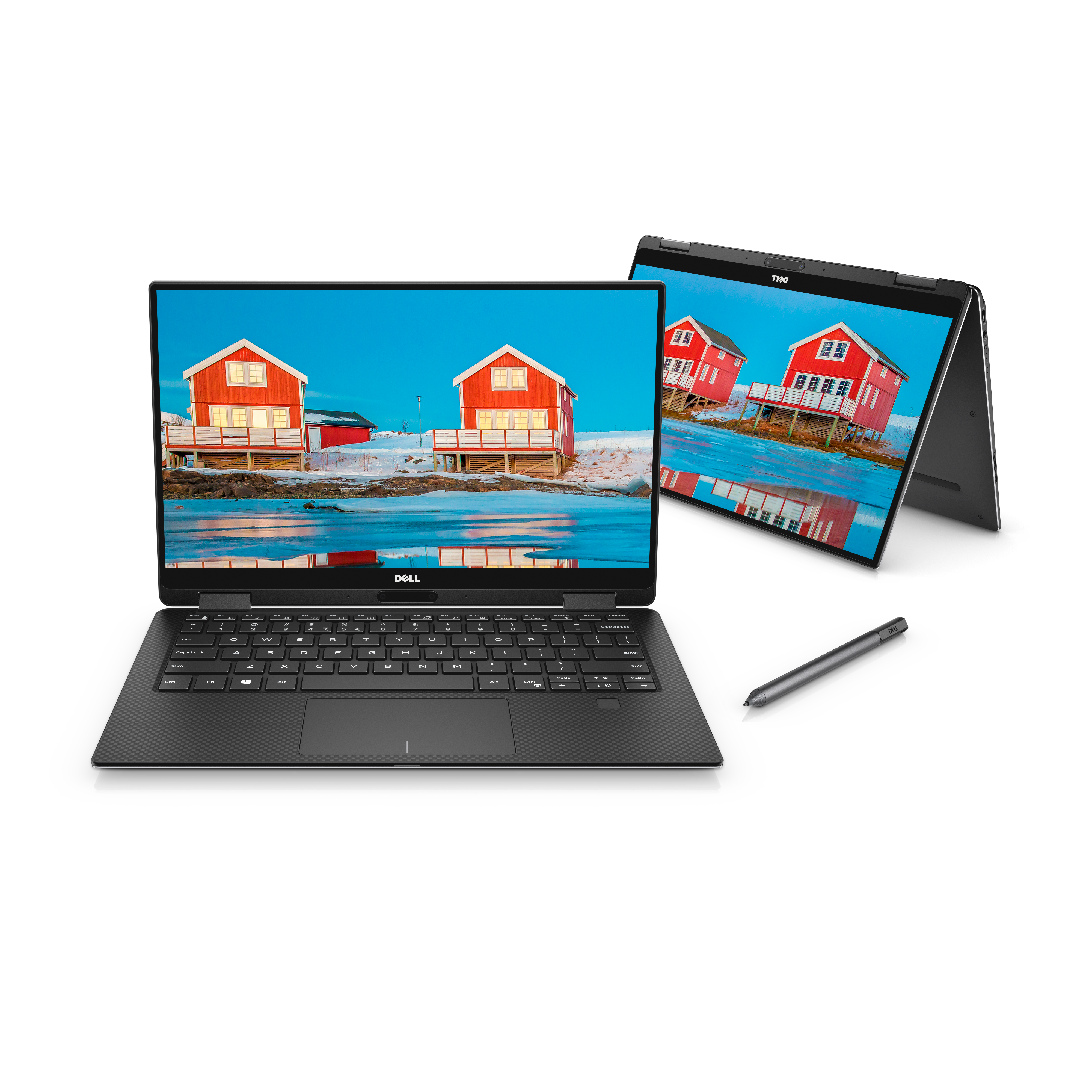
If you don’t want to spend an incredulous $329 for a basic iPad but still want a tablet and don’t mind the extra weight, head for the 2-in-1 laptop aisle. A 2-in-1 laptop has a screen that swivels so you can use it for either a traditional laptop with a touch screen or as an iPad-like tablet. They come in several sizes, including a 14-inch and even a 16-inch display. Larger displays weigh four or more pounds. HP and Dell have nice ones for about $450. The 2-in-1s are handy for drawing. Two-in-ones start at about $400 for a 14-inch model and soar all the way to $2,000 and more. A 2-in-1 with my specs would cost about $800 from Dell, HP or Lenovo.

Microsoft makes its own Windows laptops that seem to be taken from the Apple playbook. The Surface, which looks like a high-end HP or Dell, is thin and light (2.8 pounds), but its entry-level 13-inch model, with 8 gigs or RAM, starts at $900; beefier models run up to $1,600. The Surface Pro, which is an overpriced tablet, starts at $850. The entry-level model, like the MacBook, is underpowered and has limited memory. If you want to use the Surface Pro as a laptop, you’ll need a  keyboard, mouse and stylus bundle that ups the price by $280.

When I tallied it up, I couldn’t see spending that much on something I could get elsewhere for one-third of the price. There was one more turn-off. The Surface Pro seemed cheaply made. Even the packaging was a poor imitation of MacBook packaging. A Surface Laptop with my specs would cost $1,400.

Decision time

Since I already have a lightweight MacBook Pro, weight is not a consideration. Laptops from Dell, HP and Lenovo start in the $600 range for my specs and rise to the stratosphere. As in $2,000 and more. I chose the Lenovo IdeaPad 5 Slim because it has a useful variety of ports and a numeric keypad on the right side. The touchpad is sensitive, and I use the touch screen more frequently than I had thought I would. Using the 50-minute sprint at JFK test, it’s too heavy to be portable. But it was on sale for a hard-to-pass-up $500, with free two-day shipping, reduced in a flash sale from $824. It checks all the boxes; no compromises here. 

There are other laptop brands, such as Asus, that are worth considering, too. But at the end of the day, I like the  Lenovo’s combination of speed, build and features. Do I need all these features? I could spend hundreds more for models that I need like another hole in my head.

Apple

Pros

  • Solidly built
  • Decent keyboard
  • Backlit keyboard
  • Air model is very light
  • Great deals on previous models
  • Good tech support
  • AppleCare + covers accidental damage
  • Battery charge lasts for up to 18 hours
  • Free express shipping

Cons

  • Expensive, even for entry-level models
  • Underpowered entry-level models
  • Essential upgrades expensive
  • AppleCare+ is expensive
  • Only two USB-C ports
  • No touch screens

dell

Pros

  • Competitive prices
  • Solid warranty
  • Premium tech support is very good
  • Durable
  • Upgrades won’t break the bank
  • Free 2-day shipping

Cons

  • 2-in-1s are heavy
  • Some laptops have annoying glossy displays that reflect user’s face
  • Lesser models don’t have touch screens or fingerprint readers
  • warranty can be expensive

Lenovo

Pros

  • Solid build
  • Offers less-expensive AMD processors
  • Almost-clicky backlit keyboard
  • Relatively inexpensive for upgrades
  • Touch screen and trackpad sensitivity can be adjusted
  • Inexpensive warranties with accidental damage
  • Free shipping
  • Lots of ports
  • Flash hundreds-off sales

Cons

  • Matte display is on the dim side
  • Relatively heavy for 16-inch model
  • Confusing lineup for models
  • Tech support ranges from mediocre to awful

Summary
Yes, Virginia, there is a $600 laptop… if you know what you need and when to jump on a sale.

Tech Specs
MacBook Pro M2 (2022) – 13.3-inch screen; 8 GB RAM; 256 GB solid-state hard drive

Lenovo IdeaPad 5 Slim

Today’s Lesson in Sharing

One Monitor, Keyboard and Mouse for Two PCs.

I have a MacBook Air and a Dell PC, along with a stunning 27-inch Dell monitor and an expensive Logitech gaming keyboard and a mouse that I want to share with both computers. Possible? Onward. And it will save you from squinting at a 13-inch MacBook Air display, not to mention having to buy another monitor, mouse and keyboard.

One Monitor, Keyboard and Mouse for Two PCs.

I have a MacBook Air and a Dell PC, along with a stunning 27-inch Dell monitor and an expensive Logitech gaming keyboard and a mouse that I want to share with both computers.

Sharing components will save you from squinting at a 13-inch MacBook Air display, not to mention having to buy another monitor, mouse and keyboard. It may sound intimidating, and you always could buy another monitor, keyboard and mouse. My monitor cost $600; the mouse costs $60 and the keyboard $130. You’d also need a stand that holds two monitors. Figure another $75 for that.

Here’s how it’s done:

Your monitor, PC and MacBook must have HDMI ports.

For the Mac you’ll need an HDMI to USB-C adaptor ($10 on Amazon).  This assumes that your MacBook only has USB-C ports. If you’re using a second Windows PC, you’ll need an HDMI port on that as well.

Then you’ll need a two-port HDMI splitter ($10). You’ll need three HDMI cables ($8 each). The main cable goes from the monitor to the splitter. Then install the other cables from the output ports on the splitter to the HDMI ports on both of the computers.

Most HDMI splitters have a button that switches between each computer. That’s crucial, too. Press one button and the display goes from the Mac to the monitor. Press again, and the monitor switches to the PC. If you want to work on both computers at the same time, you’re probably out of luck. (Readers, if you have a solution, please let me know.) One solution is to get Parallels Desktop for the Mac (reviewed here), which can run both Windows and Mac OS at the same time.

Next, you’ll set up mouse-sharing.

You’ll need a two or three-port USB 3.0 splitter (about $15 on Amazon. Many models come with two cables). I use a wireless mouse, but a wired mouse would work fine, too. Plug the wireless mouse dongle into an input port on the splitter. And then plug cables to both the PC and the Mac. USB ports.

You’ll save a lot of money sharing components. But you’ll also clutter up your desk with cables and switch boxes. But that’s what sharing is all about.

Pros

  • Easy to set up
  • Giant costs savings

Cons

  • Lots of cables clutter your desk.

Summary
With a small investment you can share your printer, monitor and more between your two PCs running either Mac or Windows OS.

Tech Specs
Dell or other PC running Windows 10 or 11
Monitor
Any kind of second computer — Mac or Windows PC
If Mac, OSX and up
3 HDMI cables
3 USB 3.0 cables
HDMI two-port splitter (at Amazon)
USB 4-port splitter (at Amazon)

How to Create Memorable Photo Albums

Sunrise, sunset, iBooks, Mixbook

Cleaning the garage has never been at the top of my list of fun things to do, which is why I haven’t done it in decades. The garage was dusty and crowded and the heaviest boxes tend to be on top of other boxes. Despite several moves, when I should have gone through the mess, boxes were stacked to the rafters without obvious labels or any sense of organization. But there is one reward: discovering hidden treasures.

Sunrise, sunset, iBooks, Mixbook

Cleaning the garage has never been at the top of my list of fun things to do, which is why I haven’t done it in decades. The garage was dusty and crowded and the heaviest boxes tend to be on top of other boxes. Despite several moves, when I should have gone through the mess, boxes were stacked to the rafters without obvious labels or any sense of organization. But there is one reward: discovering hidden treasures.

My 40-page book cost less than $100.

Nestled among the 10-foot-high mountain of junk that was ultimately hauled away in a truck were boxes full of my early writings. There were novels and short stories I’d long ago forgotten, along with letters from my father in which he wondered why it got so cold in Minnesota, where my parents lived. There were boxes full of my children’s drawings and other art projects. I let my kids choose what they wanted to store in their own homes, and packed the rest into plastic bins.

And then the fun began. 

When the dust settled, I found a box in a corner that probably hadn’t been opened in 70 years. After my wife’s father passed away, his wife gave us the box, unopened. We hadn’t been curious enough to open it ourselves. Until cleaning day. 

When I opened the box, there were a half-dozen photo albums of people my wife only vaguely could identify. Reels of home movies (that we’re going to digitize on DVDs) were stacked neatly, along with copies of Life and Look magazines from the 1950s and ’60s that are probably worth something now. But it was the bulky photo albums that most intrigued us. 

Instead of identifying the people in the pictures on the front of the photos, it was the custom decades ago to put notes on the reverse sides, and then gluing them onto the album pages. Since most of the photos were unidentified, they had to be gently pulled off each page in hopes that the people’s identifications and dates the photos were taken were on the flip side. In many photos, that information was missing. Some of the notes were illegible because the writing was destroyed when the photos were pulled off the pages. Some had no information at all. My wife’s grandparents, along with her siblings, were easily identified, but for some, she had to guess. There was no one living who could identify them. Fortunately, she did find a picture of her namesake and great-uncles and great-aunts. But the real bonanza was a whole area of the box that had loose photos of relatives that hadn’t made it into the albums. Amazingly, they were in good shape, and many  were identified. 

And then I realized the folly of what we had been doing with our family’s photos all these years. Most of our album photos of kids and relatives have no identification, which would cause our descendents great confusion. We know who they are, of course, but would a great-great-great grandchild be able to figure out the priceless photos of my Polish and Russian grandfathers, especially the one that was taken at a sibling’s bar mitzvah in 1953?

The solution to this dilemma, of course, is technology. And even though what comes next is time-consuming and requires some new hardware and software, it’s not expensive and can result in attractive and functional photo albums. Newbies shouldn’t be discouraged – it’s not as difficult as it might seem.

Here’s how it’s done. 

First, your photos need to be scanned. I use an Epson wireless scanner (model ES-500W, which costs about $350 on Amazon). The scanner also can be used for documents, such as financial or real estate documents. Other, less-expensive models also are available. Just be sure that the one you choose has an automatic document feeder and can scan “gray-scale” in the “jpg” format at 600 dpi. Sounds complicated, but the free software that comes with the Epson scanner makes those choices simple, even for newbies. I like wireless scanners, since they can be placed away from the computer.  Scanners using the familiar USB cable can be used, too. I’ve had other scanners, but I’m a fan of Epson products. They’re reliable and of good quality. I’ve used my scanner for six years and thousands of scans without a problem.

Each photo is placed face-down in the scanner’s document feeder and once it’s scanned, the file must be saved and named. Naming them is crucial, as I’ll explain later. It’s best to save the photo files to a folder you create on your desktop. With the Epson software, once you choose that folder, subsequent scans will be saved into it automatically. Each scan takes about 20 seconds, depending on the size of the photo.

Once you’ve scanned your photos, you’ll need to choose software that will help you create albums. There are several good choices. Up until a few years ago, I used an Apple program called iBooks Author, which was very easy to use. Alas, it’s no longer available. It wasn’t available for Windows PCs.

Now, if you use only a Mac, albums can be created within the iPhoto app. There are three to choose from, and I didn’t like any of them. Working with them is confusing. After crossing them off my list, I looked for album tools that would run on both Windows and Mac computers. There is no shortage of them. Many, such as Snapfish, offer deep discounts, are easy to use and produce great-looking albums. I settled on Mixbook, since its interface is intuitive and its tech support is outstanding. 

The Mixbook album tool is located at www.mixbook.com . The day I started making my album, they were offering a 35 percent discount. 

First off, I had to pick a theme, such as birthday and just about any other occasion. I chose a blank one, since I didn’t want to be tied down to one theme. Choosing the size of the album is next. I chose an 8×11 inch landscape (11 inches wide) format, with lay-flat pages and semi-gloss paper. Bigger and smaller formats are available, too. I like the lay-flat format because the album’s binding doesn’t get in the way of flipping pages. One photo can span two pages in the flat format, making for stunning whole-family portraits. Book lengths from 20 to 99 pages are offered. Each page over 20 costs $1.50.

After making your choices, photos are dragged and dropped into a window, and after that, they’re placed on pages. Thumbnail photos are shown in the left pane of the album creator. You can choose how many photos will be on each page. You also can put a caption on each photo, which is why the photo scans must be given a description, such as “Two Zaidies 1953.”

Pages can be added and moved around at any point. It’s that easy. If you need help, Mixbook has an excellent online chat function.

My 40-page book cost less than $100 – hundreds less than if I had gone with a professional album-producer. Besides my old photos album, I’m working on our current family albums. It’s more fun than it seems because of the memories the photos evoke. I hummed “Sunrise, sunset” while creating albums until my family members urged me to stop.

Again, don’t be intimidated by this. I’m fairly new at creating albums. My 40-page album took a few Sundays to scan dozens of photos and create the album. You might want to start scanning photos a few at a time when you have a few minutes, rather than scanning them all at once. As far as the scanner goes, the investment may seem high, but I use it to scan all my financial records, too.

The finished album arrived in less than a week, and it’s beautiful. My grandchildren are mesmerized by photos of their forebears. Imagine how appreciative your great-great-great -grand children will be when they find the hidden treasures of your family albums. And they’ll know who everyone was. The albums are great gifts, and they’re small enough – unlike bulky albums of yore – to be stored inside the house, instead of in a dusty garage.

The Gadget Man Abroad

Must-have gadgets for a trip abroad

I write about computer gadgets and software, so talking about seats that recline into beds might seem incongruous. But hear me out. On the two airplanes I took – the  double-deck Airbus A380-800 and the Boeing Dreamliner – the gadgets amazed me. There were 15-inch touch-screen TV monitors and Bose  sound-canceling headphones on the Lufthansa segment of my trip. A diagram on an arm rest guides you through positioning the seat just right. A removable remote allows you to operate the monitor, find soundtracks for all genres of music, and even play video games. Leg room is endless and the airlines even include slippers, a blackout mask and toiletries in a designer travel case. But it’s the seat-beds that sold me. With a touch on a screen, the seat converts into a bed, a comfortable one at that.

Must-have gadgets for trips of a lifetime

It’s been my dream after eight trips to Europe, Asia and the Middle East to fly first class or business class instead of suffering through 10 to 16 hours banging my knees against the seat in front of me in economy. During my latest trip abroad, I finally got to see what was behind the curtain in front of economy on a Boeing Dreamliner.

Packing wisely

It was everything I dreamed of.

Cabin service is impeccable. Food is plentiful and quite good and it’s served in china on starched linen.  The comfort level is without compromise.

I write about computer gadgets and software, so talking about seats that recline into beds might seem incongruous. But hear me out.

On the two airplanes I took – the  double-deck Airbus A380-800 and the Boeing Dreamliner – the gadgets amazed me. There were 15-inch touch-screen TV monitors and Bose  sound-canceling headphones on the Lufthansa segment of my trip. A diagram on an arm rest guides you through positioning the seat just right. A removable remote allows you to operate the monitor, find soundtracks for all genres of music, and even play video games. Leg room is endless and the airlines even include slippers, a blackout mask and toiletries in a designer travel case. But it’s the seat-beds that sold me. With a touch on a screen, the seat converts into a bed, a comfortable one at that.

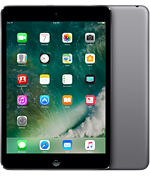
Somewhat puzzling, missing were electrical outlets, wi-fi and USB ports.  But I hardly missed them, focusing instead on a book stored on my iPad Mini. Purists might choose one of Amazon’s Kindles, such as the Paperwhite ($129) for reading books, but I brought along a  refurbished iPad Mini 2 ($209 at Apple.com), since it would allow me to use wi-fi for email and the Internet at the apartment I rented.

I also brought along a Lumsing battery bank ($25 on Amazon) that has the capacity to charge an iPhone 6 up to six times and an iPad Air 2 up to two times, according to its product description.  Be sure to get one rated at 15000 mAh (milliampere hours) or higher to get the maximum number of charges. The model I bought has five USB ports that charge both phones and tablets; the ports are labeled for the voltage requirements of  each device. Sounds confusing, but think of a portable battery bank as the battery in your car, except this one weighs less than a pound.

If lugging around another pound in your carry-on is a deal-breaker, I  recommend getting an outlet adapter with USB ports that will charge at least two devices directly from a power outlet. And don’t forget: foreign countries have different electrical outlets from U.S. outlets. They can be bought inexpensively on Amazon  just by searching for the countries you’ll be visiting. Apple makes a collection of seven adapters that work in Europe, Australia, Korea, Hong Kong and Brazil for about $40, less at http://www.bestbuy.com.

If you’re bringing multiple devices that require different charging cables, go for a charging station.  It plugs into an electrical outlet and some feature charging cables for lightning, Android and older Apple devices. Amazon sells dozens of different models starting at $15. Again, you’ll need a country-specific electrical adapter in order to use the charging stations.

If you just want a USB charging bank, there are dozens that feature six or more USB outlets. I like the ones that have multiple connector cables (described above), since they negate the need to bring individual charging cables. The downside is charging stations tend to be heavy and bulky.

If you need to make phone calls home, I like the MagicJack Go device that works on wi-fi. You get a U.S. number, which the folks at home can call at no charge. And you can make calls to U.S. numbers at no charge. The device fits in a shirt pocket and costs $35, which includes a year of service and is available from www.magicjack.com.

Another, more practical way is T-Mobile’s international plan. For $15 a month you get unlimited data and messaging. Both incoming and outgoing calls cost 20 cents a minute. Calls are free if they’re made on a wi-fi network. When you return home, the service can be canceled. If you don’t buy the international plan, calls cost $2 a minute. (www.t-mobile.com) . Or you can rent a phone that gives you unlimited calling within the country you’re visiting. SIM cards for international use can be purchased, too.  I like the information in this article: http://www.nytimes.com/2015/06/21/travel/how-to-pick-a-cellphone-plan-for-traveling-abroad.html?_r=0.

Guide books, such as the ones Fodor publishes, tend to be heavy and have small print. If you’re lugging suitcases on trains, buses and airplanes, you might want to download Kindle versions of guidebooks. They’re cheaper and the type size can be customized. Search for the books at http://www.amazon.com. They’ll work just fine on tablets as well as Kindle devices.

My kids occasionally visit my home when I’m gone to check things out, but there is a 24/7 ways to secure our house when they can’t stop by. Ring, which is a doorbell with a built-in fish-eye camera, notifies you whenever someone is at the door, whether or not they ring the bell. Half-way across the world, I was able to see, on my phone and tablet , who approached the door, and I could even hold a two-way conversation with them. In case you’re not near your phone, a paid service will keep video footage in the cloud of people who approach the door.  I used it several times a day. While there were no scofflaws attempting to break in, I was able to greet my sons when they came to wash clothes and raid the refrigerator. The doorbell, available at http://www.ring.com, costs $200. Ring makes other security devices, such as the Stick Up Cam ($199), which provides surveillance from other areas around the house.

Another security service, alarm.com, lets you turn your home security system on and off remotely. It’s a handy feature for times when a maid, for example, needs access, and you’d rather not give the maid the key. When the work is completed, the maid calls you, and you can arm your security system again. I pay $10 a month, on top of the $50 a month for security monitoring. Alarm also makes more sophisticated devices, such as ones that do video monitoring.

My trip abroad was full of pleasant surprises and random acts of kindness from the natives. The flight was great, the people I met were amazing and by doing some research and planning, I was able to keep tabs on my home, use my electronic devices and communicate with people at home and abroad. Then there were those seats that turned into beds. A gadget lover’s Dreamliner.

Firing the Fire TV

Never get streaming mad again

The first corollary of Murphy’s Law is that gadgets fail when you need them most. The second corollary is that their manufacturers release their gadgets before the bugs are worked out. And the third corollary is that they don’t  let their offshore techis in on the secrets of dealing with the bugs. So it is with Amazon’s Fire TV Second Generation and Logitech’s otherwise smart Smart Hub universal remote.

Never Get Streaming Mad Again

The first corollary of Murphy’s Law is that gadgets fail when you need them most. The second corollary is that their manufacturers release their gadgets before the bugs are worked out. And the third corollary is that they don’t  let their offshore techis in on the secrets of dealing with the bugs. So it is with Amazon’s Fire TV Second Generation and Logitech’s otherwise smart Smart Hub universal remote.

If it ain’t broke, don’t fix it.

Logitech says the Amazon Fire TV is compatible with its hub remote, but after a long and exasperating call to Logitech tech support, they conceded that the $100 second generation  Fire TV wasn’t, at the time,  compatible with its hub remotes. So why did their  website list the Fire TV as compatible? (A pause while I wait on hold.) That’s all I can tell you, the tech says. “But sometimes if you add and delete the device on your remote several times, it starts working. We will be having an update soon.” And sure enough, the update arrived.

And then, in the middle of this periodic screed, the Amazon apps on my Roku and the TV itself stopped playing audio. No matter how hard I tried to get audio through my surround-sound system, the only way I could get sound was through the TV’s speakers. So, a call to Amazon.

Amazon Tech No. 1 tells me to change the audio settings on my Fire TV. That worked for about a minute, then the speakers went silent.

Tech No. 2 tells me that the Fire TV senses that there is a recordable DVD (which I don’t have) or sound system and, to prevent piracy, shuts them down. There is no fix for that, he claims.

Tech No. 3 scratches his head at that, but can only offer what Tech No. 1 suggested. Same results: sound for a minute, then silence. I felt like a dog chasing its tail.

And now for the fourth corollary of Murphy’s Law: Just because a gadget worked before doesn’t mean it’s going to work later.

I had a perfectly good first generation Amazon Fire TV, but when I upgraded to a Super Ultra High Definition 4K TV, I wanted to take advantage of 4K streaming that Amazon offers. Since I couldn’t get sound out of the new device, I decided to reinstall the old one. And then I discovered Corollary No. 5: If it ain’t broke, don’t fix it. Not only couldn’t I get sound from the old Fire TV, the universal remote no longer worked with it.

 Amazon’s tech support may not be up to snuff, but their free return policy steps in where gadget freaks dare to tread.

I returned the Fire TV device and ordered an Amazon Fire TV Stick. If nothing else, I have retained an ounce of optimism where gadgets are concerned. The sound through my speakers works fine, my universal remote controls it perfectly and other than the fact that it doesn’t offer 4K resolution, it’s good enough. At $40, direct from Amazon, it’s a great deal. Endings can be happy, too.

Acronis Makes Backups Easy — And Saves the Day!

Cloning a hard drive beats backing it up

The project did not sound simple. I wanted to replace my legacy hard drive with a solid state drive, and I wanted to transfer all my applications, data and other files intact to the new drive. The traditional way would involve reinstalling all my applications to the new drive, copy all my data files to a USB drive and transfer them to the new drive – and hope it would work. It almost never does, since drivers – software that makes printers work, for example – don’t transfer without a lot of fuss. There’s a much better way; it’s called cloning, and Acronis True Image 2017 does its work without much fuss.

Just when I thought my files were lost, Acronis brought them back

The motherboard on my Dell XPS 8930 desktop had gone south. Since I have Dell Premium Support, a technician arrived with a new motherboard and power supply. He did a great job, except …

… the PC simply would not boot up into Windows the email I used to sign up for my Microsoft account was no longer valid. The Dell tech spent an hour trying to work around it, but it appeared all was lost.

Acronis Cyber Protect Home Office (Formerly Acronis True Image) and my diligence saved the day.

Since I use Acronis to back up my files, including the operating system, to an external 5 TB hard drive, and I do that backup every night, all my data was there for recovery.

The program helps create a startup disk, which you can only do when the PC is up and running. Next I chose a full backup to the external Western Digital hard drive. I set backups for 2 a.m. each night, and that’s it.

When I thought all was lost, I used the Acronis rescue disk to boot up. A menu appears. RECOVERY was the operation I wanted. It took more than three hours to recover the C drive and external D, E and F USB drives. And then I booted up. Everything was there, just as it was at 2 a.m. that day.

Acronis does more than back up. Its utilities are user-friendly and useful.

Another option is cloning a hard drive. It works best when you’re replacing a hard drive. Since I had multiple hard drives, I used the simple back up program.

The Acronis software, is menu-driven and intuitive. If you get lost, its knowledge base at http://www.acronis.com.

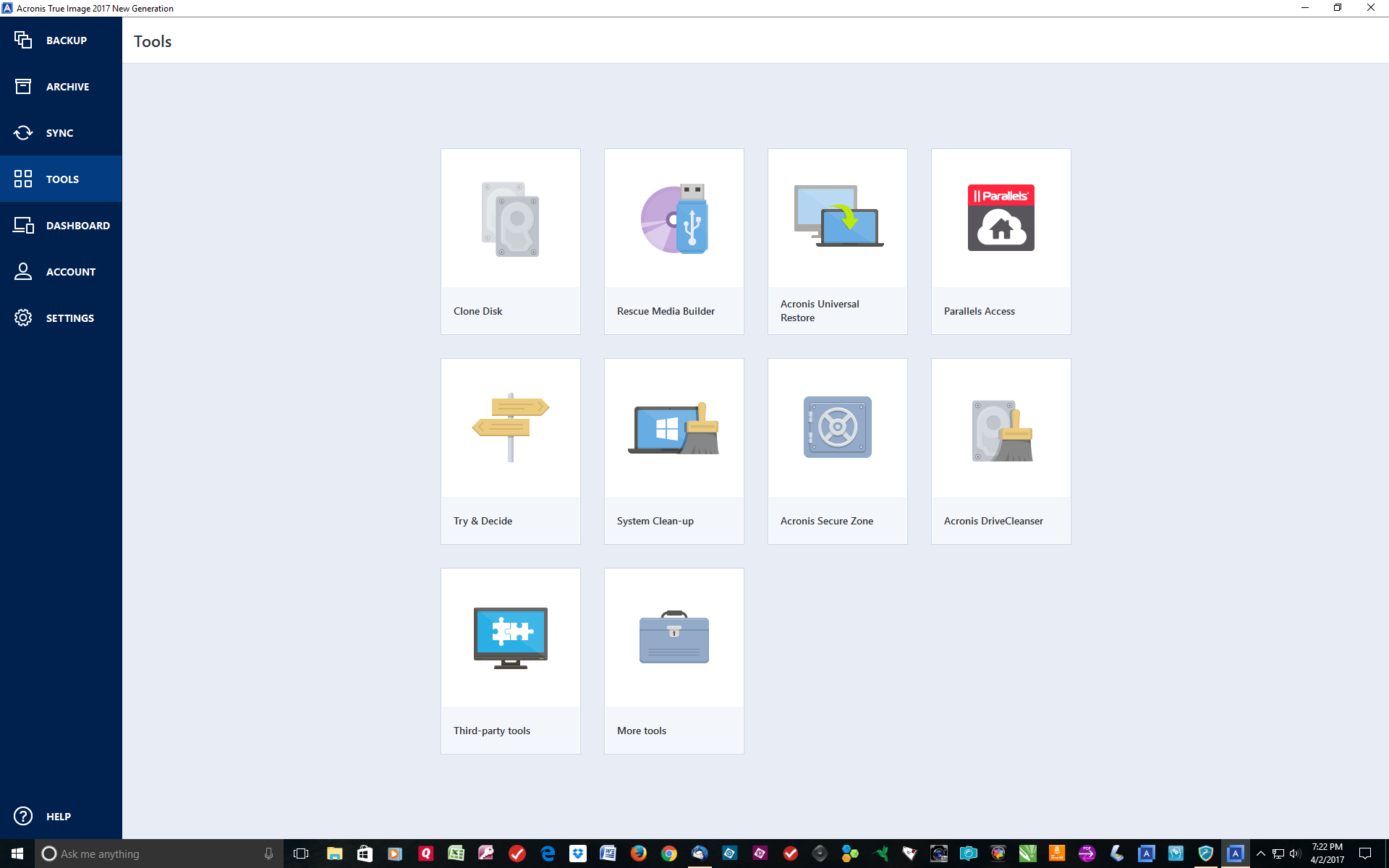
An interesting utility, Try and Decide, lets you open potentially risky email or visit potentially unsafe websites without worrying that hackers will take control of your computer. You open the risky email, then decide if you want to delete it without further harm to your computer.

Another utility, System Clean-up, removes all traces of your web surfing and program-launches. If you ask it to, the utility will wipe the free space on your PC’s hard drive. Yet another utility will wipe an entire hard disk clean.

Acronis promises protection of backups from ransomware. That ugly scam involves someone sending a message to an unsuspecting PC user that that unless he pays up, his computer will remain unusable. I’ve been there. It happened when I misdialed Dell’s support number and was routed to someone who held my laptop ransom – for $300 he would allow me to start computing again. When I refused, he threatened to release all sorts of bad things on my computer. I hung up and called Dell Premium Support. Fortunately, a Dell tech was able to delete any traces of the ransomware. Just to make sure the hard drive was clean, I reformatted the it, then used the original cloned hard drive to restore Windows and all my applications.

Acronis’s ransomware protector would be worth the price of the program if that were all that was offered. If I had it when pirates hijacked my PC, I could have saved many hours of tech support and reformatting. As added security, Acronis “notarizes” backups to ensure that they are not infected with viruses and other threats when the files are restored.

Backups of either the whole hard drive or certain files can be scheduled. Running those backups at night means a day’s work will be saved. Or backups can be run as you work. Some versions of Acronis come with cloud backup; those files can be shared with others, as long as they have your password.

Acronis, which works both with Windows and Macs, can back up the contents of a smartphone. If you have iCloud or a similar backup service, the Acronis backup would provide an extra layer of assurance. I

Prices range from $50 to $100, depending on the number of Windows or Mac computers you want to cover and whether you want cloud backup. http://www.acronis.com

Tech Support Report Card Time

Happy trails, technophiles

Generally, I’ve seen tech support improve over the years – with a few exceptions. Minimum requirements should be toll-free support, knowledgeable and understandable techs and support beyond the first year. Before I buy anything, I check out their support. Are hold times long? Can I understand the tech? Are they familiar with their product? And most of all, can they solve a problem quickly and efficiently?

Happy trails, technophiles

It’s time for my semi-annual roundup of technology tech support. I’ve added a few companies, dropped a few because I no longer use their products and expanded those that I still use.

Acronis: This excellent disk-cloning and backup program (full review here) offers toll-free and no-fee tech support. Techs are offshore, have a comprehensive knowledge of their software, listen carefully and follow up by email after the initial call. Grade: A+

Amazon: Toll-free support features excellent tech support and customer service. By answering a few questions online before you call, the tech knows who you are and your issue. Solutions come fast and reimbursement for returns often comes the same day the return is picked up by UPS. Some returns, such as ones that involve changing your mind about a purchase require a return fee, which is only fair. Grade: A+

Apple and Dell lead the way

Apple: U.S.-based support is unfailingly excellent. Hold times have gotten longer, but you get the option of the kind of music you want to hear; you can get silence, too. Grade: A+

Brother: I’ve had problems with wireless connectivity, and Brother always is on hand to help solve the issues. My large Brother laser printer is a real workhorse. Techs are knowledgeable and helpful. I’d give Brother an A-plus if it weren’t for the wireless problem. Grade: A

Crutchfield: This company sets the standard for tech support and buying experience. Their folks are knowledgeable and helpful, never try to up-sell and offer tech support on everything they sell. A speaker I ordered came with a small dent; a new one came three days later. If you’re looking for just about any electronic purchase such as a flat-screen TV, Crutchfield support techs will help you find it. Grade: A+

Dell: I’ve had my issues with the computer maker’s basic tech support, which is pretty awful. Dell probably makes its money on service plans; a one-year Premium support contract costs $129 for the first year. Absolutely worth it. They make great products and back them. I’ve been buying Dell PCs and laptops for years and seldom have a problem . I’d give them a solid A if it weren’t for the awful free support that comes free with their computers. Grade: A-

Epson: In the unlikely event you’ll ever need tech support, you can count on Epson’s free support techs to solve the problem. I have an Epson scanner and a color inkjet printer (which I wrote about here). The scanner has been used on thousands of documents with very few paper jams. The printer sometimes loses its wireless connection, and the techs figure it out. Grade: A

Honeywell: I’ve had no end of problems trying to connect a Honeywell’s wireless thermostat to my wifi, and their techs often can’t solve connectivity problems. I finally figured it out, and now the thermostat works as advertised. I replaced a dependable low-tech thermostat with the high-tech wireless model, which can be programmed from a tablet or phone wherever there’s a wireless signal. All things considered, I should have stuck with the low-tech model. for a complete review, click here. Grade: A-

LG: Seven years ago, I paid more than $2,000 for LG’s mid-range high-tech washer and dryer, only to see the washer fail only months after it was installed. Techs from the factory fussed over the failed part, and the replacement didn’t fit right. Several years into its service, the labels that indicate cycles simply faded off. LG’s offshore tech told me it was a cosmetic issue, and would involve a $250 service call and another couple hundred for a new front panel – which eventually would lose its lettering, too. To spend that amount of money and not know which cycle I’m on is unforgiveable. The original washer was unusually noisy; the dryer rattled. Neither machine has much in the way of noise insulation. Now the good news: My new high-end washer and dryer have been upgraded in every way. They’re quieter, more energy-efficient and some some wash cycles can finish in as little as 29 minutes. Grade: Three months into the new duo, and all is well.

Nautilus: I just bought an exercise bike from these folks, but before I placed the order, I spoke with a customer service rep, who patiently guided me through the options for what I needed and what I can afford. After two years of moderate use, the belt, motor and tensioner broke. All were covered under warranty, but it took a few months to get the parts. A Nautilus-approved repairman charged $139 to install the parts. So far, Grade: A for support; F for reliability.

Parallels: This software, which allows a user to run Windows or any other operating system alongside the Mac OS, is dependable, has a functional interface and is beautifully programmed. Tech support is superb. Grade: A+

Quicken: When I lost my main file for this money-management program, a tech stayed with me for more than an hour to get the file back. I was left wondering whether another tech could have solved the problem quicker. Long hold times, but support for upgraded versions of the software such as Premiere, is free. Over all, tech support is spotty, ranging from OK to awful. When the initial tech can’t solve the problem, he’ll say that a second-tier support tech will call back in 24-48 hours, but they never do. Which is a shame, because the software itself is excellent. Grade: D-
Click here for a full review.

Refurbees: This company, which sells refurbished computers at bargain prices, failed to send me a replacement keyboard. But when I sent a PC back because I didn’t want it, the refund for the return (my dime) had a deduction for the original shipment. Dealing with their customer service was pleasant and efficient. Their wares tend to be a generation of two behind current models, so I’d check out refurbished computers from Dell and others first. Grade: B+

Roku: This streaming device now comes in a model that handles 4K resolution. The model I bought cost nearly $100, and I can’t tell the difference between it and the $40 streaming stick on my 4K TV. Free offshore tech support for the first year is fine – nothing to write home about – and usually involves resetting the device. Beyond that, techs often seem stumped by the problem. Grade: B-

Time Warner (Spectrum): I may be the only person on the planet who writes rave reviews about the cable company. Free tech support is excellent and they’ll send out a technician (with a one-hour arrival window) if there is (rarely) a problem. I have 300 mps wireless internet, phone service and TV service, and all work as advertised. Grade: A+

Western Digital: I have a MyCloud external hard drive made by WD, and I still can’t figure out how to use it, but it looks grand on my desk. Tech support, free for the first 90 days, is generally competent, but sometimes the tech gets impatient. Grade: C

Wix: I use Wix for one of my websites (www.helpware-online.com), and it took me less than an hour to build a home page. The templates are well done, and tech support via a massive knowledge base is so good that I’ve never had to contact a live tech. The price is right, too. Premium support is included in a $25 package, while other packages cost as little as $5 a month. Grade: A

Generally, I’ve seen tech support improve over the years – with a few exceptions. Minimum requirements should be toll-free support, knowledgeable and understandable techs and support beyond the first year. Before I buy anything, I check out their support. Are hold times long? Can I understand the tech? Are they familiar with their product? And most of all, can they solve a problem quickly and efficiently? Apple is a standout, Dell Premium support is catching up and if I could buy another washer and dryer other than LG, I would.

Happy hold times, technophiles.

The Nexbox Mini PC Punches Above Its Weight

A tiny desktop PC

On the one hand, for a desktop PC, it’s tiny: 5-by-5-by-1.3 inches, small enough to fit easily into a briefcase. It’s light, too – about two pounds. Despite its small size, it comes with 4 gigabytes of RAM, a 64-gig hard drive (expandable with a micro-SD card and even an attachable hard drive). It comes with Windows 10, has four USB ports, one of which is a high-speed USB 3.0. There also are an HDMI port (a  short cable is included), bluetooth and a VGA port. Both the HDMI and VGA ports are designed for attaching the Nexbox to a monitor or TV, and therein lies the other hand.

A tiny desktop PC

I have mixed feeling about the Nexbox mini PC.

On the one hand, for a desktop PC, it’s tiny: 5-by-5-by-1.3 inches, small enough to fit easily into a briefcase. It’s light, too – about two pounds.

Despite its small size, it comes with 4 gigabytes of RAM, a 64-gig hard drive (expandable with a micro-SD card and even an attachable hard drive). It comes with Windows 10, has four USB ports, one of which is a high-speed USB 3.0. There also are an HDMI port (a  short cable is included), bluetooth and a VGA port. Both the HDMI and VGA ports are designed for attaching the Nexbox to a monitor or TV, and therein lies the other hand.

The Nexbox is a fully equipped mini PC

The $183 PC has to be connected either to a TV or a computer monitor. If  you don’t have a monitor handy, like when you’re traveling, you’re out of luck. If you do have access to a monitor, you still have to carry the HDMI or VGA cable with you. You don’t have to carry a TV with you, however.

My full-size desktop monitor is connected to the PC with an HDMI cable, so I simply disconnected one end from the computer and attached it to the Nexbox. The picture quality on my high-end monitor was quite good.

You also have to carry either a bluetooth keyboard and mouse or ones than plug  into the USB ports. My bluetooth keyboard did not pair with the Nexbox, so I had to use one that attached to the box via USB.

The box has a quad-core Atom processor. It’s not very fast for much more than word processing and Internet. It has only the slower 2.4G wifi capability in a world where 5G is standard on most PCs. The 2.4G wifi makes loading web pages a bit slow, a deal-breaker in itself.

The best part of the device is it will handle a 2.5-inch extra hard drive, and USB drives can be added, too. But one screw on the bottom plate of the Nexbox wouldn’t move. Figure that the extra drive and plate that holds it in would add at least another pound. It would be bulkier, too.

Then I did the math:

Nexbox — $183 (on Amazon)
Portable bluetooth keyboard and mouse — $35
64-gig MicroSD card — $40
Extra hard drive — $60
VGA cable, if you need one for the monitor — $8

Or, about $300, and that doesn’t include a monitor. Using a TV would make that expense go away. A basic monitor costs at least $100 from Dell or HP. Then there’s the weight. With the box, attached extra hard drive, keyboard, mouse and cables, you’re on the serious side of 5 pounds. That puts it in the league of chrome books and basic laptops. A very basic laptop costs about $250 or less, while a chromebook, which the box most closely resembles, comes in at less than $200. Naturally, a laptop or chromebook already come with a built-in keyboard and a monitor. If you’re a Mac person, Apple’s Mini, which is similar in size to the Nexbox, comes with a 500-gig hard drive and a much faster processor for $500.

There are cheaper and smaller devices that compare to the features the Nexbox has; they start at less than $100 for a device that looks like an oversize thumb drive, and there are several in the Nexbox price range. I didn’t try any of the others.

So, what to do next? I have a serious case of buyer’s remorse, especially given the slow wifi speed and the extra peripherals I’d have to take with me on the road. It will either end up in my “why’d I buy this?” box, or it will be returned.

If you’re looking for a small, portable PC, get a chromebook or a laptop; if you like gadgets – and the Nexbox fits my definition of a gadget – something I can live without – you’ll love the Nexbox.

Should you buy a refurbished PC?

The best and worst ways of buying refurbished

Why not just buy a new desktop PC, laptop or tablet? Money. Refurbished computers cost  far less than new ones. If you know where to shop, you can save hundreds of dollars over a new one and get the assurances that large, reputable companies provide.

It depends on where you buy it, but even great companies sell duds

There are a number of ways to buy a refurbished computer. The definition of “refurbished,” however, can vary widely. It can mean that it was tested and cleaned to like-new condition and comes with a generous warranty. Refurbished computers can be bought online from reputable companies that buy older computers from large companies. Or they can be bought on eBay or craigslist from sellers who refurbish their wares in their garage.

Why not just buy a new desktop PC, laptop or tablet? Money. Refurbished computers cost far less than new ones. If you know where to shop, you can save hundreds of dollars over a new one and get the assurances that large, reputable companies provide.

Steep discounts on PCs

Let’s start with the worst way to buy a refurbished computer.

I’d like to think that sellers on eBay and craigslist are honest about what they’re selling, but that’s not always the case.

A friend got a great deal on eBay for a MacBook Pro. The seller said it had been refurbished and was spotless, that it had 16 gigs of RAM and was loaded with Office and other software. All true. He even threw in a copy of Windows so it could be used on a dual-boot system. But I’m wary of PCs than come with software you don’t have to pay extra for. It’s usually dishonest, and perhaps illegal. Sadly, after my friend spent $750 on the computer, it shut down when he was using it, and died only weeks after he received it. Turns out that the MacBook is a 2012 model, which in my book puts it well past middle age.

The seller didn’t tell him that, and the buyer didn’t ask. A new motherboard cost him $575. Add them together and he could have bought a later-model refurbished one at http://www.apple.com for less. Or even a new one for a few hundred dollars more.

Contrast that with the experiences I’ve had buying refurbished computers and iPads directly from Apple.

Apple tells consumers up-front that while some units were returned for mechanical defects, their products are tested to be fully functioning.  Their website always displays the manufacture date and a complete list of specs, such as RAM and hard drive capacity. The units are spotless. B-grade ones don’t make the grade at Apple. And they back their products with a one-year warranty, the same one that’s offered on new Apple products. That warranty can be extended with an AppleCare policy, which includes two or more years of parts and labor and access to Apple’s superlative tech support.

But not all big companies have the same idea of quality control. A refurbished Dell PC that I ordered last year arrived stone dead. I sent it back, and it was returned stone dead. Obviously, no one had bothered to turn it on. So much for Dell’s idea of quality control. It took months to get Dell to replace it. By then, any warranty that was left had expired. I was so disillusioned with the experience that when the working replacement arrived, I donated it to a school.

That takes us to companies that refurbish a variety of computers and peripherals.

The deal at refurbees.com was for a refurbished Dell 2-in-1 laptop/tablet for $229, complete with a stylus, wireless, webcam, 4 gigs of memory and a 320 gig hard drive. I was smitten. I’d always been curious about these 2-in-1s.

I upgraded the RAM to 8 gigs for $55 and paid $5 for a carrying bag. Refurbees offers a 90-day parts and labor warranty that can be upgraded to a year for $49. Shipping is free.

Refurbees buys used PCs in large lots from other companies, then offers steep discounts. It arrived within a week. It was spotless – no scratches on the screen or on the laptop’s body. It was hard to tell it from a new one, except it was old technology. I’d guess that it was manufactured in 2013. It was very slow and heavy and the wireless was very slow. Other than that, it worked fine. The battery held a charge, and the stylus was fun to play with. I wrote this column on the notebook part. If I have one nit to pick, it was trying to find the license key for Windows 10. There’s no documentation – you can get that online – but I finally found the key, which was in tiny characters on the bottom of the unit.

Refurbees’ stock changes daily. As I’m writing this, Refurbees is offering laptops and desktops from Dell, HP and Lenovo for about $200, some more, many less. They also sell monitors, RAM and hard drives. A 500-gigabyte solid state drive is selling for $85. And when their products aren’t in pristine shape, they say so by designating them as B-grade.

Sad to say, because the laptop was so slow and heavy, I sent it back for a refund – it had been fewer than seven days since it arrived. The return process was polite and efficient. I paid return postage.

If you want the latest technology, buying new makes sense. However, if you’re willing to settle for a computer or tablet from a previous generation, refurbished ones can be a great deal. Just be careful where you shop.

A Simple Key to Password Protectors

The Dashlane two-step

When it comes to cyber safety,  a second line of defense could make the difference between being hacked and surfing safely, especially if all it takes is a unique password and an inexpensive device called the YubiKey to keep consumers and businesses safe.

The Dashlane two-step

When it comes to cyber safety,  a second line of defense could make the difference between being hacked and surfing safely, especially if all it takes is a unique password and an inexpensive device called the YubiKey to keep consumers and businesses safe.

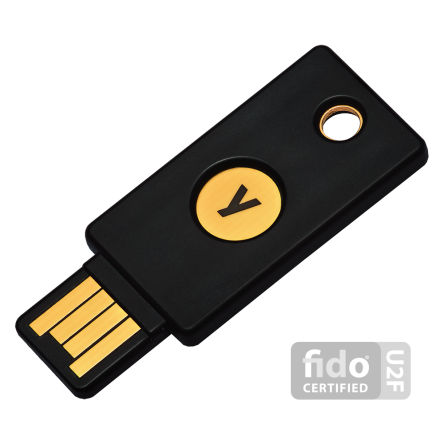
I’ve begun using the YubiKey, a slimmed-down thumb drive to complement my password program, Dashlane, which I use to manage all my sign-ons, user names and unique passwords.

YubiKey isn’t always reliable.

First, a word about passwords:

If you’re among the millions of  Americans who are victims of identity fraud, one reason you’ve been targeted is because the passwords you use are ridiculously easy to hack.  Anyone who uses “password1234” for all the websites he visits is asking for trouble. Without a second line of defense you’re toast.

A typical first line of defense is Dashlane, a password program I’ve been using for several years. Dashlane will generate passwords like “^%$3&0)(+” that are nearly impossible to hack. It also will keep track of the passwords you already use – but it will warn you that “password1234” will open you up to the kind of grief that will keep you on the phone for hours, probably days, trying to straighten out your financial and other accounts. If you’re wondering why Amazon is sending you receipts for stuff you didn’t order or receive, and the charges are showing up on your credit card statement, you’ve been hacked. Change your password, and do it quickly. In fact, let Dashlane do it for you. And let it generate new, unique passwords every week for all the websites you use.

You’re probably wondering how in the world you can remember a password like “^%$3&0)(+”. Not to worry. When you launch Dashlane, you enter a master password that only you know. If you forget that password, you’re in deep trouble, because even the folks at Dashlane can’t get retrieve it for you.

Dashlane records your passwords as you go along. It will remember your user name and password for Amazon, your bank and just about any other website. After that, you need only click on an impala icon at the top of your screen, scroll down to Amazon, for example, and it enters your user name and password and signs you in to the site. Dashlane can enter your credit card information – but only if you give it your master password – and fills out the blanks, such as name and address, in forms.

Dashlane can be installed and passwords synced on your Windows PC, Mac, phone and tablet. Each time you call up the program, you have to enter the master password, and each time a new device is activated you’ll get a code by email that will unlock the account. That’s enough to discourage most hackers, but, like any other security program, it’s not foolproof.

If you’re convinced that Dashlane is for you, there’s still the issue of the master password – what if it gets hacked?

The solution is two-factor authentication, a nerdy term that means you have a second level of security. That’s where YubiKey comes in.

Dashlane has partnered with Yubico, which manufactures a collection of USB keys that can be programmed easily to act as a second line of security defense. You can’t launch Dashlane or any other program or website without your master password and the YubiKey.

 If you don’t want to pay between $18 and $50 for a YubiKey, you also can download a free Google or similar authentication app for your phone and generate numerical pass codes to sign on to Dashlane. But I like the key — when it works, which in my tests didn’t always happen.

The YubiKey is  about the size of a very thin thumb drive. It plugs into a USB slot on  a PC or Mac, and when I leave my desk, I log out of Dashlane and take the key with me. Even if someone knows my master password, they can’t launch the program without the YubiKey. When I return to my desk, I type the master password, insert the YubiKey, tap on it, and Dashlane launches.

But after writing my initial review, I encountered problems with the YubiKey, and despite several sessions with tech support, the key still is flaky. A tech said they are working on the problem I’m having, but even a workaround Dashlane sent me didn’t solve the problem. I recommend using the phone app authenticator instead.

To get a free authenticator, go to your phone’s app store and search for “authenticator.”  After scanning a bar code that Dashlane and other programs provide, the Google authenticator generates a series of numbers that essentially do the same thing as the YubiKey does – unlock  Dashlane or other programs and websites.

The company says YubiKeys work with dozens of other programs and websites, including Facebook, Google, Symantec, Dropbox and other password programs such as KeePass. Dashlane has both free and paid versions; the latter has many more features. It costs $40 a year, and is well worth it. The YubiKey also is supposed to work with Android phones; an Apple version is in the works. Tech support is by email Questions are answered promptly. Solutions are another matter.

For more information, visit: www.dashlane.com and www.yubico.com.