
Mac on USB: A Step-By-Step Guide

Booting a Mac from a thumb drive

I had a goal in mind: Install Sierra, the latest Macintosh  operating system , along with essential email and other apps, on a USB drive, so that I could leave my MacBook at home, and just bring the USB drive with me when I go abroad. Once I had done that, I could connect the USB drive into any Mac with a USB 3.0 port and boot from the portable drive. I wanted to be able to use the host Mac without leaving any traces of my computing. A portable external USB drive or thumb drive weigh ounces; my MacBook Air, with a case, charger and other accessories, weighs more than six pounds. I try to pack light.

Booting a Mac from a thumb drive

“To my knowledge,” the senior support tech at Apple said, in answer to my question, “you can’t boot into an Apple computer from a USB drive.”

“Whoa. The Internet is full of ways of doing just that,” I responded.

“Good luck, then.”

A two-ounce Mac

I had a goal in mind: Install Sierra, the latest Macintosh  operating system , along with essential email and other apps, on a USB drive, so that I could leave my MacBook at home, and just bring the USB drive with me when I go abroad. Once I had done that, I could connect the USB drive into any Mac with a USB 3.0 port and boot from the portable drive. I wanted to be able to use the host Mac without leaving any traces of my computing. A portable external USB drive or thumb drive weigh ounces; my MacBook Air, with a case, charger and other accessories, weighs more than six pounds. I try to pack light.

It goes without saying, but I’ll say it anyway: Make a backup of your important files on a separate disk before you install any upgrade or downgrade.

One of the best tutorials for making a USB drive bootable is for Yosemite users only.  I followed a 14-minute YouTube narration for doing some of the most arcane moves I’ve ever done on a PC. The moves in disco dancing pale in comparison.

There are no guarantees in computing. The following, gleaned from http://www.macworld.com and several other sources, worked for me; I hope it works for you as well:

  1. Format a minimum 32-gig external hard drive or thumb drive. Memory is cheap; buy as much as you can afford. Make sure you format the drive Mac Journaled and the GUID partition part is checked. Change the name of the drive to Untitled.
  2. Check your Mac’s Applications folder to see if you have the Sierra installer. If not, go to the app store and download Sierra — but don’t install it. Put the installer in your Applications folder.
  3. Bring up Terminal (go to the search bar and type terminal to bring it up).

The following instructions are directly from MacWorld:

At the Terminal prompt, type:

sudo /Applications/Install\ macOS\ Sierra.app/Contents/Resources/createinstallmedia –volume /Volumes/Untitled –applicationpath /Applications/Install\ macOS\ Sierra.app

Terminal will ask for a password. This is your user password. Terminal doesn’t display characters when you type it in. Hit Return.

  1. Terminal will tell you that it will erase your drive. To confirm that you want to continue, type Y and hit Return.  
  2. You’ll see that Terminal erases your drive. When that part is done, your Mac may ask you if you want to use the drive for Time Machine. Click Don’t Use.  
  3. Terminal will copy the installer file to your drive. This will take a few minutes.  
  4. After copying, Terminal is done. You should see Terminal display a “Copy complete” and Done notice. You can quit Terminal and your drive is ready for use.
    Plug your external drive into your Mac
  5. Power up (or restart) your Mac. Press down on the Option key while the Mac boots.
  6. After a few moments, your Mac should display the Startup Manager, which will show you the available boot drives. Click on the external drive and hit Return. (You don’t need to select a network to proceed.)
  7. Your Mac will display an OS X Utilities window. To install Sierra and leave the data intact, select Install OS X.

By following MacWorld’s instructions to the T, I am now running Sierra from a thumb drive.

Computing in a Parallels Universe

Computing in a Parallels Universe

There are several ways to run additional operating systems on a Mac. Using Boot Camp, Apple’s free software, a Mac’s hard drive can be partitioned for Windows, then further partitioned for Linux, Google Chrome, and other operating systems, depending on the size of the  hard drive. 

Windows on a Mac (and a grab bag of techie goodies)

There are several ways to run additional operating systems on a Mac. Using Boot Camp, Apple’s free software, a Mac’s hard drive can be partitioned for Windows, then further partitioned for Linux, Google Chrome, and other operating systems, depending on the size of the  hard drive. 

As the Mac boots up, an operating system – Mac OS, Windows, Chrome or Linux – can be chosen from a list and loaded, but only one at a time.

Mac, meet Windows.

There’s a better way if you need to switch quickly among operating systems:

Parallels Desktop for Mac, an off-the-shelf software program that runs Windows and other operating systems alongside Apple’s operating system.

This year brings the 12th version – the 8th version I’ve used. If you’re unsure about updating to version 12, you might be interested in knowing that the newest version runs much faster than version 11. Windows boots up quickly, as do Linux and Chrome.

If you have enough RAM, you can run several operating systems at once in separate windows on the Mac desktop, without partitioning the hard drive.

Parallels runs Windows and other operating systems as virtual machines, calling on a Mac’s RAM to do its work. You’ll need about eight gigabytes of memory to run Windows on a Mac, although I was able to run Parallels on a MacBook Air that had only four gigs of memory. Parallels doesn’t recommend the lesser memory.

The new version works with Windows 10 and is compatible with Mac OSX Sierra.

It also has a grab bag of tools that makes running Macs more interesting. The most useful tool converts video from a smart phone to video that can be played back on a Mac. Another tool records screen shots and snapshots of the desktop. There also are an alarm tool, a clock and a stop watch . Version 12 comes with 500 gigs of free online storage (for a year).

Even though I’ve been using Parallels on my Mac for the past eight years, I’m still impressed with how easy it is to move files both ways, from Windows to Mac to Chromium, and back again.

Each operating system can be run as a window on the Mac desktop or it can fill the entire screen for a total operating system experience. For the adventurous, Parallels has download links for the free Google and Linux Ubuntu operating systems. I had four operating systems running at once on a Mac that has 16 gigabytes of RAM. The additional operating systems ran flawlessly – if a bit slowly – with Parallels. 

I’m downsizing my collection of computers and someday will be left with an iMac and maybe a MacBook Air, but I have software, such as Quicken, that I use only with Windows, and for that I need a Windows PC. Parallels lets me run Quicken on my Mac in a Windows environment. If I had older programs that needed earlier versions of Windows, I could install them as virtual machines, too.

It’s possible to run Windows 7, 8.1 and 10 alongside the Mac OS, Chrome and Ubuntu. It’s like having a row of PCs, with a Mac in the middle, each running its own operating system and software. Computing on multiple platforms doesn’t get much better than with Parallels.

An upgrade to earlier versions of Parallels costs $50. A first-time user of Parallels pays a reasonable $80 for the experience. Tech support and the online knowledge base are  excellent.

For more information, visit: http://www.parallels.com.

A Window into Parallels Toolbox for Mac

Parallels Just Got Better

If you’re using Parallels Desktop for Mac, which runs Windows concurrently with the Mac operating system, you may not realize that you also have a powerful set of tools to make computing a bit easier.

Parallels Just Got Better

If you’re using Parallels Desktop for Mac, which runs Windows concurrently with the Mac operating system, you may not realize that you also have a powerful set of tools to make computing a bit easier.

Utilities galore for Mac users who love Windows software

I have a high opinion of Parallels, including their tech support. In last year’s review of version 12, which is compatible with OSX Sierra, the latest Mac operating system, I described how I was able to run Windows 10, Linux and Chrome in separate windows on my Mac. Those operating systems are run as virtual machines. They consume memory, so the more RAM you have, the better. I have 16 gigabytes of RAM on my iMac, so I also could run Windows 7 and Windows 8.1 along with Windows 10, if I had software that was compatible only with those versions.

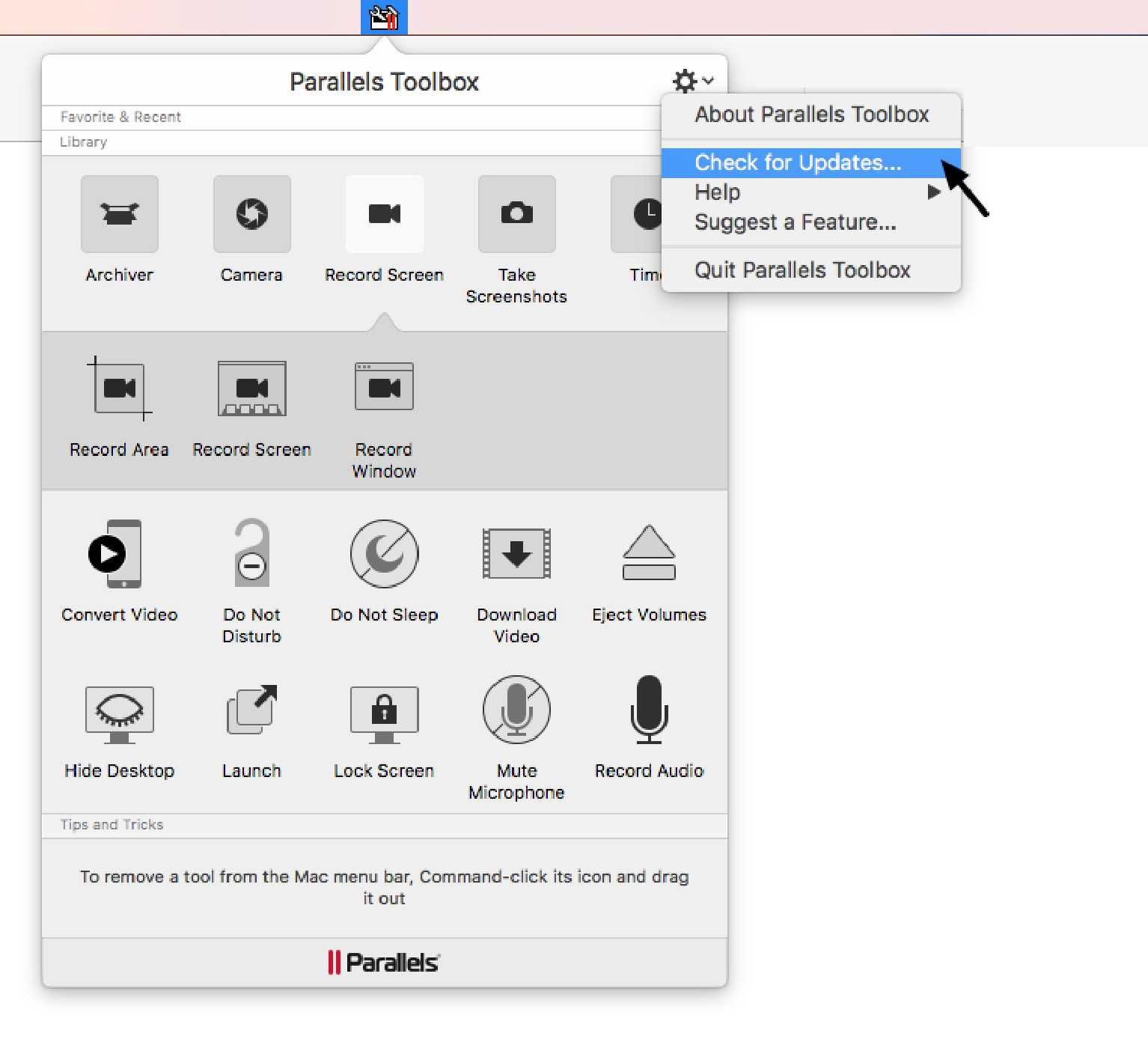
Just like you might organize your home or business equipment in a toolbox, Parallels Toolbox, which resides on the Mac’s menu bar, has more than a dozen utilities that I found useful. Here’s a rundown of those utilities:

Convert Video will take videos such as home movies or TV shows that are already on your Mac and make them compatible with an iPhone and iPad.

Download Video allows you to capture streaming video from the Internet and save the clips to your Mac.

Launch apps lets you drag and drop apps or files onto a window. Folders also can be opened by dragging them into the window. (Individual Toolbox utilities can be installed on the menu bar or dock for quicker access.)

Do Not Sleep is a simplified way to keep a Mac running all the time, without the screen dimming or having to type password to wake it up.

Screen Shots and Screen Capture: One click displays what’s on your Mac’s screen. Capture shows what’s running. Both are useful for helping tech support solve your problems.

Parallels includes top-notch tech support

Archive: Files that you want to keep, but don’t need at the moment can be dragged onto a window. Files can be compressed, decompressed and password-protected.

Time features an alarm clock, stopwatch, countdown and timer.

Do Not Disturb stops notifications and the bouncing icons in the dock when you don’t want to be distracted. Especially handy if you’re making presentations on your Mac.

Lock Screen is handy when you’re away from your desk or you want to stop someone standing over your shoulder from snooping.

Camera: The Mac’s built-in camera can be blocked, or it can be enabled to take photos and videos.

Hide Desktop will hide your folders and icons. Useful when you’re making a presentation.

There also are utilities for muting the microphone and recording audio.

Parallels Toolbox is bundled with Parallels Desktop version 12, so there is no extra charge for those users. For folks who don’t have Parallels, the app costs $10 a year. More information: http://www.parallels.com/toolbox. A free seven-day trial can be downloaded, too.

How to Easily Build a Powerful Website

What to look for in a hosting plan

A friend once suggested that I should build a website to post my columns, but for years I resisted, first of all because the Internet shouldn’t be boring. And second, because I didn’t want to learn “html” or CSS in order to build the webite. Those two programming languages are about as user-friendly to me as a doctoral dissertation on rocket propellant.

What to look for in a hosting plan

A friend once suggested that I should build a website to post my columns, but for years I resisted, first of all because the Internet shouldn’t be boring. And second, because I didn’t want to learn “html” or CSS in order to build the website. Those two programming languages are about as user-friendly to me as a doctoral dissertation on rocket propellant.

Before there was Facebook, there was the blog.

Still, it seems as if everybody has a blog, even though a billion-and-counting people  have Facebook accounts and other social media to post mundane details of their lives.

I’m not into Facebook, I don’t have much to say about anything other than technology and I simply can’t get myself motivated to learn even WordPress, a website-building program which people tell me is user-friendly. It may be friendly for other users, but  I’ve flailed about with WordPress, and like a person who’s drowning, I looked for something, anything, to hang on to. In short, a website builder that would be powerful, yet easy enough to help me design and manage my presence on the Internet.

I searched online for user-friendly website builders and found software with names like GoDaddy, 1&1, Weebly, Duda and dozens more. Each web-hosting vendor has its own software for building a website. Some are polished and easy to use; others are designed for people who design websites for a living – people who have mastered WordPress, for example. For folks who want to sell online, it’s important to ask vendors how difficult it is to set up a shopping cart.

I settled on InMotionHosting.com, which welcomes WordPress users, but has a companion program called BoldGrid that sits atop WordPress. Click on the “text” tab, and you’ll see incomprehensible code. Click on “visual,” and you see what that code looks like to browsers.

BoldGrid has dozens of templates for just about any kind of website, including the one I chose for mine. I bought a domain, http://www.helpware-online.com, for $15 a year, bought a basic hosting plan for $50 a year – a bargain – and went about the business of building a stunning site. But there were problems early-on. I couldn’t modify my logo. Changes that were saved mysteriously disappeared. Fonts wouldn’t behave. Importing graphics was challenging. I was on the phone with Inmotion’s 24/7 free tech support in the wee hours of the night. I needed something simpler, and found it.

At Wix.com, I found perhaps the most user-friendly website builder around. There are hundreds of templates, a gallery of images that seems endless, and best of all, the website builder is as easy to use as moving elements around with a mouse. Importing text and pictures is simple. The menus are intuitive. Whereas building a  home page in BoldGrid took me nearly two days, in the same amount of time, I built an entire website of eight pages with Wix. It looks pretty neat, too. For a few dollars extra, Wix lets you build an equally user-friendly e-commerce site, too.

Wix has both free hosting programs  (with ads) and premium sites. The kind of site I wanted costs $16 a month; less for yearly subscriptions. Unlike InmotionHosting, which includes email accounts in its package, Wix directs users to Google, which sells email addresses for $5 a pop, no pun intended. (POP is an email protocol that tells servers how email should be delivered.)

You’d be hard-pressed to find a phone number for Wix , but their contextual knowledge base is easily searchable and in my experience, covered almost every question I had. When I did have a complicated problem with my domain (www.helpware-online.com, I found Wix’s phone number by doing a Google search. The tech understood and solved my problem quickly. Hold time was about 15 minutes, but tech support is available for only a few hours a day, closed on weekends. It was closed on the Thursday before New Year’s Day, and wasn’t open again until the following Monday. For some reason, my website had crashed, so I was not able to fix it for five days. That’s unacceptable.

I was impressed favorably with InmotionHosting’s salesman – he didn’t try to up-sell me. He even threw in the first year’s domain registration for another website I want to build. I ultimately pointed my domain to Wix, which InmotionHosting’s techs helped me accomplish. In fact, they did it for me. Their tech team, in my experience, is outstanding, but it seems like some of them aren’t up-to-speed on the intricacies of BoldGrid, their website builder.

So, if you’re looking for a powerful website builder and you don’t mind a fairly steep curve, with WordPress functionality, InmotionHosting.com is very much worth a try. If, like me, you’re a novice and want to spend more time on content and less on struggling with design, absolutely go for Wix. Their website builder does most of the work for you, is easy to learn, and help is only a mouse-click away for Wix’s comprehensive support database. If, however, you need lots of hand-holding, InMotionHosting ‘s techs will help even in the wee hours of the night.

But wherever you decide to host your blog or website, choose one that has a website builder tailored to your level of experience, patience and needs. Folks who want to sell widget online have choices, too. Google “best website builders,” and research both the hosting company’s support and their software.  Price is also a consideration. One hosting site wanted nearly $400 for me to get online. Ask about whether email accounts are included, and how much traffic you get in the plan your choose. If you’re selling online, you’ll want all the traffic you can get.

You shouldn’t have to spend weeks building a website. With Wix you might only spend a few days to get it right.

Never Fade with Roxio Easy VHS to DVD

Don’t procrastinate! Easily digitize your home movies

Procrastination has its consequences, witness the dozen VHS tapes I should have digitized years ago. Now, many of them are faded. I am fearful that the films will tear before I can digitize them, and I’ll be left only with fading memories in my mind.

Don’t procrastinate! Easily digitize your home movies

Procrastination has its consequences, witness the dozen VHS tapes I should have digitized years ago. Now, many of them are faded. I am fearful that the films will tear before I can digitize them, and I’ll be left only with fading memories in my mind.

Roxio Easy VHS to DVD has the tools for transferring analog tapes to DVDs.

I remember somewhat fondly carrying a 10-pound camcorder on my shoulder and shooting hours of our life events: bringing home our first-born, his first steps and a classic watermelon competition when he was four years old. Our other children barely merited cameos until they were old enough to participate in No. 1 son’s watermelon-eating contest.

Digitizing those moments means I needed to get a device that will attach both to a VCR or other analog device and my Mac. There are several such devices. The $60 Roxio Easy VHS to DVD device for Mac and Windows suits my needs. Pinnacle makes a $60 Dazzle device, which I tried several years ago. Both work the same way.

Connect the video and audio out cables from the analog device, such as a VCR player, connect them to the transfer device, which consists of color-coded inputs on one end and a USB 2 cable on the other end. Plug the USB cable into a port on the computer, install the software, which is intuitive enough that you don’t have to read the short manual.

You then turn the VCR or other device on, click on the “record” icon on your PC, press “play” on the VCR, and you’re in business. Video footage is displayed in a window on the PC’s monitor. Scenes can be cut as they’re played. The device captures sound, too. Alas, my video cassettes have degraded to the point where the sound is great, but the images are grainy and oftentimes blurry.

The video footage can be burned to a DVD or exported to iMovie or other video-editing software, and then into an iPhone. The video-editing software is where the real editing and sound mixing are done.

I used Pinnacle Studio for the editing process, since I’m familiar with the program. I was able to sharpen images a bit, but sadly, unless there were closeups, movies shot at a distance still were blurry. My son’s graduation speech sounded great, but his face, shot at a distance, was not recognizable.

So, my advice is this: Even if you don’t edit the footage you import with Roxio Easy VDS to DVD, import your movies and burn them to DVDs, which the program almost does for you. You can always edit them later.

Importing from an analog device is in real time, so depending on how much space you have on your hard drive, you can run through all your tapes in as much time as you can spare, confident that you are at least saving them from the degradation that occurs as analog tapes get older.

I procrastinated writing this column, because I didn’t want to admit that I’d messed up. Spending $60 for a transfer device years ago in earlier versions and a few pennies for DVDs would have meant the difference between fading memories in my mind and fading movies.

 Procrastinating has its consequences, and the results aren’t pretty.

Good Deals on PCs without the Hassle

Buying a PC online can be challenging… Here’s how to get a good deal!

Buying a PC can be like buying a car. You can go to a dealership armed with information from the Auto Club about how much the vehicle cost the dealer. You also can blast dealers with website queries about their best deals. Armed with your research, you start playing the dealership two-step.

Buying a PC online can be challenging… Here’s how to get a good deal!

Buying a PC can be like buying a car. You can go to a dealership armed with information from the Auto Club about how much the vehicle cost the dealer. You also can blast dealers with website queries about their best deals. Armed with your research, you start playing the dealership two-step.

Based on your research, you make an offer, the dealer counters, and it goes back and forth for the better part of an afternoon. Or you can just pay sticker price, with add-ons such as fancy mud flaps, wheel locks, cargo tray, and special wax jobs for an extra $700 and drive away. I almost envy people like that.  No one gets insulted, and there’s no back and forth. But it’s just not me.

There’s always a salesman on a website who is hungry to meet his sales quota.

Buying a computer has many of the same elements. You can go to a big-box store and buy last season’s PCs at a discount, or you can pay nearly full price for the latest-generation processor. If you just need a PC for Internet surfing and word processing, last season’s PCs might be a great deal. Shopping online at manufacturers’ websites can be confusing, at best, even though all the specs are listed for their PCs.

I’m a shopper. It took me years to find a car salesman who gives me a set price, which is better than I could get anywhere else, and he doesn’t drive me crazy with expensive options like fancy wax jobs and mud flaps, wheel locks and cargo trays. He calls me every two years to see how I’m doing, I tell him what color I want, and counting drive time, in two hours I have the keys to the car I want. Since I’ve done my research, he always matches the best price I can get from other dealers.

You may not get that kind of experience from a computer website or a big-box store. Here’s a recent experience I had with Dell.

I chose to communicate by chat. I knew exactly what kind of computer I wanted, and asked the salesman for the best deal he could give me. After some haggling, and checking with his supervisor, he offered me 2 percent off, but only if he could call me. Against my better judgment, I gave him my number, and in a flash he had me on the line.

“I can only give you 2 percent off if you buy premium tech support, and I can give you that for $119 for two years.” I knew from experience that basic support is worthless. Techs are not knowledgeable, and if there’s a hardware failure, the PC has to be mailed in. But I tell him that he has to sharpen his pencil. “That’s the best I can do,” he says.

Undaunted, I have chats with two other salesmen. Same thing: 2 percent off, but only if he can call me. Each time, the salesman offered premium tech support for $119 for two years – and accidental coverage for another $58 for two years.

Finally, on the fourth try, I get the salesman I’m looking for. It’s one hour before closing time. Just as car salesmen have quotas to fill, I’ve found that getting a deal on a car is more likely at the end of the month. With PCs, it’s the end of the day.

“We have one model on sale for 15 percent off,” he tells me via chat.

“What’s the catch?”

“No catch. I’ll call you, if you wish.”

He introduces himself, and gives me the bottom-line price, which truly is 15 percent less than the online price. And then, it starts:

Basic support, which comes with the computer, offers only hardware support, no software support. Mail-in turnaround is at least two weeks. Premium support has 24/7 techs and onsite service for $69 a year, $119 for two years. “But you really should get accidental coverage, too.” “Do you need a mouse?” He has mice.” A carrying case?” He has backpacks, messenger bags – all kinds of bags. “You know, it’s always a good idea to have an external backup drive.” Yes, I know. “I can give you Microsoft Office for a special price of $299.” It’s the old custom mud flaps, wheel locks, fancy wax job routine.  But I’m not buying it.

I realize that Dell has cut prices on its PCs nearly to the bone – it’s the add-ons that put their ledgers in the black. I take the two years of premium support, the salesman sighs and takes my credit card. Before I give him my credit card information, I add, “Shipping is free, right?” He thinks about his commission and sighs again. “Right.”

I buy at least one computer each year, but only if I can get a major discount. When Amazon offers a one-day discount, I have a list of things I need, and take advantage of the offer. When Best Buy had an iPad Air on sale in a four-hour flash deal, I pounced. Each holiday season, Apple has a one-day discount on its products. Still, I have lots to learn about shopping. My daughter and her friends subscribe to websites that offer myriads of deals – especially steep discounts on air fare.

I’m not always a careful shopper. Sometimes, in my rush to buy something that could have waited for a special deal, I pay retail, tax and shipping. But I do know one thing: There is a salesman on a website who is hungry to meet his sales quota. He understands after a few minutes that I’m not about to pay for accessories that I don’t need. He makes his sale quickly, I’m a happy camper, and the economy just got stronger. It’s one reason why the Fed is so optimistic about the state of economy that it raised interest rates.